
Operating Cisco Routers and Basic Router Configuration
A router connects several physical links, LANs and WANs, and uses Layer 3 logic to choose where each packet goes next. Its CLI works much like a switch's. To make it route, give each interface an IP address and mask and enable it with no shutdown; show ip interface brief then lists every interface's address and status.
By Arif, founder of Daveth · Updated
The full 19 min walkthrough is in Daveth Pro (Network). See what the plan opens
What this page answers
How do you configure a Cisco router's interfaces?
In interface configuration mode, give each interface an address with ip address, address and mask, and enable it with no shutdown. Router interfaces are named after their fastest Ethernet speed, such as GigabitEthernet0/1. Read it in “Interfaces, addresses and no shutdown”
What is the difference between an enterprise router and a SOHO router?
An enterprise router sits at a company's permanent business location; a SOHO router sits at an employee's home or a small site, and almost always uses the Internet for its WAN, with several jobs in one box. Read it in “Not every router is this one”
A router for the branch
The branch lease is signed. It's the first Monday of month three, and Maya is across town in an empty office with two boxes: a router and a switch. Jo, who will run the branch, is there too, with a label maker. Jo labels everything.
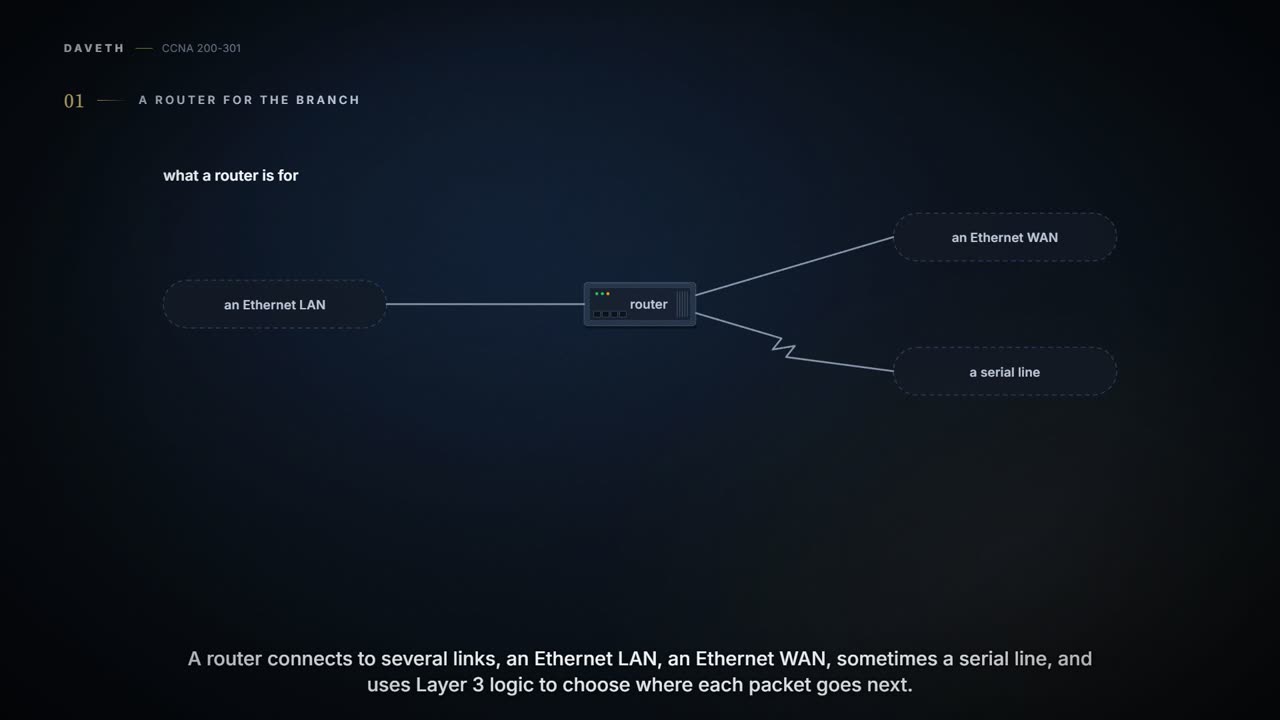
Routers are what move packets end to end through a network. A router connects to several physical links, Ethernet LANs, Ethernet WANs and serial WAN links, and uses Layer 3 logic to choose where each packet goes next. A typical company has a few central sites and many smaller ones; each site has at least one LAN switch for its devices, and a router that connects to that switch and to a WAN link back to the rest of the company.
That's the branch exactly. The router is BR1 and the switch is BSW1. BSW1 is straight from its box, every port in VLAN 1, which is all the branch needs today: only its first LAN, 10.50.0.0/24 from 04.7's plan, gets built this week. Jo's laptop is on BSW1, set by hand to 10.50.0.20/24 with gateway 10.50.0.1 until the branch has DHCP. BR1's other side will face R1 at the office over the provider's fibre, on the link 04.5 set aside: 10.255.255.4/30, with BR1 on .6 and R1 on .5. The fibre arrives next week.
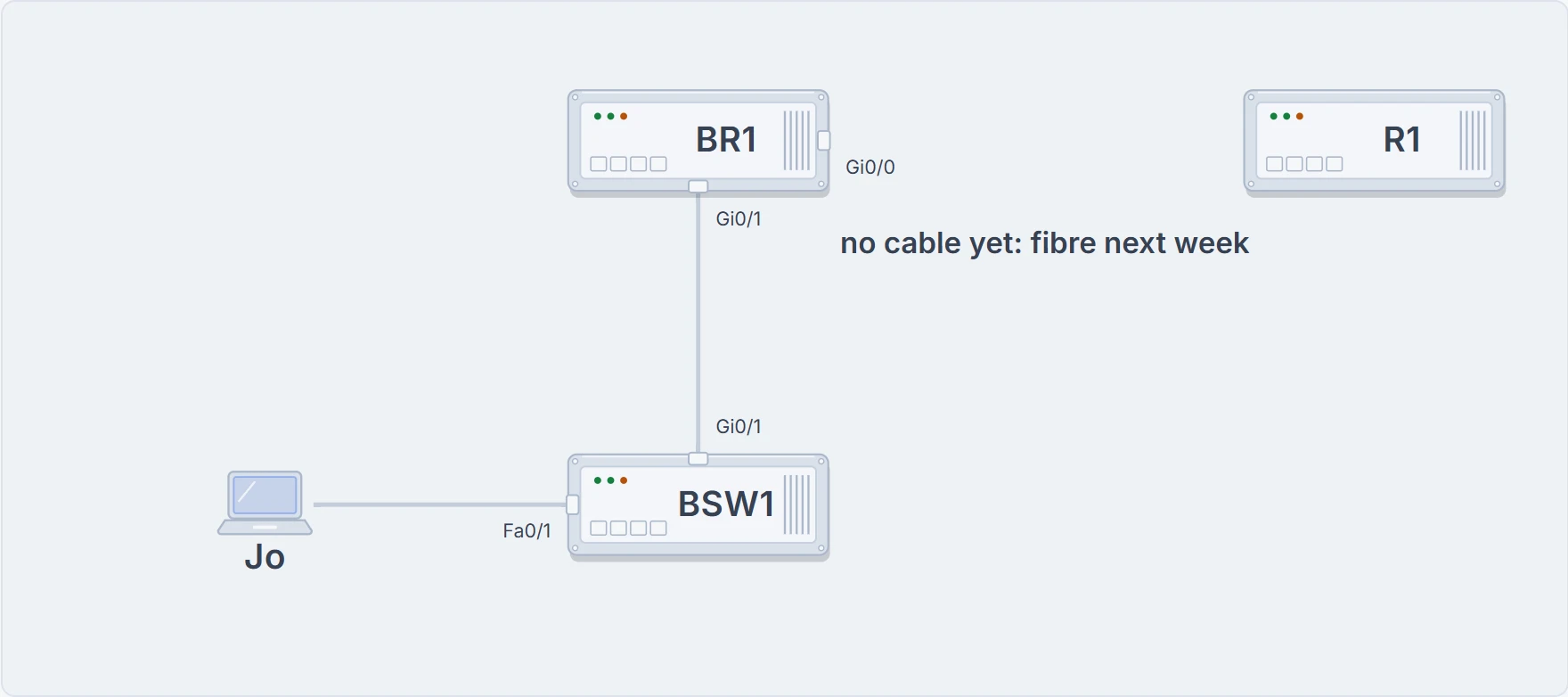
The branch on Monday. BR1 Gi0/1 to BSW1 Gi0/1; Jo's laptop on BSW1 Fa0/1. BR1 Gi0/0 faces R1 at the office, with no cable until the fibre arrives.
A router out of the box doesn't route anything. Its interfaces are switched off and have no addresses, and it waits for configuration. That's the job today.
Two ports, one interface
Routers today do much more than route. A branch needs a router for the WAN and LAN and a LAN switch; many also need voice for IP phones, some security services, and Wi-Fi. So enterprise routers are built to do several of those jobs in one box, and one vendor brands its enterprise routers integrated services routers (ISRs) for exactly that reason. This course keeps the router and the switch separate, because it's a much cleaner way to learn what each one does. BR1 routes; BSW1 switches.
Here's the back of a router like BR1:
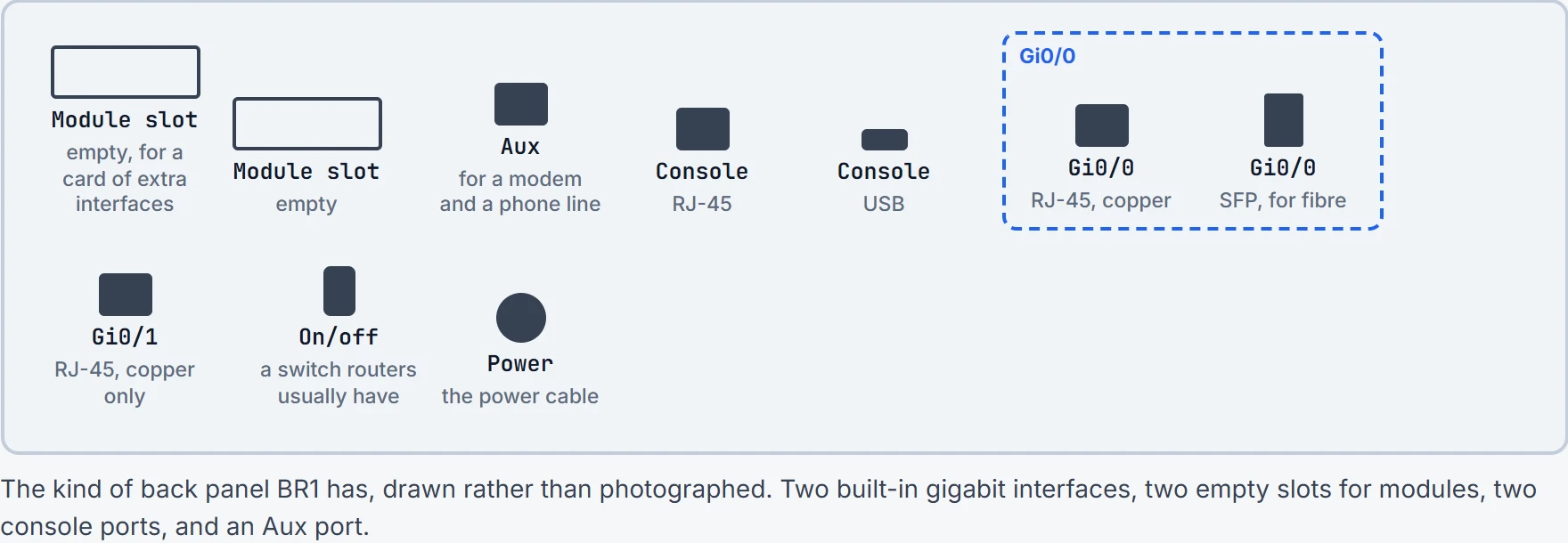
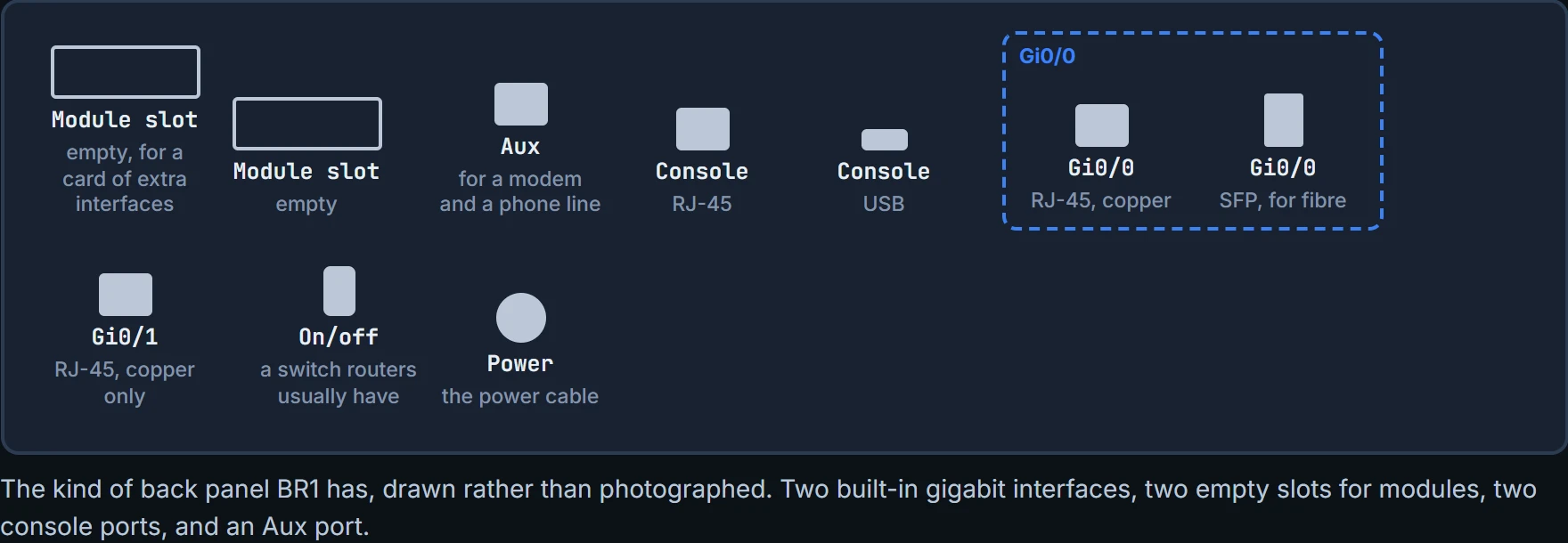
Look at Gi0/0 (short for GigabitEthernet0/0). It's one interface with two physical ports. One is an RJ-45 port for copper cable, the kind you'd use for a LAN. The other is an SFP port (small form-factor pluggable): a slot for a small module that supports one of the fibre Ethernet standards, which is what lets the port serve an Ethernet WAN. You can use one port or the other at any time, never both. Gi0/1, beside it, is RJ-45 only. When a company orders an Ethernet WAN service, it confirms which Ethernet standard and which SFP the link needs, and buys SFPs to match.
If you've ever switched a TV between its aerial and a games console, Gi0/0 is a bit like that: two sockets, one picture at a time. (Where it stops: the TV's sockets are always ready, while the SFP port needs the right module fitted for the provider's cable before anything works.)
BR1's SFP is fitted, for the fibre coming next week. In a practice lab, where all the routers sit on one bench, a plain UTP cable between RJ-45 ports does the job of a WAN link, and nobody needs to buy SFPs.
Installing it
With a cabling plan and the router in front of you, installation is six steps. Here they are, with what each meant for BR1:
- Ethernet LAN interfaces: connect a suitable copper Ethernet cable from the router's RJ-45 port to a LAN switch port. BR1 Gi0/1 to BSW1 Gi0/1.
- Serial WAN ports: with an external CSU/DSU (channel service unit/data service unit, the equipment a provider's serial line ends at), connect the router's serial interface to the CSU/DSU and the CSU/DSU to the line from the telco (the telephone company providing the line); with an internal CSU/DSU, connect the serial interface straight to the line. BR1 has no serial ports, so nothing to do.
- Ethernet WAN ports: order the right SFPs with the service, install them, and connect the WAN cable to the SFP at each end. BR1's SFP is in; the cable comes next week.
- Console: connect the console port to a PC, as needed, to configure the router (02.6). Maya's laptop.
- Power: a power cable from an outlet to the router's power socket.
- Power on.
That last step is a real step: enterprise routers typically have an on/off switch, and switches typically don't. BSW1 started the moment its power cable went in.
Jo spent a full minute hunting for BSW1's on switch, then labelled the power cable "ON SWITCH (sort of)".
Not every router is this one
Jo has a router at home too, and it looks nothing like BR1. That's the other category: SOHO (small office/home office) routers, as against enterprise routers. An enterprise router sits in a company's permanent business location; a SOHO router sits at an employee's home or a small permanent site with a few people. The line between them is blurry, so treat these as general categories. SOHO routers almost always have two things enterprise routers are less likely to have:
- They use the Internet, with virtual private network (VPN) technology, as their WAN connection back to the rest of the company.
- They are one multifunction device: routing, LAN switching, VPN, wireless, and maybe more, in one box.
Jo's home is the typical picture: laptops and phones connect to the SOHO router by Wi-Fi or UTP, and a short UTP cable runs from the router to a cable modem, which connects to the provider's coaxial TV cable. A site with four employees and ten devices could run on one of those. The branch will have two VLANs and, one day, a dozen access points, so it gets enterprise kit.
The same CLI, mostly
Maya connects the console cable to a laptop, and BR1's CLI looks just like a switch's (02.6). A router that starts with no saved configuration offers a question-and-answer setup; Maya declines it. With no configuration there are no passwords either, so the prompt is Router>, the default name, and enable goes straight to privileged mode. The first thing to look at is the interfaces:
Router> enable
Router# show ip interface brief
Interface                  IP-Address      OK? Method Status                Protocol
GigabitEthernet0/0         unassigned      YES unset  administratively down down
GigabitEthernet0/1         unassigned      YES unset  administratively down down
Router#
Both interfaces: no address (unassigned) and administratively down, which means shut down by configuration. Most router interfaces start that way. Almost everything else Maya knows from the switch carries straight over:
| What | On a switch | On a router |
|---|---|---|
User and enable modes; configure terminal, end, exit, Ctrl+Z | the same | the same |
| Console, vty and enable secret passwords; SSH keys and usernames | the same | the same |
hostname, description, speed, duplex, shutdown and no shutdown; line console 0, interface and other modes | the same | the same |
Help, editing and recall; running-config (RAM), startup-config (NVRAM), and copy for configuration files and software images, including to and from external servers such as TFTP | the same | the same |
| Where the IPv4 address goes | one VLAN interface | each interface that routes |
| An Aux port | none | on many models |
| Telnet and SSH on the vty lines by default | both typically allowed | typically neither: transport input none |
show mac address-table | yes (Layer 2 switches) | not supported |
show ip route | not on a Layer 2 switch | yes: the routing table |
| One line per interface | show interfaces status | show ip interface brief |
The rows that differ come from the job. A Layer 2 switch has one address, on a VLAN interface, just so people can manage it; a router needs an address on every interface it routes through. A switch learns MAC addresses; a router keeps a routing table (show ip route, the next page's subject). And a router's vty lines refuse Telnet and SSH until someone allows them (02.7 has the transport input options), so, for now, Maya works at the console. (Some devices do both jobs: a Layer 3 switch supports the router commands and the switch commands.)
One quick count of a recent version of the router software found about 5,000 CLI commands. This page needs about a dozen.
Interfaces, addresses and no shutdown
Routers support many more kinds of interface than LAN switches do: serial, cable TV, DSL, 3G/4G wireless and more. Most have at least one Ethernet interface, and the router names each Ethernet interface after its fastest speed: ethernet for 10 Mbps only, fastethernet for 10/100, gigabitethernet for 10/100/1000, even though people just call them all Ethernet interfaces. After the type comes a number, which might be one number, two separated by a slash, or three, depending on the model: ethernet 0, gigabitethernet 0/1, serial 1/0/1. Commands can shorten both: sh int g0/1 means show interfaces gigabitethernet 0/1.
Each interface has two status codes. The first, the line status, is about Layer 1: is a cable installed, is it the right one, is the device at the other end powered on? The second, the protocol status, is generally about Layer 2. It's always down when the line status is down. With the line up, a protocol status of down usually means the data-link configuration doesn't match at the two ends: on a serial link, say, one router running PPP (Point-to-Point Protocol) and the other HDLC (High-Level Data Link Control), two data-link protocols for serial links. Both have to be up for the interface to be usable.
Three facts decide whether a router routes IPv4 on an interface:
- Most router interfaces start disabled (shut down);
no shutdownenables them. - A router won't route packets in or out of an interface until it has an address and mask; by default, none has.
- A router tries to route packets for every interface that is up/up with an address and mask.
The address goes on with ip address, followed by the address and the mask, in interface configuration mode. Maya names the router first, then does Gi0/1, the branch LAN side. By the plan (04.1), the router on each LAN gets .1. And Jo gets to label something: description stores a short note on the interface, shown by show interfaces.
Router# configure terminal
Enter configuration commands, one per line. End with CNTL/Z.
Router(config)# hostname BR1
BR1(config)# interface GigabitEthernet0/1
BR1(config-if)# description LAN to BSW1 Gi0/1
BR1(config-if)# ip address 10.50.0.1 255.255.255.0
BR1(config-if)# end
BR1# show ip interface brief
Interface                  IP-Address      OK? Method Status                Protocol
GigabitEthernet0/0         unassigned      YES unset  administratively down down
GigabitEthernet0/1         10.50.0.1       YES manual administratively down down
BR1#
The prompt changed the moment hostname BR1 went in. Gi0/1 has its address now, and it's still administratively down. The Method column says how each address got there: unset when there's none, manual when it was typed in. You'll also see DHCP, for an address the interface learned, and NVRAM, for one the router read from its saved configuration when it started. An address changes nothing about the status codes. It's basically like a new extension lead with its own on/off switch: the plug can be in the wall, and nothing gets power while the switch says off. (Where it stops: the lead's switch is a button; the router's is a line of configuration.)
BR1# configure terminal
Enter configuration commands, one per line. End with CNTL/Z.
BR1(config)# interface GigabitEthernet0/1
BR1(config-if)# no shutdown
BR1(config-if)# end
BR1# show ip interface brief
Interface                  IP-Address      OK? Method Status                Protocol
GigabitEthernet0/0         unassigned      YES unset  administratively down down
GigabitEthernet0/1         10.50.0.1       YES manual up                    up
BR1#
Up/up, with an address and mask. BR1 will now route packets in and out of Gi0/1, so Jo's laptop, with gateway 10.50.0.1, has a router to send its off-LAN packets to. Where BR1 can send them is another matter while the WAN side is empty.
Continue the lesson
The whole lesson, with its drawings and its questions. The rest of this section and 4 more after it.