
Switch Interfaces, Autonegotiation and Troubleshooting
show interfaces status gives one line per port: connected means the link is up, notconnect means it is not, for one of several reasons, and disabled means someone typed shutdown. Both ends of a link must use the same speed and duplex; when one end is fixed and the other autonegotiates, the link can come up at half duplex and run slowly.
By Arif, founder of Daveth · Updated
The full 18 min walkthrough is in Daveth Pro (Network). See what the plan opens
What this page answers
How do you read show interfaces on a Cisco switch?
The first line gives two states: the line status, generally Layer 1, the cable and signal, and the protocol status, generally Layer 2. Up and up, written up/up, is what show interfaces status calls connected. Read it in “9:10 a.m. · Two words for the same thing”
What do connected, notconnect and disabled mean?
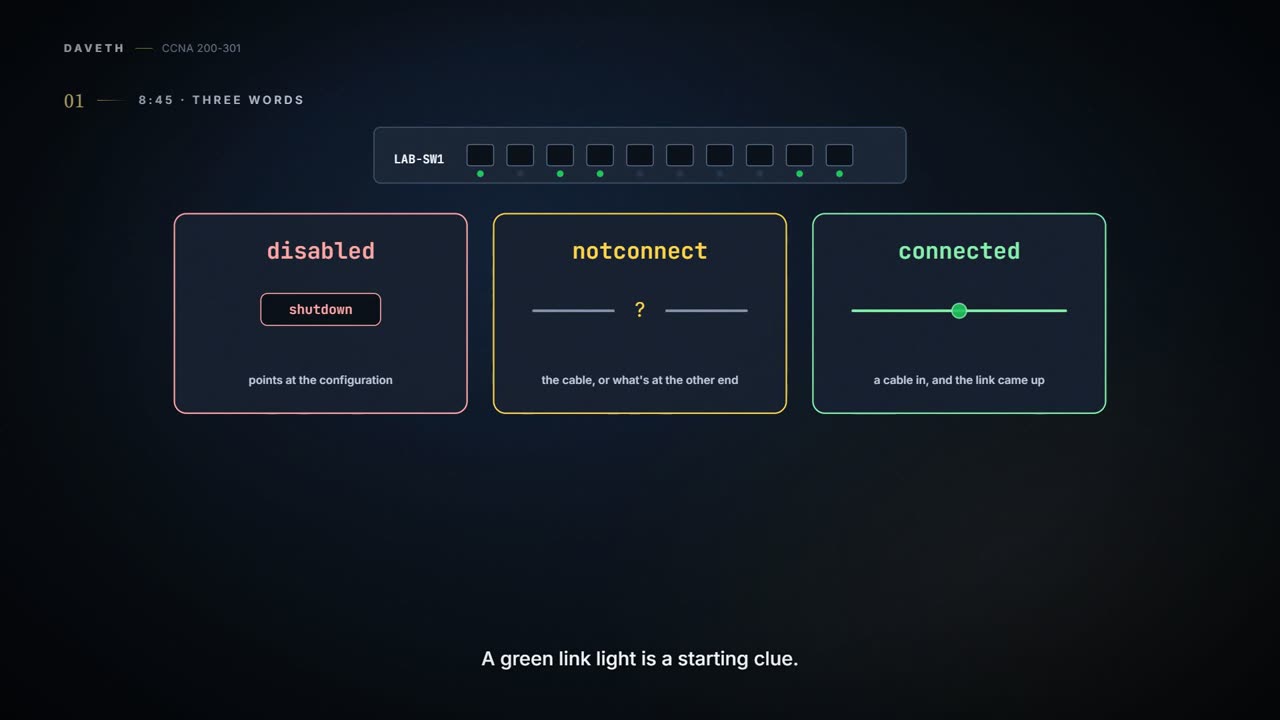
Disabled points at the configuration: someone typed shutdown. Notconnect means the link is not up, for reasons from the cable to whatever is at the other end. Connected means a cable is in and the link came up. Read it in “8:45 a.m. · Three words”
What happens when one end of a link has speed and duplex set by hand?
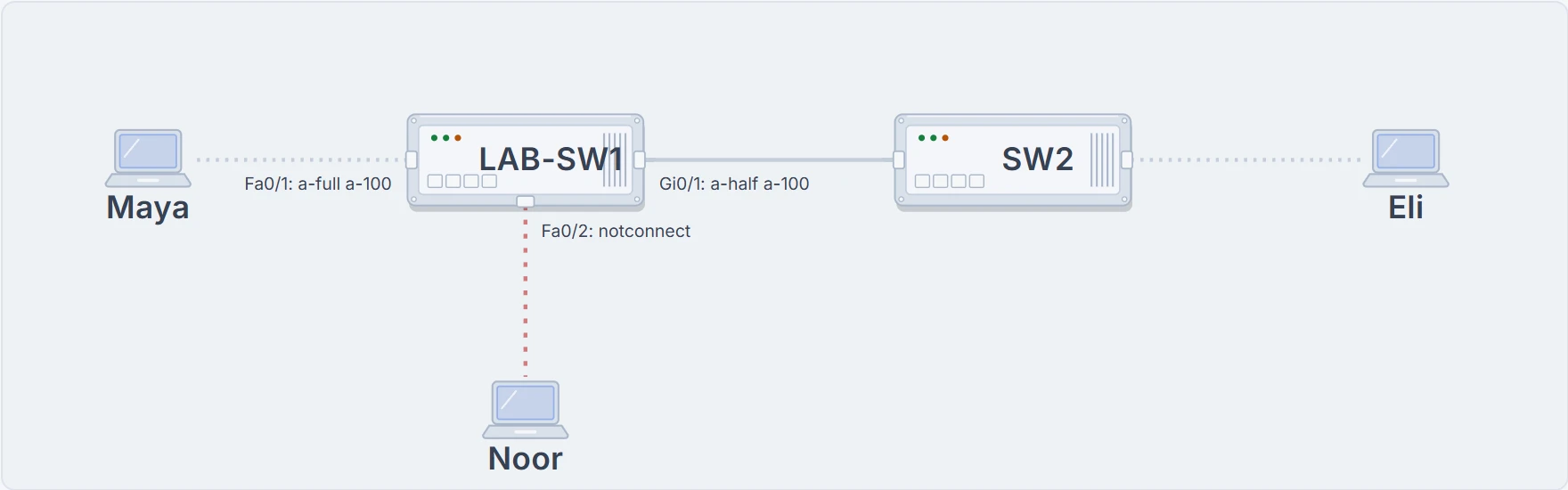
In the lesson, SW2's port was preset to speed 100 and duplex full while LAB-SW1's stayed at auto. LAB-SW1 came up at a-half and a-100: a duplex mismatch that made everything behind that link slow. Read it in “10:30 a.m. · The hallway”
8:45 a.m. · Three words
Thursday, the fourth day of Maya's first week with the switch. Before anybody reports anything, here are three words LAB-SW1 uses for its ports:
Each word points somewhere different. disabled points at the configuration: someone typed shutdown. notconnect means the link isn't up, for one of several reasons, from the cable to whatever is at the other end. connected means a cable is in and the link came up.
A green link light is a starting clue. It is not a signed letter from every packet saying it had a lovely trip.
Here is why, from later today: LAB-SW1's Gi0/1 said connected all morning and through lunch, while this counter kept climbing.
| noon | 1:30 | ||
|---|---|---|---|
| late collision | 1,174 | 1,444 | ▲ +270 |
What that counter counts, and why it climbs, come after lunch.
Each step changes one thing.
Every terminal and control on this page is a practice switch running in your browser, simulated. Nothing here touches real equipment. In the terminals, the page's own notes are the lines in brackets after an exclamation mark; a lone ! in a configuration listing is the switch's own separator.
8:50 a.m. · Noor's message
A message from Noor: "My network's gone. Is it something I did?" Noor takes a dropped link personally.
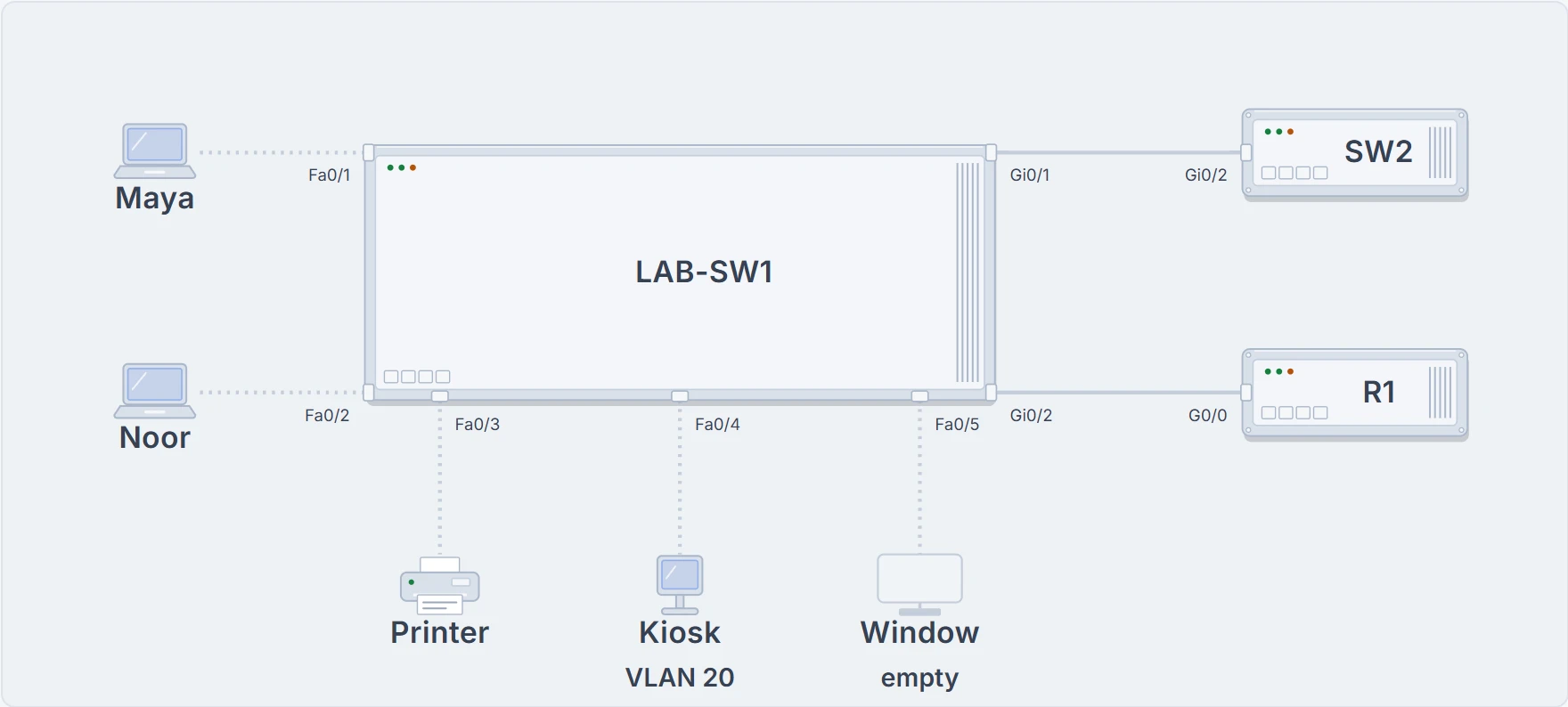
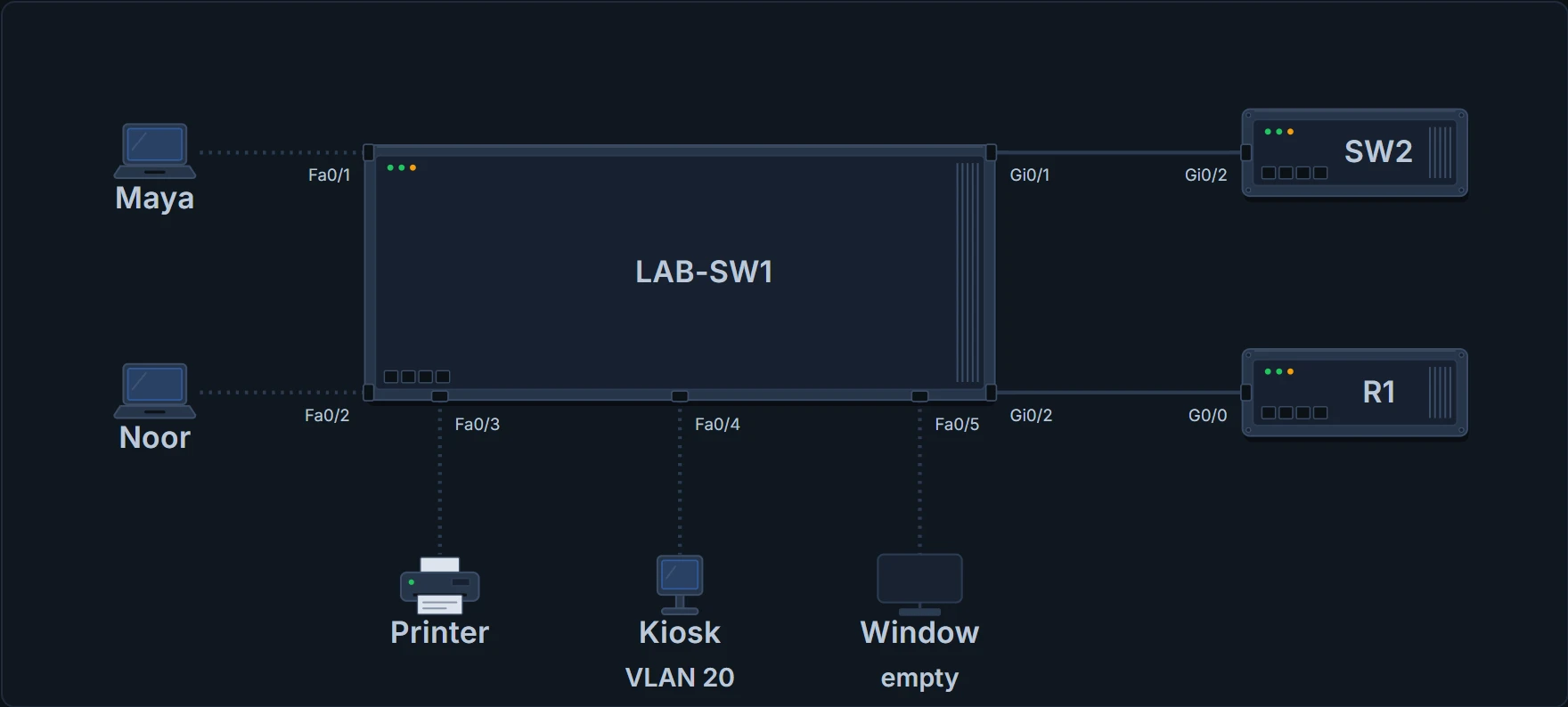
LAB-SW1 as it is cabled on Thursday. The terminals on this page are LAB-SW1's, and at 10:50 SW2's.
Maya logs in to LAB-SW1 over SSH from her desk, the way she set it up yesterday, and asks for the one-line-per-port summary:
LAB-SW1# show interfaces status
Port      Name               Status       Vlan       Duplex  Speed Type
Fa0/1                        connected    10         a-full  a-100 10/100BaseTX
Fa0/2                        notconnect   10           auto   auto 10/100BaseTX
Fa0/3                        connected    10         a-full  a-100 10/100BaseTX
Fa0/4                        connected    20         a-full  a-100 10/100BaseTX
Fa0/5                        notconnect   10           auto   auto 10/100BaseTX
Fa0/6                        notconnect   10           auto   auto 10/100BaseTX
Fa0/7                        notconnect   10           auto   auto 10/100BaseTX
Fa0/8                        notconnect   10           auto   auto 10/100BaseTX
! (Fa0/9 to Fa0/24 omitted: nothing is plugged into them)
Gi0/1                        connected    10         a-half  a-100 10/100/1000BaseTX
Gi0/2                        connected    10         a-full a-1000 10/100/1000BaseTX
LAB-SW1#
Read it left to right. Port is the interface's short name. A switch names each port after the fastest speed it supports: the 10/100 ports are FastEthernet, Fa, and the 10/100/1000 ports GigabitEthernet, Gi. Name shows the first characters of the port's description, a note somebody typed; it's empty because Fa0/1's was never saved, and Wednesday's power cut took it. Status is the one-word state.
The Vlan column is the VLAN the port is in: 10 for the office, and 20 for the guest kiosk on Fa0/4, which the switch keeps apart from the office (VLANs are topic 03.1). Duplex and Speed are what the port is using now, or, while the link is down, what it's set to: a- marks a value that came out of autonegotiation rather than being typed in (10:50 adds a twist), and auto on an empty port means it will try to negotiate once something is plugged in. Type is what the port can do, not what it's doing.
Out of the box, a switch's ports are enabled, ready to work once a cable is plugged in, and the 10/100 and 10/100/1000 ports autonegotiate. That's why Maya's Fa0/1 says a-full a-100 though nobody ever set it. For one port on its own, add its name: show interfaces fa0/2 status. Of the two Gi ports, Gi0/1 runs down the hallway to SW2 and Gi0/2 goes to R1, the office router.
- each port's state, and the speed and duplex it is using now, with
a-where autonegotiation chose them rather than a command
- that frames cross the port cleanly: a connected port can still be losing some of them to errors
- anything above the link, such as whether an application works
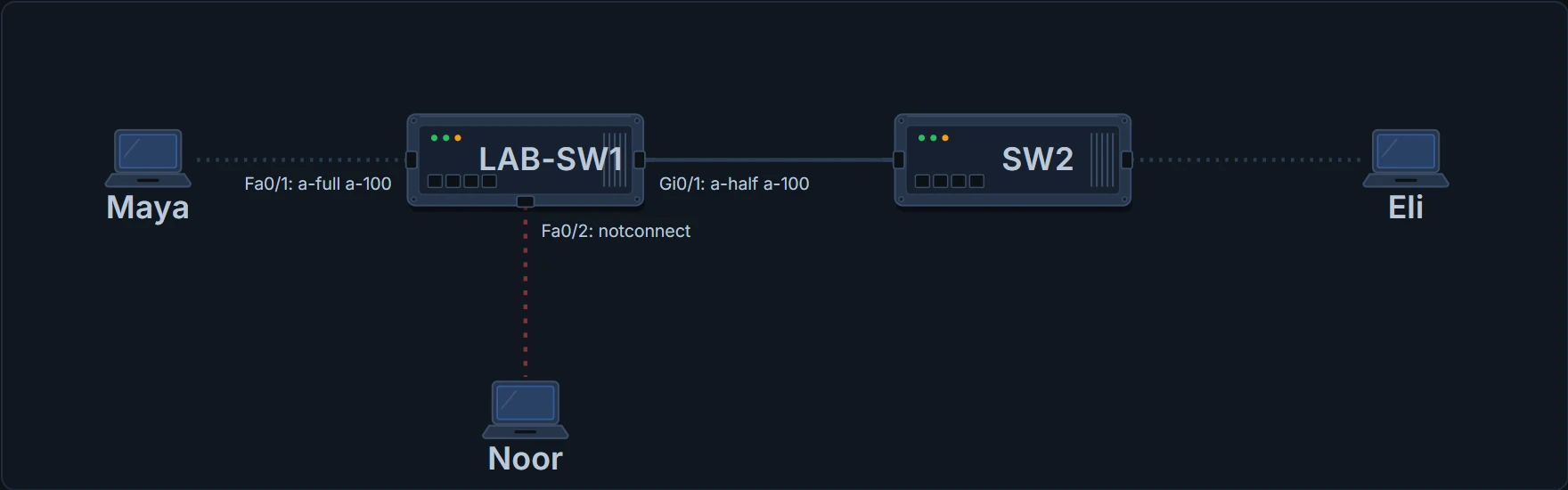
Maya walks over. One wheel of Noor's chair is parked on the cable, and the plug has worked half out of the laptop. She pushes it back in.
LAB-SW1# show interfaces fa0/2 status
Port      Name               Status       Vlan       Duplex  Speed Type
Fa0/2                        connected    10         a-full  a-100 10/100BaseTX
LAB-SW1#
Noor: "So it was me." Maya: "It was your chair."
9:10 a.m. · Two words for the same thing
show interfaces status answers in one word. The long form, show interfaces fa0/2, uses different words for the same state.
LAB-SW1# show interfaces fa0/2
FastEthernet0/2 is up, line protocol is up (connected)
! (hardware, address and MTU lines omitted)
  Full-duplex, 100Mbps, media type is 10/100BaseTX
! (rest of lines omitted: the counters come at lunchtime)
LAB-SW1#
The first part is the line status, which is generally about Layer 1: the cable and the signal. The second part is the protocol status, generally about Layer 2. Both up, written up/up, is what the one-word summary calls connected. Each combination has a one-word name:
| Line status | Protocol status | One word | Typical cause |
|---|---|---|---|
| administratively down | down | disabled | the shutdown command is configured on the interface |
| down | down | notconnect | no cable; a bad cable; the wrong cable pinouts (02.2); a speed mismatch; the device at the other end is powered off, shut down or error-disabled |
| up | down | notconnect | not expected on a switch's physical ports |
| down | down (err-disabled) | err-disabled | port security has disabled the interface (08.3.1) |
| up | up | connected | the interface is working |
Two things stand out. notconnect has a long list of causes, so the word alone doesn't name one. And err-disabled isn't someone typing shutdown: it's the switch disabling the port itself. Port security does that (topic 08.3.1), and switches use the same state for a wide range of other purposes.
- the line and protocol status, and the speed and duplex in use (
show interfaces fa0/2)
- whether that speed and duplex were chosen by autonegotiation or typed in: only the status command's
a-says so
One difference catches people out. The long form says Full-duplex, 100Mbps, but nothing about how those were chosen. Only the short command's a- says they were negotiated. A third command, show interfaces description, lists one line per interface with the two-code status and the description.
- each interface's two-code status, and its description (
show interfaces description)
- that the description is true: it's a note somebody typed
Any equipment that uses electricity, even something that isn't IT, can interfere with the signal on a copper cable and make the link fail. A cable can be damaged, under a carpet, say, or under a chair that keeps rolling over it. Fibre doesn't suffer from that interference, but bend it too tightly, macrobending, and it can stop carrying bits.
Maya makes a note to come back to Noor's cable.
9:30 a.m. · Labels back on
Wednesday's power cut took Fa0/1's unsaved description, which is why the Name column was empty. Maya puts it back, adds Noor's, and labels the four spare desks with a single command.
Each setting is an interface subcommand: choose the interface first, then type the setting, and it applies to that interface only. The prompt shows where you are: interface configuration mode, (config-if)#.
LAB-SW1# configure terminal
LAB-SW1(config)# interface FastEthernet0/1
LAB-SW1(config-if)# description Maya desk
LAB-SW1(config-if)# interface FastEthernet0/2
LAB-SW1(config-if)# description Noor desk
LAB-SW1(config-if)# interface range FastEthernet 0/5 - 8
LAB-SW1(config-if-range)# description spare desk
LAB-SW1(config-if-range)# end
LAB-SW1# show running-config
! (lines omitted)
interface FastEthernet0/5
 description spare desk
!
interface FastEthernet0/6
 description spare desk
!
! (Fa0/7 and Fa0/8 look the same; rest of lines omitted)
LAB-SW1# copy running-config startup-config
Destination filename [startup-config]?
! (Return accepts the name in brackets; the switch then reports the bytes it copied)
LAB-SW1#
Then the save. She learned that one yesterday.
interface range FastEthernet 0/5 - 8 selects four ports at once, and the prompt becomes (config-if-range)#. The ports have to be the same type and numbered one after another. The range command itself isn't kept: the switch acts as if the description had been typed under each interface, and that's what show running-config lists. Most people shorten it, to int ran f0/5 - 8.
- what is configured on those interfaces: the range wrote the description under each one
- that it's saved: the startup-config is a separate file
- what any port is doing now: that's
show interfaces status
The description can say "Maya desk" while the cable is unplugged. Labels are notes, not witnesses.
A description is also the place to write down why a port is set up oddly, if it is.
9:45 a.m. · Off, on purpose
A delivery driver has plugged their laptop into the window desk, Fa0/5, "just to check the route". Visitors keep doing it. Maya shuts the port until the new starter arrives on Monday. (A finer way to control what may plug in, port security, is topic 08.3.1.)
LAB-SW1# configure terminal
LAB-SW1(config)# interface fastethernet 0/5
LAB-SW1(config-if)# shutdown
%LINK-5-CHANGED: Interface FastEthernet0/5, changed state to administratively down
%LINEPROTO-5-UPDOWN: Line protocol on Interface FastEthernet0/5, changed state to down
LAB-SW1(config-if)# end
LAB-SW1# show interfaces fa0/5 status
Port      Name               Status       Vlan       Duplex  Speed Type
Fa0/5     spare desk         disabled     10           auto   auto 10/100BaseTX
LAB-SW1# show interfaces fa0/5
FastEthernet0/5 is administratively down, line protocol is down (disabled)
! (hardware, address and MTU lines omitted)
  Auto-duplex, Auto-speed, media type is 10/100BaseTX
! (rest of lines omitted)
LAB-SW1#
shutdown disables an interface; no shutdown enables it again. Most people type shut and no shut. IOS logs a message each time an interface fails or recovers, and log messages appear at the console. The port was working, so the switch logged two messages, one for each code: the line went administratively down, then the line protocol went down.
The two show commands agree: disabled in the one-line summary, administratively down, line protocol is down in the long form. A disabled port forwards nothing: a port has to be connected before the switch can send frames out of it.
The driver: "The internet's gone." Maya: "For this desk, yes." He unplugs and leaves, and takes the cable with him. It was his.
LAB-SW1# configure terminal
LAB-SW1(config)# interface fastethernet 0/5
LAB-SW1(config-if)# no shutdown
! (log lines omitted)
LAB-SW1(config-if)# end
LAB-SW1# show interfaces fa0/5 status
Port      Name               Status       Vlan       Duplex  Speed Type
Fa0/5     spare desk         notconnect   10           auto   auto 10/100BaseTX
LAB-SW1# configure terminal
LAB-SW1(config)# interface fastethernet 0/5
LAB-SW1(config-if)# shutdown
! (log lines omitted)
LAB-SW1(config-if)# end
LAB-SW1# copy running-config startup-config
Destination filename [startup-config]?
! (Return accepts the name in brackets; the switch then reports the bytes it copied)
LAB-SW1#
no shutdown opens the gate. It cannot repair a cable that isn't there.
Had the driver's laptop and a sound cable still been there, no shutdown would have let the link come back up.
The ! lines mark log messages this page leaves out. Then Fa0/5 goes back to shutdown until Monday, and Maya saves: if the power goes again, it should still be shut.
10:30 a.m. · The hallway
Eli, from down the hallway: "Everything's been slow since moving day." Everyone behind SW2 reaches LAB-SW1 through one cable, the one into Gi0/1.
LAB-SW1# show interfaces gi0/1 status
Port      Name               Status       Vlan       Duplex  Speed Type
Gi0/1                        connected    10         a-half  a-100 10/100/1000BaseTX
LAB-SW1#
connected, a-half, a-100, on a link between two 10/100/1000 ports. To see what went wrong, start with what's supposed to happen.
The two ends of a link have to use the same Ethernet standard and speed: a card sending at 100 Mbps to a port expecting 1000 gets nowhere. Ports and cards that support several speeds make upgrades easier, one device at a time, as long as the two ends can agree.
That's autonegotiation, an IEEE standard (802.3u). The two ends exchange messages over the cable, outside the frequencies normal Ethernet traffic uses. Each says what it can do, and both pick the best options they share: the fastest speed, and full duplex over half. It works because 10BASE-T and 100BASE-T use the same wiring pinouts, and 1000BASE-T adds two more pairs (topic 02.2). So four-pair cabling of the quality 1000BASE-T needs carries 10, 100 and 1000 Mbps alike.
Both ends said what they can do. This time the meeting actually had two attendees.
Ports that support several speeds default to speed auto and duplex auto, and leaving them there is usually right. Setting them by hand is for a good reason, such as fixing the fastest speed on a link between switches so negotiation can't pick a slower one. The commands are interface subcommands, typed in interface configuration mode: speed {auto | 10 | 100 | 1000} and duplex {auto | full | half}.
10:50 a.m. · One end stopped talking
Maya walks down the hallway to SW2's console. Eli watches, the way people watch a mechanic.
SW2# show running-config interface gi0/2
Building configuration...
! (the line with the byte count omitted)
!
interface GigabitEthernet0/2
 description Preset to 100/full
 speed 100
 duplex full
end
SW2# show interfaces gi0/2 status
Port      Name               Status       Vlan       Duplex  Speed Type
Gi0/2     Preset to 100/full connected    10           full    100 10/100/1000BaseTX
SW2#
There it is: speed 100, duplex full, and a description that even says so. SW2 saved that in the old office. It remembers what was saved, in a building it no longer lives in. (Fixing 100 and full on a gigabit port isn't a recommended choice in the first place.)
A prediction before the rules:
With both set, SW2's port sends no negotiation messages. LAB-SW1 keeps trying, hears nothing, and falls back on rules: the IEEE's, with one improvement on speed, because a switch can sense the speed the other end is sending at.
| When the other end doesn't negotiate | Speed | Duplex |
|---|---|---|
| the IEEE default | the slowest it supports, often 10 Mbps | half at 10 or 100 Mbps; full otherwise |
| the switch | sensed from the signal; the IEEE default only if that fails | the IEEE rule: half at 10 or 100, full at 1000 |
PC1 is the classic, and unfortunately common, result: a duplex mismatch. Both ends run at 100, so the link comes up. But the PC, at full duplex, sends whenever it likes, while the switch port, at half duplex, runs CSMA/CD (topic 02.4): it waits while it's receiving, believes collisions are happening when none physically are, stops, backs off and sends again. The link is up, and works poorly. That is LAB-SW1 and SW2 exactly.
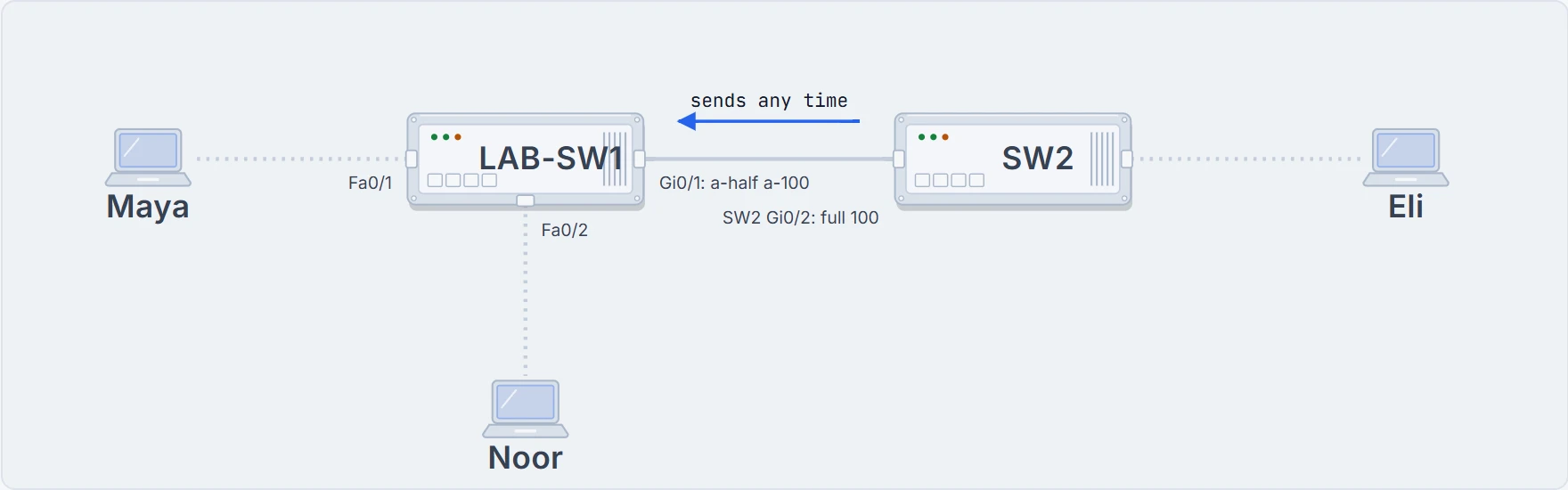
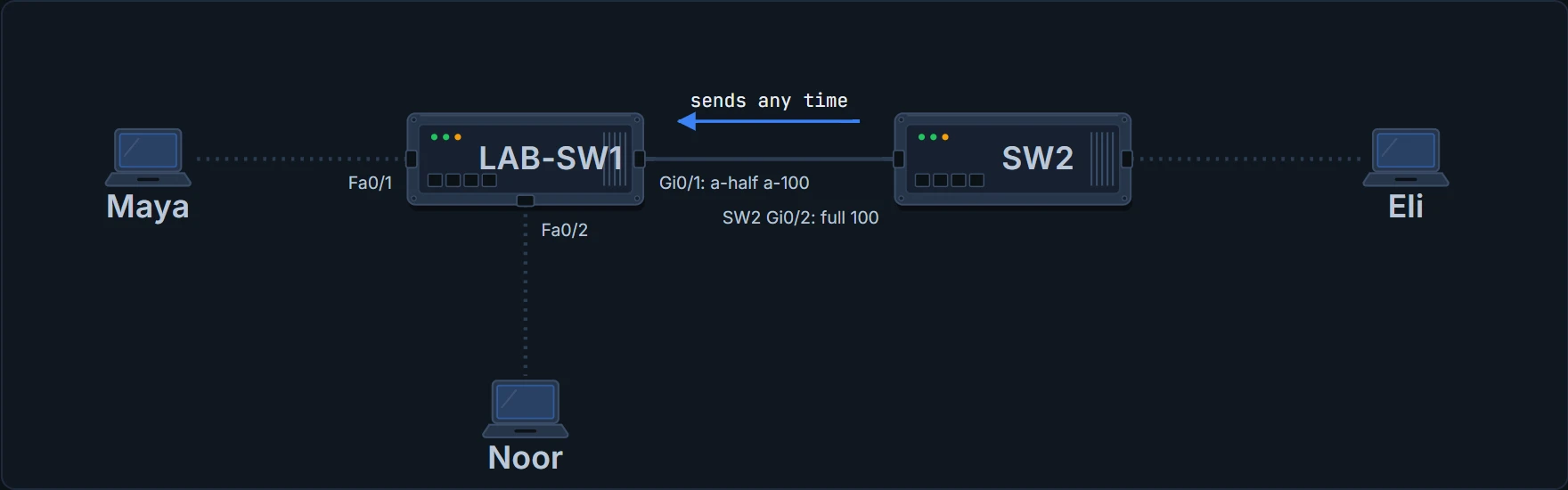
They agreed on 100. They did not agree on how to take turns.
Nothing in the output flags it. LAB-SW1 even shows a-half with the a-, though it only fell back on a default: the switch should get the speed right, and can still get the duplex wrong. A duplex mismatch stays connected, and the link will likely work poorly, with symptoms that come and go; with enough traffic it's very inefficient. Put formally, it's one end using full duplex and the other half, causing frames to be discarded and sent again for no good reason.
These rules are for 10/100 and 10/100/1000 ports. Anything faster than 1 Gbps always uses full duplex. Other equipment may behave differently, so check what yours does rather than assume.
A LAN hub neither answers negotiation messages nor passes them on, so everything plugged into one falls back on the IEEE defaults, which often means 10 Mbps and half duplex. Take a switch with two PCs on their own 10/100/1000 ports, and a third port cabled to an old 10BASE-T hub with two more PCs. The two PCs plugged straight into the switch still get 1000 and full duplex. The switch's port to the hub, and the PCs on the hub, all end up at 10 and half. Half duplex is what a hub needs anyway: the devices on it share the medium and take turns using CSMA/CD. Hubs, and how they differ from switches, are topic 02.4.
Continue the lesson
The whole lesson, with its drawings and its questions. 6 more sections after the ones above.