
Cisco IOS CLI and EXEC / Configuration Modes
You manage a Cisco switch by typing into IOS's command-line interface, the CLI. You reach it over the console port with a cable, or over the network with Telnet or SSH, which need the switch to have an IP address. Every way in lands in user EXEC mode, for looking; enable reaches privileged EXEC, and configure terminal reaches configuration mode.
By Arif, founder of Daveth · Updated
The full 12 min walkthrough is in Daveth Pro (Network). See what the plan opens
What this page answers
What is the Cisco IOS CLI?
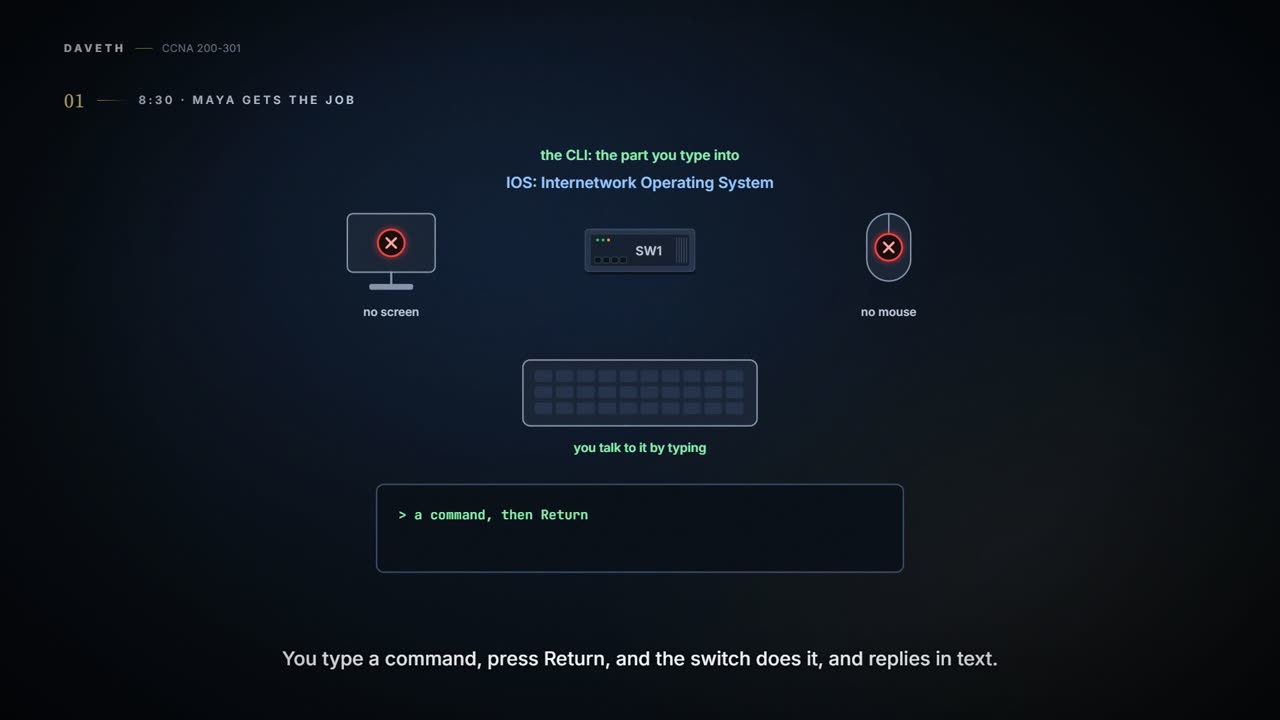
The command-line interface of IOS, the Internetwork Operating System: you type a command, press Return, and the switch does it and replies in text. You reach it from the console port, or across the network with Telnet or SSH. Read it in “8:30 a.m. · Maya gets the job”
What is user EXEC mode?
The mode every login lands in first, with the prompt SW1>. EXEC means the switch executes what you type and shows the result; user EXEC is for looking around without breaking anything. Read it in “8:45 a.m. · Press Return”
Which cable connects a laptop to a switch's console port?
It depends on the two ends: the switch's console port can be RJ-45 or USB, and the laptop end is USB, or a 9-pin serial port on an older laptop. A terminal emulator program on the laptop shows the CLI. Read it in “8:40 a.m. · The console cable”
8:30 a.m. · Maya gets the job
Tuesday. After Monday, everyone agrees that Maya is now "the one who knows about the switch". Nobody asked her. That's how it goes.
SW1 has no screen and no mouse. You talk to it by typing. Its operating system is called IOS, short for Internetwork Operating System, and the part you type into is the command-line interface, or CLI: you type a command, press Return, the switch does it and replies in text. Switches can also offer a web page, or be run by management software, but the CLI is what you'll use through this course. Switches come in families of models, with more ports or fewer, faster or slower, but you talk to them all the same way.
8:35 a.m. · Three ways in
There are three ways to reach SW1's CLI. Two of them, Telnet and SSH (Secure Shell), are programs on your laptop: they connect to the switch across the network and show its CLI in a window. The third is the console: a physical port on the switch, built just for this, reached with a short cable.
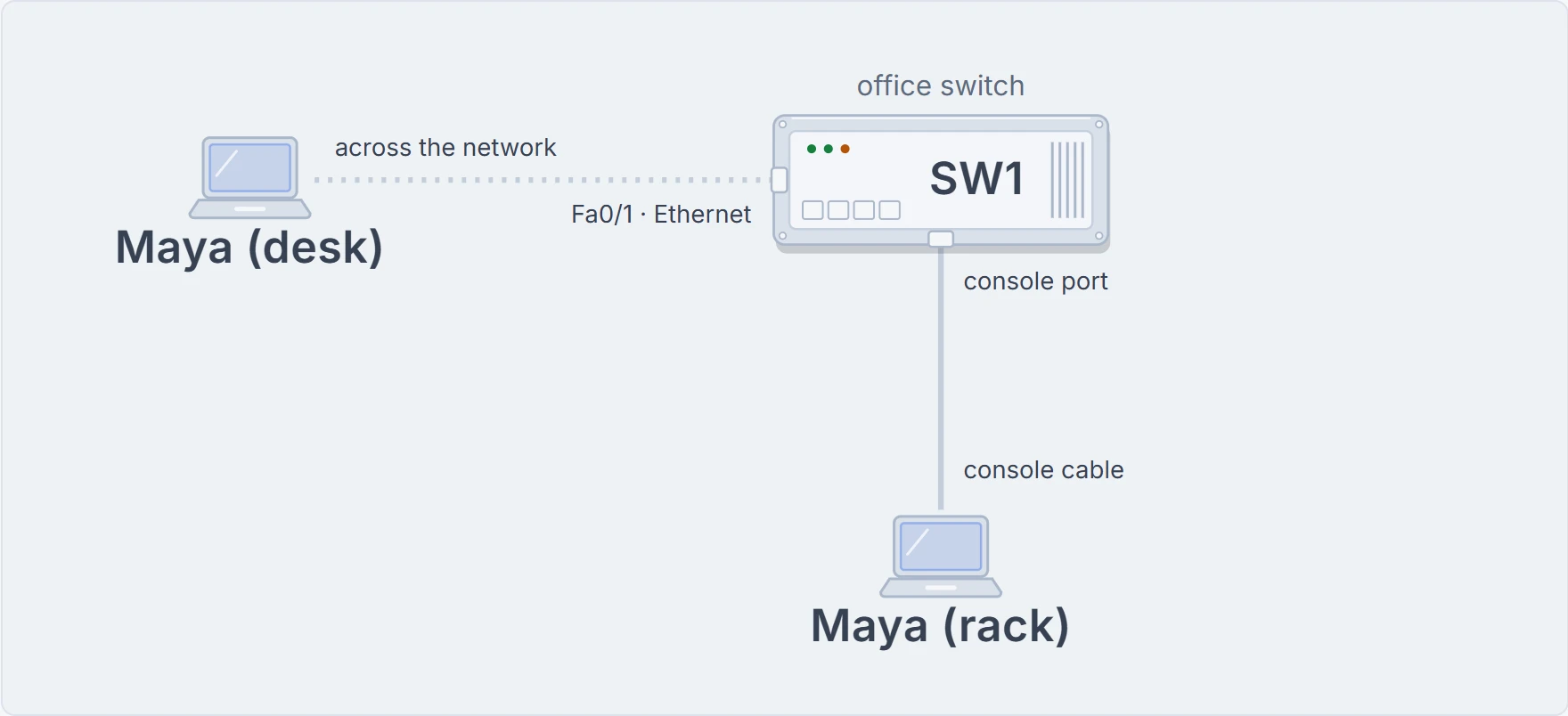
Here's the catch. SW1 has no IP address yet; giving it one is 02.7. Make a call before Maya does.
Telnet and SSH both travel over the IP network, like any other traffic, so they need an IP address on SW1 to connect to. The console doesn't. Its cable runs straight to the switch, on a path of its own.
Each step types one idea into SW1.
Telnet and SSH: same window, different wire
From Maya's side, Telnet and SSH work the same way: a program on her laptop, the client, connects to the switch, the server, sends what she types and shows what comes back.
The difference is on the wire. Telnet sends everything as plain text, username and password included. SSH encrypts everything, password included. Telnet is fine in a lab; in production it's a serious security risk, so use SSH for real work.
Neither works out of the box, though. The switch has a Telnet server switched on by default, but it still needs a few settings before anyone can log in, and so does SSH. That's 02.7 too.
8:40 a.m. · The console cable
Console access needs two things: a cable from the laptop to SW1's console port, and a terminal emulator program on the laptop. The program sends what Maya types down the cable, and shows whatever comes back as text.
Which cable depends on the two ends. A switch's console port can be RJ-45 or USB, and some newer switches have both, though you use only one or the other. The laptop end is USB, or on an older laptop, a 9-pin serial port.
Here are the three combinations:
| Laptop port | Cable | Switch console port |
|---|---|---|
| Serial (the older 9-pin, D-shaped DB-9) | Rollover cable | RJ-45 console |
| USB | USB converter, then a rollover cable | RJ-45 console |
| USB | USB cable | USB console, often a small mini-B socket |
The RJ-45 console port looks exactly like an Ethernet port. It isn't one. It's usually blue and labelled console. The rollover cable isn't an Ethernet cable either: its wires are rolled over, pin 1 to pin 8, pin 2 to pin 7, pin 3 to pin 6, and so on. A USB connection also needs a small driver on the laptop, so it knows there's a switch console on the other end.
The rollover cable can be the purpose-built console cable that ships with the switch, or one you build: a standard serial cable, an RJ-45-to-DB-9 converter plug, and a UTP cable wired with rollover pinouts.
Same-looking jack, very different job. The console port is for talking to the switch about the switch.
Then the program's settings have to match the console port's. These are the defaults:
| Setting | Value |
|---|---|
| Speed | 9600 bits per second |
| Flow control | no hardware flow control |
| Data bits | 8 |
| Parity | none |
| Stop bits | 1 |
The last three are usually written together as 8N1. These are the classic defaults this course uses; for a real device, its own documentation has the final word.
A router's CLI works much like a switch's, and shares many of the same ways of moving around: what you learn here carries straight over. Many routers also have an extra port, the Aux port, which works like the console but is usually connected to a phone line, so someone can dial in to the CLI.
8:45 a.m. · Press Return
Maya presses Return and gets SW1>. Every way in, console, Telnet or SSH, lands here first: user EXEC mode, sometimes just called user mode. EXEC means the switch executes what you type and shows you the result. User EXEC is for looking around without breaking anything.
Press RETURN to get started.
SW1> show mac address-table dynamic
          Mac Address Table
-------------------------------------------

Vlan    Mac Address       Type        Ports
----    -----------       --------    -----
  10    0200.0000.0210    DYNAMIC     Fa0/1
  10    0200.0000.0220    DYNAMIC     Fa0/2
  10    0200.0000.0230    DYNAMIC     Gi0/1
Total Mac Addresses for this criterion: 3
SW1>
show worked: it only looks. Monday's notebook, exactly as SW1 left it. Next she tries reload, the command that restarts the whole switch.
SW1> reload
Translating "reload"
% Unknown command or computer name, or unable to find computer address
SW1> enable
SW1#
reload was refused. Then enable moved her up to privileged EXEC, also called enable mode, and the prompt changed to SW1#. Powerful commands like reload live there. disable goes back down to SW1>.
Commands you can type in either EXEC mode are called EXEC commands. And quit ends the session altogether.
The names in the Ports column
Look back at the table's Ports column: Fa0/1, Fa0/2, Gi0/1. A switch port is also called an interface, and its name starts with its type, named after the fastest speed it supports: Ethernet for 10 Mbps, FastEthernet for 100 Mbps, GigabitEthernet for 1000 Mbps, and so on for faster speeds. So a 10/100/1000 port, which can agree on 10BASE-T, 100BASE-T or 1000BASE-T with the other end, is GigabitEthernet, even while it's running at 100. Commands shorten them to Fa and Gi.
Then comes the number. Some switches use two numbers, like 0/1; newer ones use three, like 1/0/1. SW1 uses two, so its first port is FastEthernet0/1, Fa0/1 for short. Port and interface mean the same thing.
Nobody asked for a password
No password was asked for, anywhere. Out of the box a console user needs none, for either mode: anyone who can touch the console port could just as easily unplug the switch and carry it off, or follow the well-published password recovery steps to break into the CLI. Many people set one anyway, one for the console and one for enable, and then what you type at a password prompt doesn't show on the screen. Setting them is 02.7.
One catch with the default, though. With no enable password set, console users type enable and get straight in, with no password asked, but anyone arriving by Telnet or SSH is turned away at enable, with no way to type one. And enable mode is worth guarding: from there, anyone can restart the switch or change its configuration.
Why did reload get such an odd refusal? When IOS doesn't recognise a word, it assumes you meant the name of a device to Telnet to, and tries to look that name up. On a switch with no name server to ask, that lookup can leave you staring at the screen for about a minute before the prompt comes back. It happens with any mistyped command, not just this one. 02.7 shows the one-line setting that stops it.
Walk away for five minutes and the switch logs you out: by default it disconnects console, Telnet and SSH users after five minutes of doing nothing. And the switch sends its log messages to the console as they happen, so one can pop up right in the middle of a command you're typing. Both can be tuned per line; that's 02.7 as well.
Continue the lesson
The whole lesson, with its drawings and its questions. 6 more sections after the ones above.