
LLMs in the shell: piping context to a model and guarding the commands it writes
A model reads a fixed amount of text at once, its context window, measured in tokens. A large log is millions of tokens and a home setup's window holds a few thousand, so tools quietly cut the input to fit. Check the size first: characters from wc -c, divided by about 3 to 4.
What this page answers
Why does an LLM miss errors in a long log?
The input was longer than the model's context window. In the lesson's example a 42 million character log is about 14 million tokens against a window of a few thousand, so the tool cut it to fit. Read it in “The log with no errors”
How do I estimate how many tokens a file has?
Take the character count from wc -c and divide by about 4 for normal English, or about 3 for logs and code, which are full of numbers and symbols. Read it in “Will it fit?”
The log with no errors
Last night's training job stopped. You want to know why, so you send its whole log to a local model and ask:
$ journalctl -u trainer --since yesterday | ollama run llama3.1:8b "Why did this job stop?"
The job looks healthy. It started at 03:12, found 2 GPUs, loaded the
dataset and began training from step 0. I don't see any errors in this log.
$ journalctl -u trainer --since yesterday | wc -c
41872310
$ journalctl -u trainer --since yesterday | grep -c Traceback
1
A worked example. The log size and the restart are made up but typical; how the tool trims a too-long input follows Ollama's documented behaviour.
The log is 42 million characters long and does contain a crash. The model says there's nothing wrong. Why?
- An 8B model is too small to understand logs
- Almost none of the log reached the model, and the part that did was the restart after the crash
- journalctl hides error lines when its output goes into a pipe
Answer. A model can only read a fixed amount of text at once, called its context window, measured in tokens (pieces of words, about 3 characters each in a log full of numbers and symbols). 42 million characters is around 14 million tokens. The window on a typical home setup is a few thousand tokens. When the input is too long, the tool quietly cuts it to fit and says nothing about it in the answer. Ollama keeps the very end and drops most of the rest.
The end of this log is the service restarting cleanly at 03:12, because systemd brought it back after the crash (Down the Unit). The crash at 03:11 was in the part that got cut. The model answered honestly about the 0.03% it saw. The fix isn't a bigger model. It's sending the right 0.03%.
One more tool in the pipe
Linux has always worked with small tools joined by pipes: each one reads text, does one job, and passes text on (Down the Pipe). A model is one more tool of that kind, but an unusual one. The old tools are instant, exact and can read gigabytes. The model is slow, can only read a few pages at a time, and sometimes gets things wrong, but it can explain. So split the work: let the old tools find and cut, and give the model only the small part worth reading.
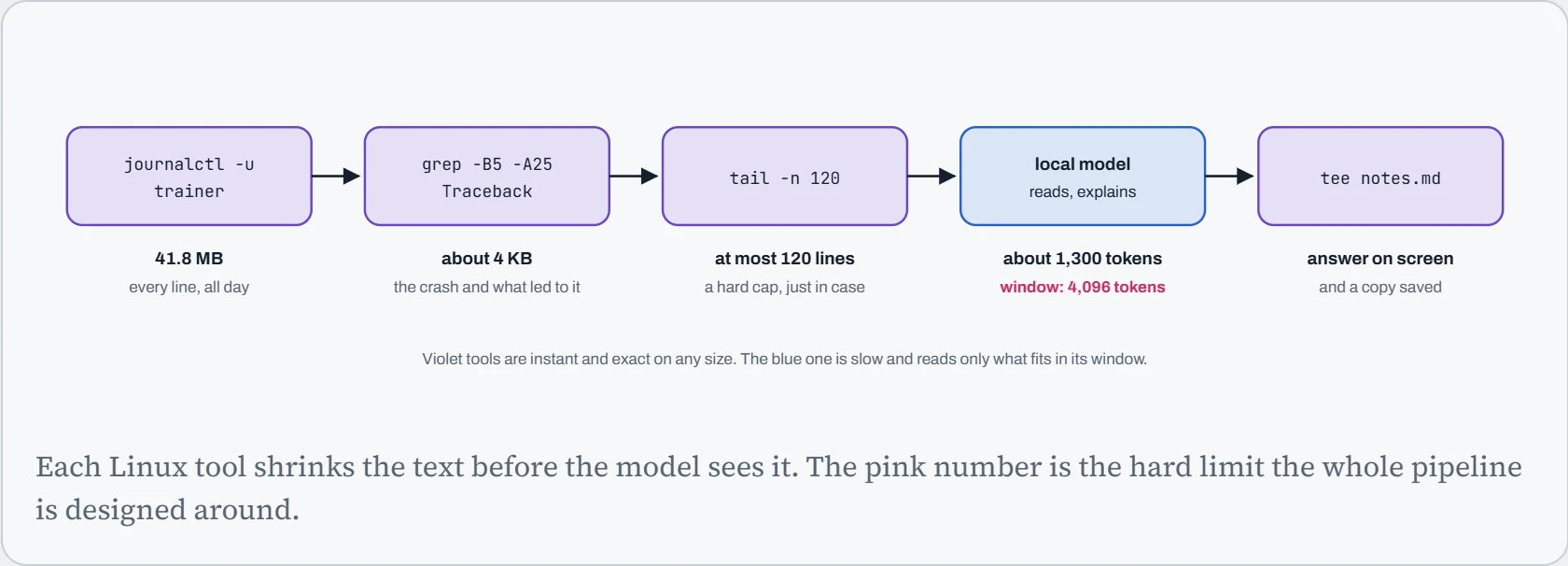
That's the main idea of this page: Linux cuts, the model reads. grep finds the crash in a 42 MB log in a fraction of a second, and it never misses a line. The model then does the part grep can't, which is saying in plain words what the crash means and what to try. The tail at the end is a safety cap: if grep ever matches thousands of lines, the model still gets a size it can read.
Calling a model from the shell
There are a few common ways to reach a model from the command line. All of them work with a model running on your own machine, so the text you send never leaves it. Some also work with cloud models, where it does.
| Tool | How you use it | Good for |
|---|---|---|
ollama run | cat file | ollama run MODEL "question". Piped text goes in first, your question after it. | Quick questions at the prompt. Starts the model if it isn't loaded yet. |
llm | cat file | llm -m MODEL -s "instructions". Local models through a plugin such as llm-ollama. | Daily use: it saves every question and answer in a small database you can search with llm logs. |
curl and jq | Send JSON to the local server's OpenAI-style address, such as localhost:11434/v1/chat/completions. | Scripts. Nothing extra to install, and every setting (temperature, model, format) is explicit. |
llama-cli, llama-server | llama.cpp's own programs, pointed at a GGUF file. | Full control over the context size, threads and GPU layers (Down the Bits). |
| Coding agents, headless | claude -p "task", codex exec "task". | Jobs with many steps, where the agent reads files and runs commands itself (Down the Repo). |
Here's what everyday use looks like. Notice that each command sends the model something small and specific, never “everything”:
$ git diff --staged | ollama run llama3.1:8b "Write a one-line commit message for this change."
Fix off-by-one in checkpoint pruning so the newest checkpoint is kept
$ tail -n 80 train.log | llm -m llama3.1:8b -s "Explain any error in plain words. Be short."
$ man rsync | llm -m llama3.1:8b "Which flags copy a folder and delete files missing from the source?"
$ llm logs -n 1      # what you asked and what came back, saved on disk
The man rsync line is a good habit: instead of asking the model what rsync's flags are (it may misremember), you hand it the real manual and ask it to find the answer there. A model reading the right page is far more reliable than a model remembering. And the one-line commit message shows the most useful size of job: small input, small output, easy for you to check.
Predict. You run cat ~/.env | llm "why won't my app connect to the database?" with a cloud model. The .env file holds your database password. Where does the password end up?
Answer. In at least two places you didn't intend. It's sent to the cloud provider with the question, and llm also saves the whole prompt in its local log database, so the password now sits in a second file on your disk in plain text.
Before piping a file to any model, ask what's in it. Remove secrets first (grep -v PASSWORD .env), use a local model for anything private, and remember that “send it to the model” also means “save it in the log”. llm logs off turns the logging off if you need to.
Will it fit?
Before piping something into a model, it's worth a two-second check: how big is it in tokens, and how big is the window? wc -c gives you the characters. Divide by about 4 for normal English, or about 3 for logs and code, which are full of numbers and symbols.
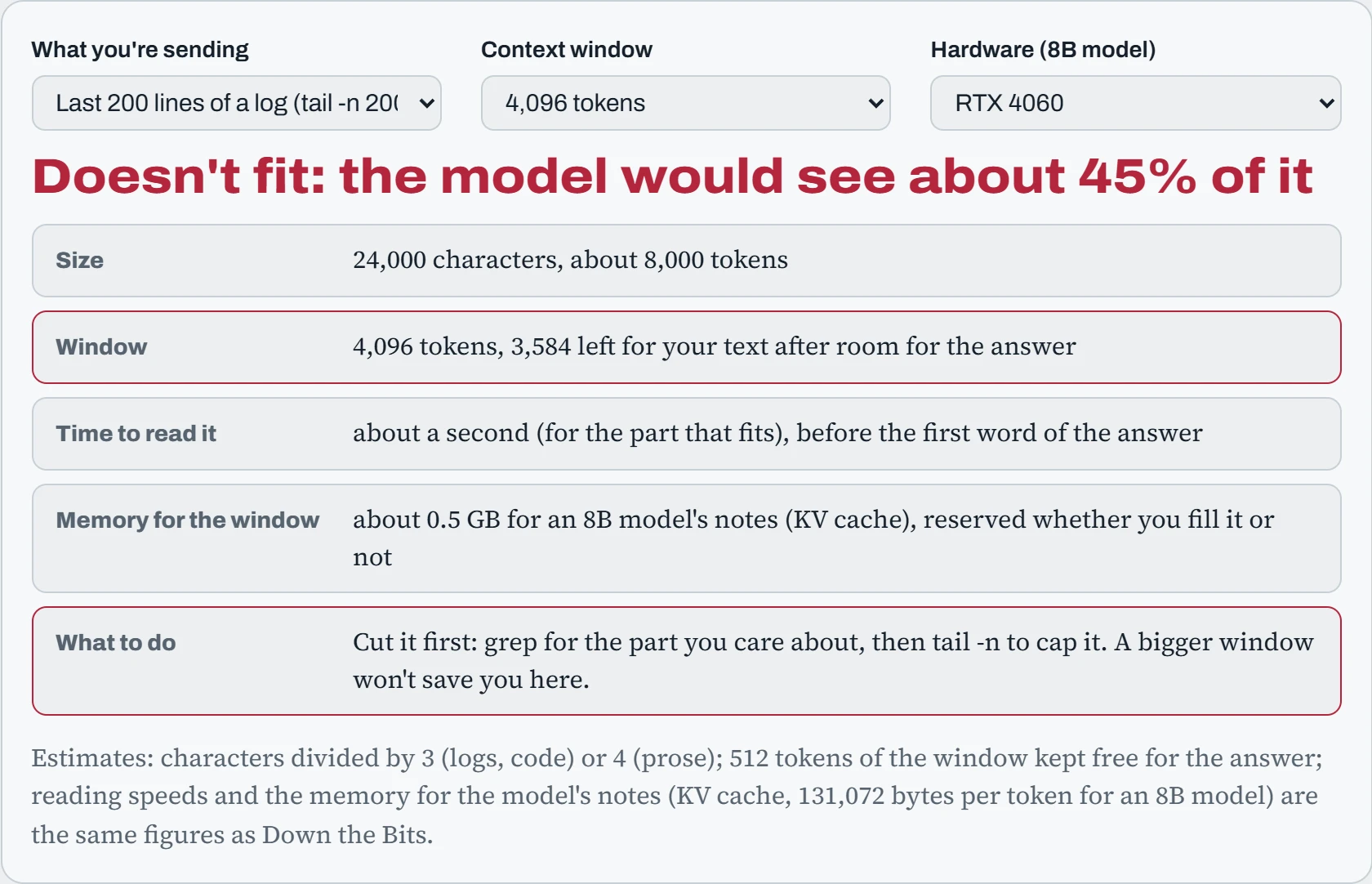
Take a day of one service's log, with the biggest window. Even 131,072 tokens holds under 1% of it, and that window alone reserves about 17 GB of memory for the model's notes, more than many GPUs have. That's why tools start small by default: every token of window costs memory whether you use it or not. Now take one error with its context, on the smallest window and CPU only. It fits easily and is read in under a minute. Cutting the input is cheaper than any hardware upgrade.
A command you can trust
Once a pipe is useful, you'll want it as a command you can run any time. Here is a small script called explain. It finds the last error in a log, sends only that to the local model's API, and prints the answer. Each line has a reason, explained below it.
#!/usr/bin/env bash
# explain: find the last error in a log and ask a local model about it
set -euo pipefail
log="${1:?usage: explain LOGFILE}"
snippet=$( { grep -n -B5 -A25 -E 'Traceback|Error|Killed' "$log" || true; } | tail -n 120 )
[ -n "$snippet" ] || { echo "no error found in $log" >&2; exit 1; }

jq -n --arg s "$snippet" '{
  model: "llama3.1:8b", temperature: 0, stream: false,
  messages: [
    {role: "system", content: "You explain Linux and Python errors in plain words. Be short."},
    {role: "user", content: ("What went wrong, and what should I try first?\n\n" + $s)}
  ]}' |
curl -sf http://localhost:11434/v1/chat/completions -H 'Content-Type: application/json' -d @- |
jq -r '.choices[0].message.content'
Continue the lesson
The whole lesson, with its drawings and its questions. The rest of this section and 3 more after it.