
Headless home AI servers: power draw, Wake-on-LAN and models on a USB stick
For a home AI server the idle hours, not the busy ones, set the power bill: an hour of work at 450 W and 23 hours waiting at 90 W makes waiting 82% of the cost. Sleeping when idle cuts the lesson's example from about $138 to about $33 a year.
What this page answers
How much does it cost to leave a home AI server on?
In the lesson's example, one busy hour at 450 W is 0.45 kWh a day and 23 idle hours at 90 W is 2.07 kWh. The waiting is 82% of the bill, about $113 of $138 a year at $0.15 per kWh. Read it in “The expensive hours”
Should a home AI server sleep or stay on?
It depends on the idle power, so measure it at the wall. At 90 W idle, sleeping cuts the bill from about $138 to about $33 a year, while turning it off at night helps much less. A mini PC idling at 30 W may not be worth the setup. Read it in “What it costs to leave on”
The expensive hours
Your old gaming PC, with an RTX 3090, now runs a model for the family. You check its GPU while it's answering a question, and again an hour later when nobody is using it:
$ nvidia-smi --query-gpu=power.draw,utilization.gpu --format=csv   # while answering
power.draw [W], utilization.gpu [%]
338.42 W, 97 %
$ nvidia-smi --query-gpu=power.draw,utilization.gpu --format=csv   # an hour later
power.draw [W], utilization.gpu [%]
22.81 W, 0 %
Typical readings for an RTX 3090 with a model loaded. A plug-in power meter at the wall shows the whole PC: about 450 W while answering, about 90 W while waiting (the CPU, board, fans and power supply all draw something too).
Altogether it's busy for about an hour a day and waiting for the other 23. Over a year, which part of the electricity bill is bigger?
- The hour of work, at 450 W
- The 23 hours of waiting, at 90 W
- About the same
Answer. Work: 1 hour × 450 W = 0.45 kWh a day. Waiting: 23 hours × 90 W = 2.07 kWh a day. The waiting is 82% of the bill, about $113 of the year's $138 at $0.15 per kWh. Each idle watt is small, but there are a lot of idle hours.
That changes what “efficient” means for a home server. A faster GPU barely helps, because the busy hour was never the expensive part. What helps is making the 23 hours cheaper: letting the machine sleep at about 3 W and waking it the moment someone needs it. Linux can do both, and the rest of this page shows how.
Three ways to build it
There are three common shapes for home AI, and each is limited by something different. An old PC turned into a server uses the GPU you already own, so it's fast, but it costs power while it waits. AI on a USB stick goes anywhere, but runs on whatever computer it's plugged into, usually without a GPU. A small always-on box (a mini PC, or a unified-memory machine like those in Down the Box) sips power, but you have to buy it, and it writes more slowly than a big GPU.
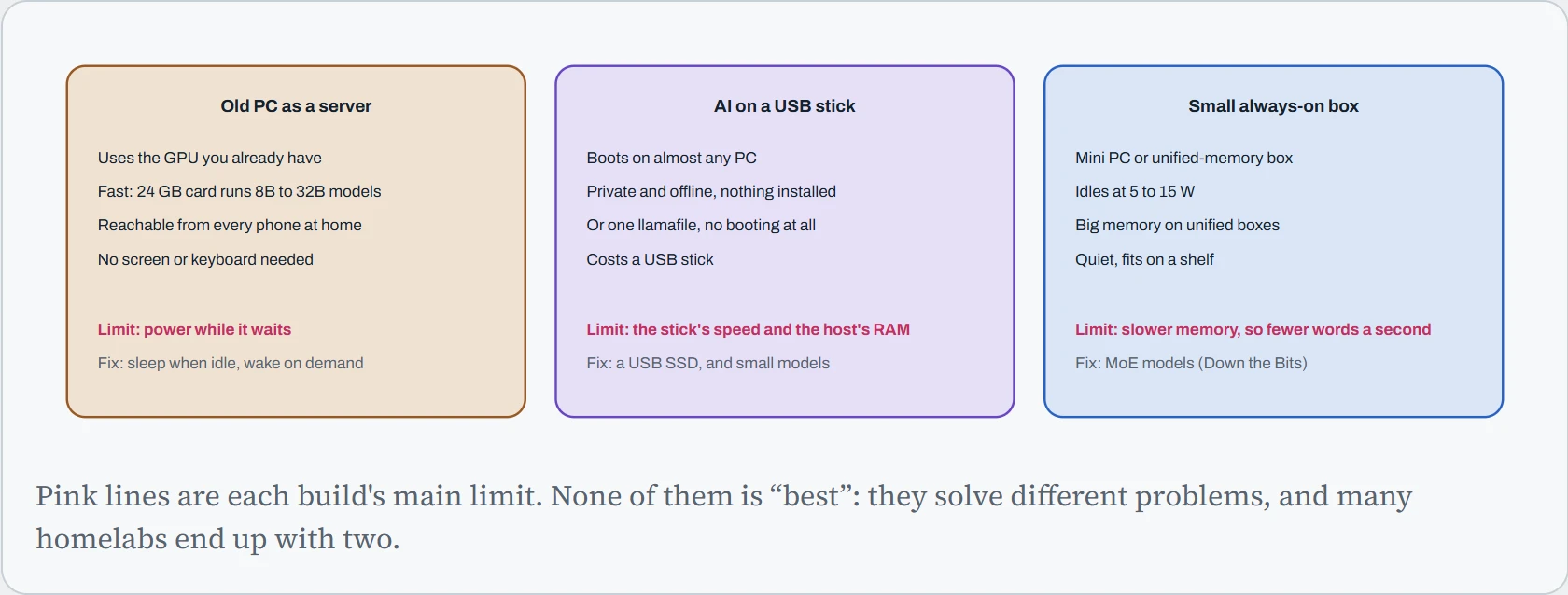
The Linux skills are the same for all three, which is the good news. Each one runs headless (no screen), serves the model on the home network, and needs care about who can reach it. The old PC also needs power management, and the USB stick needs some understanding of how a live system stores files. Those are the next four sections.
Old PC to AI server
Install a server version of Linux (Ubuntu Server is the common choice, set up as in Down the Lab), install the GPU driver, and from then on you'll reach it by SSH from your laptop. Then come the steps that turn “a PC with Linux” into “a server the house can rely on”:
| Step | Where | Why |
|---|---|---|
| Give it a fixed address | Your router: a “DHCP reservation” for the PC's network card | So gpubox is always at the same address and phones don't lose it after a reboot. |
| Turn on after a power cut | BIOS: “Restore on AC power loss: Power on” | Otherwise a short outage leaves it off until someone presses the button. |
| Start the model server at boot | systemctl enable --now ollama | The service comes back by itself after every reboot (Down the Unit). |
| Listen on the home network | Set OLLAMA_HOST in the service | By default it only answers the machine itself (127.0.0.1). |
| Allow only the home network | Firewall: ufw | Phones at home can reach it; nobody else can. |
| Add a chat screen | Open WebUI in a container | Everyone gets a ChatGPT-like page in their browser, with their own login. |
Here are the two network steps as commands. The first makes Ollama listen on all of the PC's addresses. The second lets in the home network (here 192.168.1.0/24, meaning every address from 192.168.1.0 to 192.168.1.255) and nothing else:
$ sudo systemctl edit ollama          # opens an override file; add these two lines:
[Service]
Environment="OLLAMA_HOST=0.0.0.0:11434"
$ sudo systemctl restart ollama
$ sudo ufw default deny incoming
$ sudo ufw allow from 192.168.1.0/24 to any port 22,11434 proto tcp
$ sudo ufw enable
$ curl -s http://192.168.1.50:11434   # from your laptop
Ollama is running
One trap: if you run Open WebUI with Docker and publish its port the usual way (-p 3000:8080), Docker writes its own firewall rules that go around ufw, and the port is open to every network the PC is on (Down the Overlay). Publish it on the home address only, -p 192.168.1.50:3000:8080, and it stays inside the house.
Predict. A friend wants to use your home AI from their place, so you set up “port forwarding” on your router: port 11434 on your public address goes straight to the PC. Ollama has no password. What happens next?
Answer. Within hours, strangers find it. Scanners sweep the whole internet all the time, looking for exactly this port. In January 2026, security researchers counted about 175,000 Ollama servers open to the internet, many on home connections. Anyone who finds yours can use your GPU for free, run up your power bill, download your models, or pull new ones until your disk is full.
Don't open the port at all. Use a private network like Tailscale instead (Down the Tunnel): your friend's devices join your private network, and to everyone else on the internet the PC simply isn't there.
What it costs to leave on
Here's the hook's sum worked out for your own machine. Put in what your PC draws at the wall while working and while waiting (a plug-in power meter costs less than a month of the bill and tells you exactly), how many hours a day it's busy, and your electricity price. Then compare the three ways of running it:
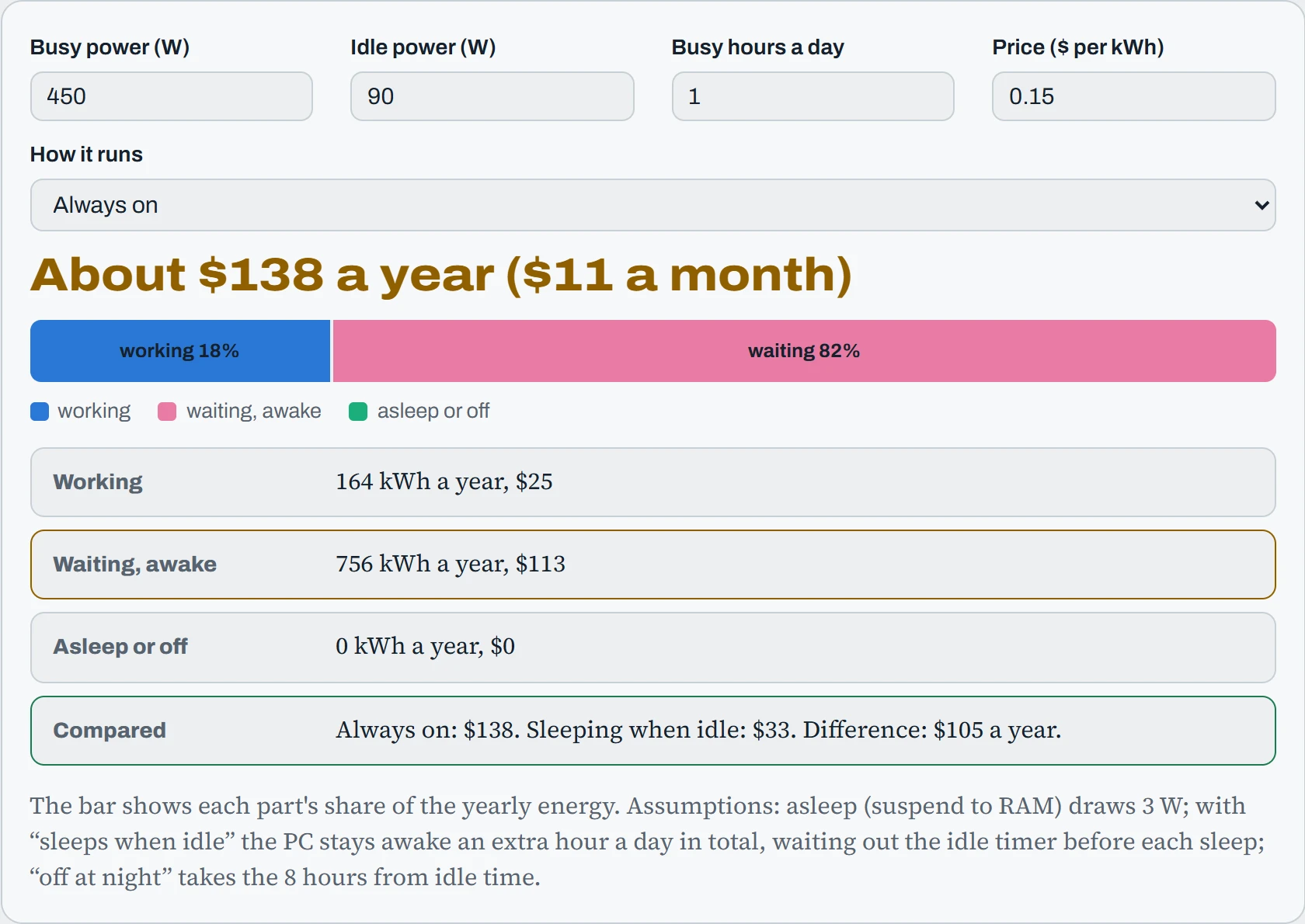
With the starting numbers, sleeping when idle cuts the bill from about $138 to about $33 a year, and you lose nothing except a few seconds of wake-up time. Turning it off at night helps much less, because it still idles all day. At an idle power of 30 W, which a mini PC with no big GPU can reach, always-on becomes cheap enough that the extra setup of sleeping might not be worth it. The right plan depends on the idle number, which is why it's worth measuring.
Sleep, and wake it from anywhere
When Linux suspends (systemctl suspend), it keeps everything in memory, powered at a trickle, and switches off the rest: CPU, GPU, fans, disks. The network card is the exception. If you allow it, it stays half awake, listening for one special message called a magic packet. That's Wake-on-LAN. The packet is very simple: six bytes of FF, then the card's own hardware address (its MAC address) repeated 16 times, 102 bytes in all. The card doesn't need an operating system to spot that pattern, which is why it works while everything else is asleep.
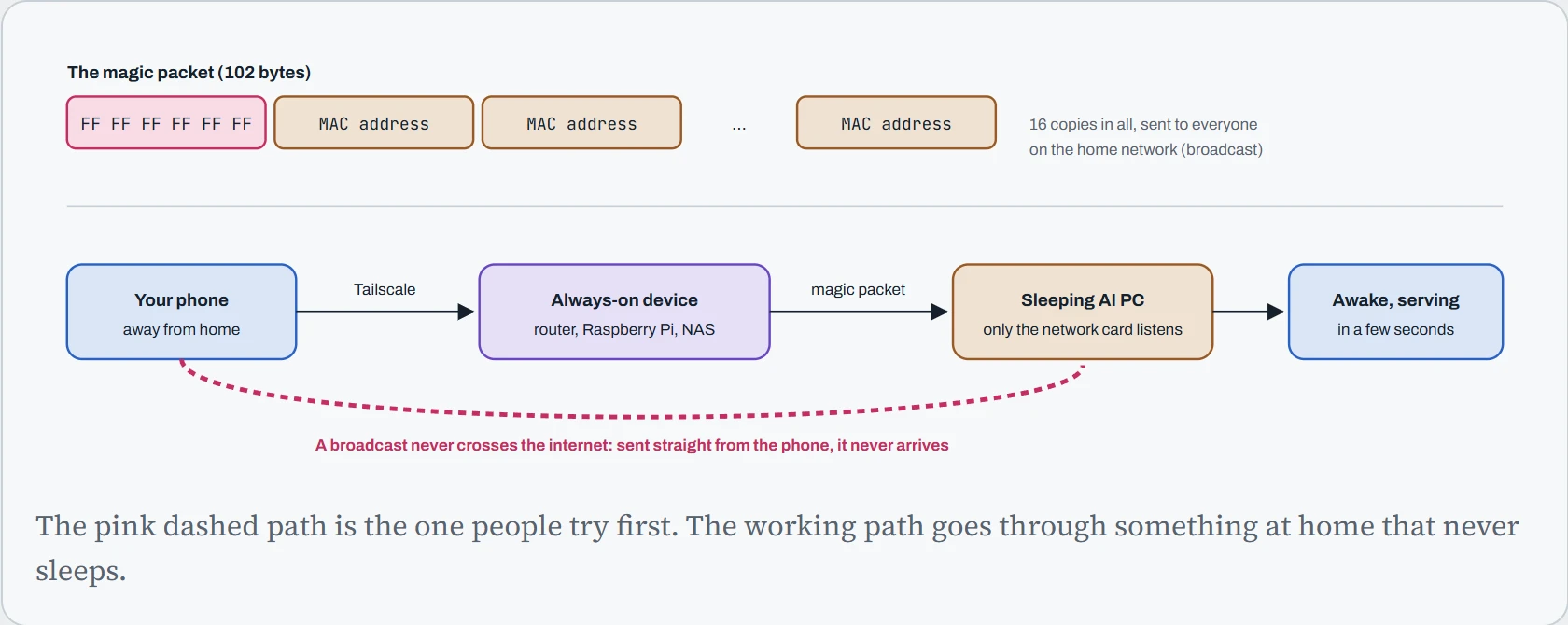
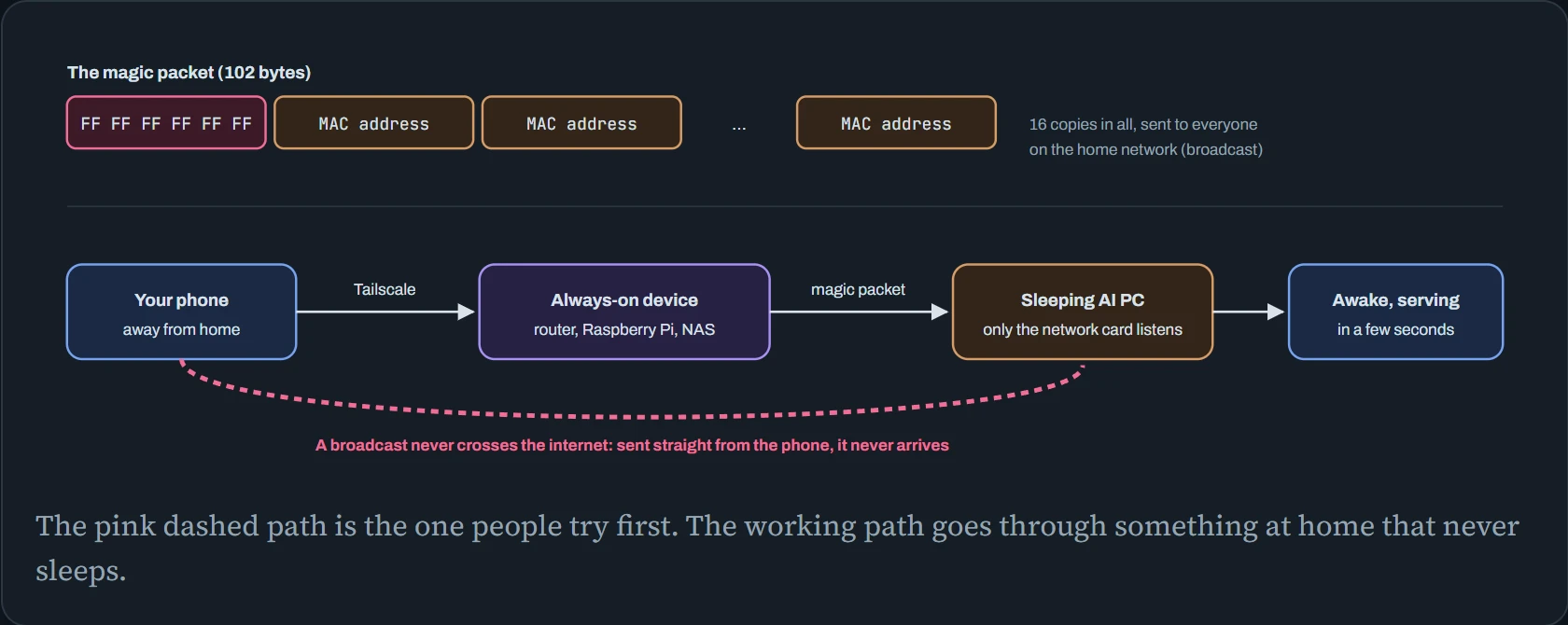
Setting it up has three parts. Turn Wake-on-LAN on in the BIOS (and turn off “ErP”, a power-saving setting that cuts the network card's standby power). Tell Linux to leave the card listening, and save that so it survives a reboot. Then send the packet from another machine at home:
$ sudo ethtool enp5s0 | grep Wake-on
	Supports Wake-on: pumbg
	Wake-on: d                      # d = disabled
$ sudo nmcli connection modify "Wired connection 1" 802-3-ethernet.wake-on-lan magic
$ sudo nmcli connection up "Wired connection 1"
$ sudo ethtool enp5s0 | grep Wake-on:
	Wake-on: g                      # g = wake on magic packet
# later, from the Raspberry Pi (or any always-on machine at home):
pi$ wakeonlan 9c:6b:00:12:ab:cd
The machine should also go to sleep by itself. A small script, run every 15 minutes by a systemd timer, can check two things: is a model loaded (Ollama unloads models 5 minutes after their last use), and is anyone logged in? If both answers are no, it suspends.
Continue the lesson
The whole lesson, with its drawings and its questions. The rest of this section and 3 more after it.