
The shell, the FHS and POSIX permissions: groups, setgid and shared model directories
Linux checks permissions against the groups your session holds, and those are read once, at login. Adding you to a group changes nothing until you log in again; id shows what the current session really has. Behind every file name is an inode, which is what hard and symbolic links point at.
What this page answers
Why am I still denied after being added to a group?
Your groups are read once, when you log in, and every program you start inherits that list. id shows what the current session has and id with your user name shows what a new login would get. Log out and back in, and it works. Read it in “In the group, still denied”
What is the difference between a hard link and a symbolic link?
A hard link is a second name for the same inode, and the data stays until the last name is gone. A symbolic link is a tiny file holding a path that the kernel follows each time it is used. Read it in “Hard and soft links”
In the group, still denied
Your team keeps models in /data/models, writable by the group ml. You asked the admin to add you to that group, and they confirmed it's done. You try to save a file there:
bob@gpu-box:~$ ls -ld /data/models
drwxrwsr-x 5 alice ml 4096 Oct 24 17:40 /data/models
bob@gpu-box:~$ touch /data/models/test
touch: cannot touch '/data/models/test': Permission denied
bob@gpu-box:~$ getent group ml
ml:x:1050:alice,bob
Outputs on this page are realistic examples. Commands, permission rules and error messages are real.
The folder lets its group write (rwx in the middle). The group list includes bob. So why the refusal?
- The folder's permissions don't really allow group writes
- Bob's current login still has his old list of groups
- Only root can create files under /data
Answer. Your groups are read once, when you log in, and every program you start inherits that list. The admin changed the group file an hour ago, but this login started this morning. id shows what the current session really has, and id bob shows what a new login would get:
bob@gpu-box:~$ id
uid=1002(bob) gid=1002(bob) groups=1002(bob),27(sudo)
bob@gpu-box:~$ id bob
uid=1002(bob) gid=1002(bob) groups=1002(bob),27(sudo),1050(ml)
Log out and back in, and it works. A sneaky variant: a tmux session started before the change keeps the old groups even after you reconnect, because tmux's server process was started with them. Restart tmux too, or run newgrp ml in one shell as a stopgap.
How Linux says yes or no
Every file has an owner, a group, and nine on-off switches, shown by ls -l as something like rw-r-----. They're three sets of three: what the owner may do, what members of the file's group may do, and what others (everyone else) may do. Each set is read (r), write (w) and execute (x, which for a folder means “may enter it”).
The part people get wrong is how the kernel picks a set. It doesn't add them up. It checks who you are and uses exactly one set: owner if you own the file, otherwise group if you're in its group, otherwise others. The admin user, root, skips the check for reading and writing. Alice and bob are both in ml, carol isn't. The highlighted set is the one being used.
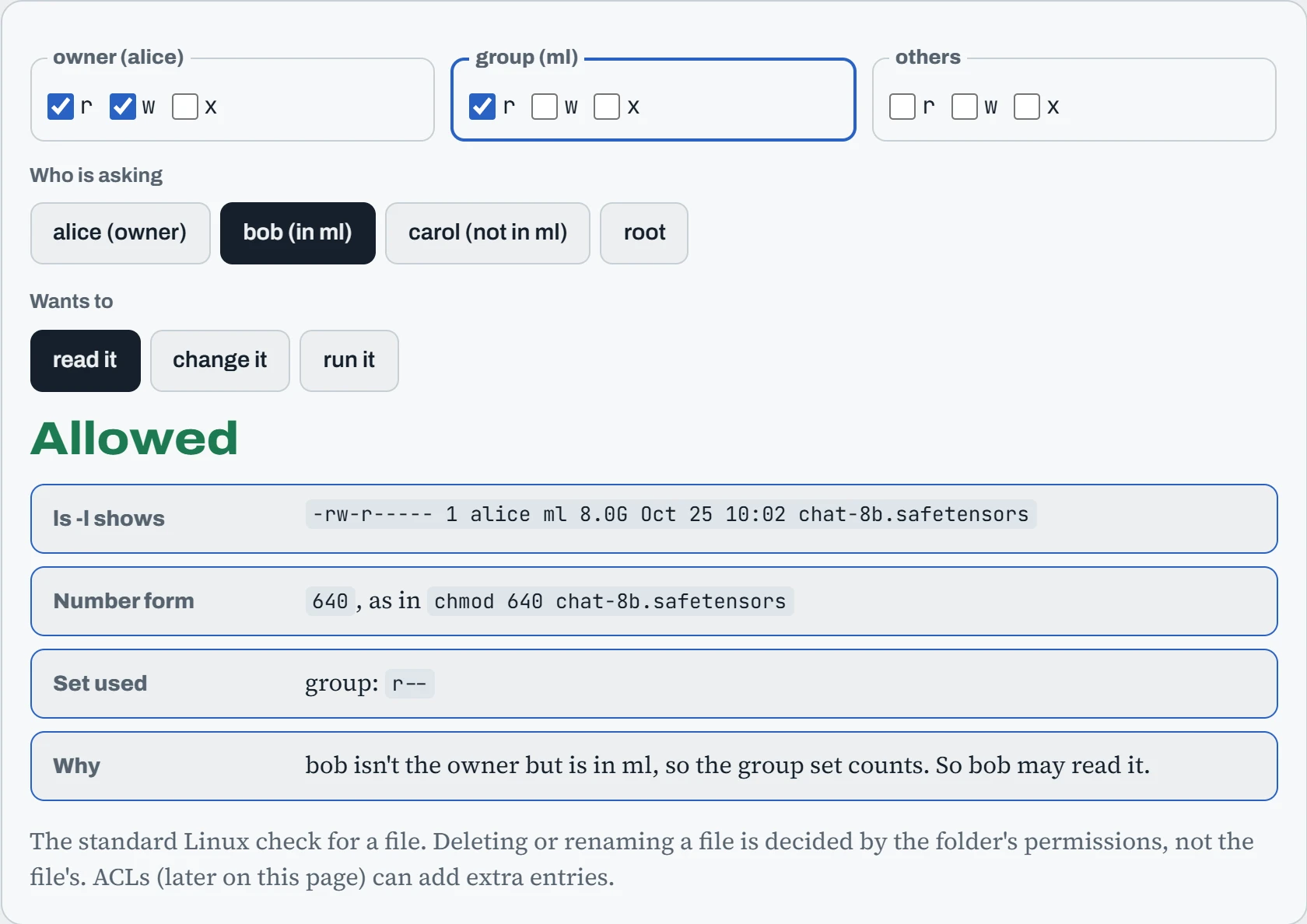
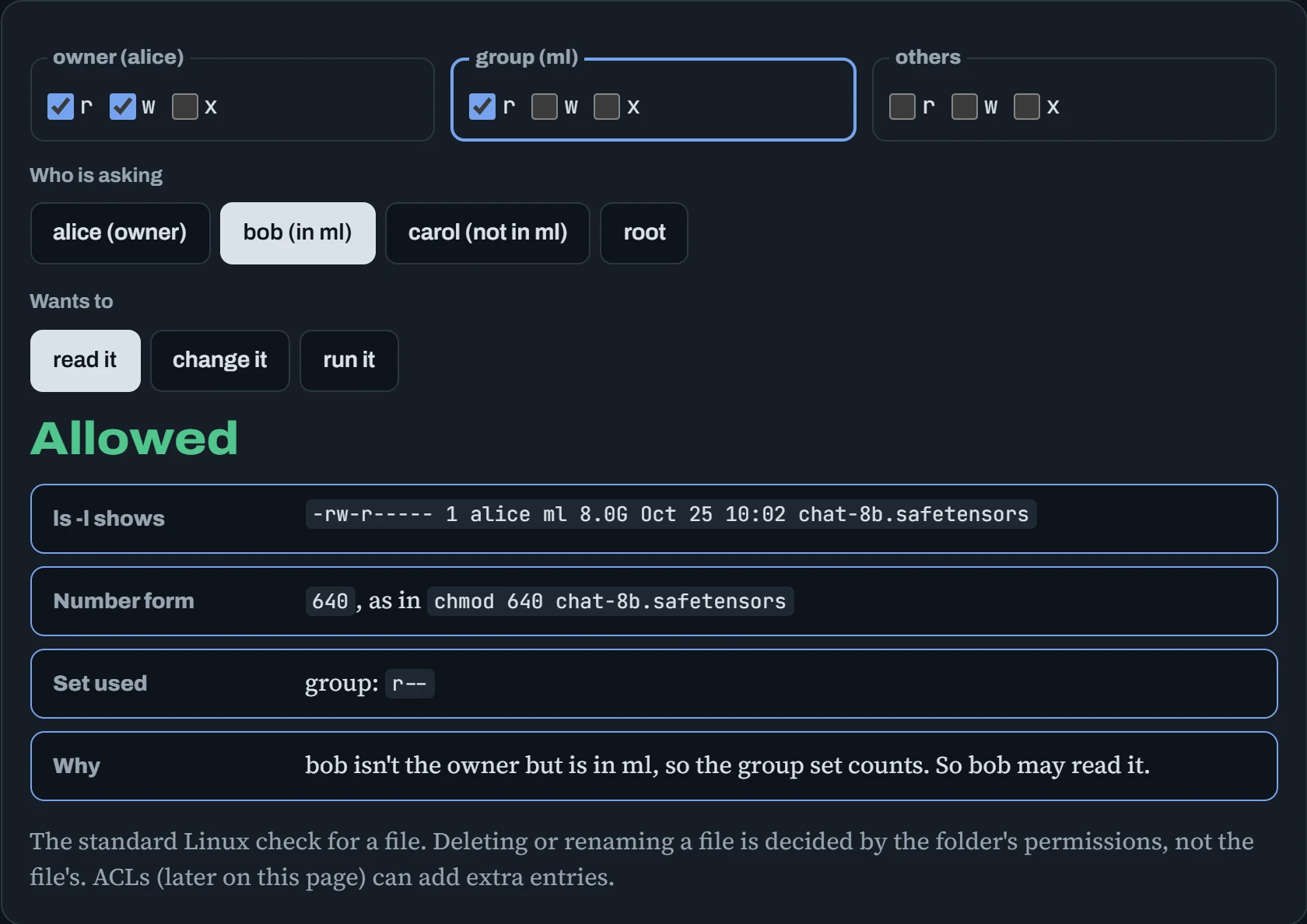
Two things to take away. Each set of three is written as one digit, adding 4 for r, 2 for w and 1 for x, so rw-r----- is 640, and chmod 640 file sets exactly that. Take away all of alice's permissions while leaving the group's on: alice is refused, even though she's in the group, because as the owner only the owner set counts. Strange, but it follows the rule exactly.
A few groups unlock hardware and tools on AI machines. video and render give access to GPU device files on AMD and Intel GPUs (/dev/dri, /dev/kfd). docker lets you use Docker, and is as powerful as root (Down the Overlay explains why). sudo (on Ubuntu) or wheel (on RHEL) lets you run commands as root. Rules for sudo itself live in /etc/sudoers, which you should only edit with sudo visudo, because it checks the file before saving and a typo can lock everyone out of sudo.
How a command is built
The shell (usually bash, sometimes zsh) is the program that reads what you type. Before it runs anything, it rewrites your line: it splits it into words at spaces, replaces patterns like *.safetensors with the matching file names, and fills in variables like $HOME. The program only ever sees the finished list of words. This is the source of many puzzling errors:
$ echo model-*.safetensors
model-00001-of-00002.safetensors model-00002-of-00002.safetensors
$ echo 'model-*.safetensors'
model-*.safetensors
$ ls $HOME/my models
ls: cannot access '/home/ml/my': No such file or directory
ls: cannot access 'models': No such file or directory
$ ls "$HOME/my models"
config.json  model.safetensors
$ type -a python3
python3 is /usr/bin/python3
Single quotes switch all rewriting off. Double quotes keep spaces together but still fill in variables. That's why “always put variables in double quotes” is the most useful shell habit there is. The first word is the command, and type -a shows which program it will really run, searched through the folders in PATH (Down the Path shows why that matters for Python).
For help, command --help gives a quick summary, man command the full manual, and the tldr tool short examples. And three keyboard habits save hours: Tab completes names, Ctrl+r searches your command history as you type, and Ctrl+c stops the running command.
Where things live
Linux puts everything in one tree that starts at /, and the main folders have fixed jobs, set out in a standard called the FHS (Filesystem Hierarchy Standard). Knowing them tells you where to look for a config, where logs go, and where you should and shouldn't put things:
| Folder | What lives there | AI examples |
|---|---|---|
/etc | System settings, as text files | /etc/fstab, /etc/ssh/sshd_config |
/usr | Software from the package manager. Don't hand-edit. | /usr/bin/python3 |
/usr/local, /opt | Software you built, or a vendor's own install folder | /usr/local/cuda-12.8, /opt/rocm |
/var | Data that changes: logs, databases, caches | /var/log, /var/lib/docker |
/tmp | Temporary files, may be wiped at boot | Scratch output |
/home | Your files, plus hidden caches | ~/.cache/huggingface, ~/.cache/pip, ~/.ollama |
/proc, /sys | Not real files: live views into the kernel | /proc/meminfo, /proc/driver/nvidia/version |
/dev | Devices, as files | /dev/nvidia0, /dev/dri, /dev/shm |
/proc and /dev are worth a closer look, because they show a core Linux idea: the kernel presents information and hardware as files, so the ordinary tools work on them:
$ cat /proc/driver/nvidia/version
NVRM version: NVIDIA UNIX x86_64 Kernel Module  580.95.05  Tue Sep 30 06:16:44 UTC 2025
$ df -h /dev/shm
Filesystem      Size  Used Avail Use% Mounted on
tmpfs           252G  1.2G  251G   1% /dev/shm
$ du -sh ~/.cache/* 2>/dev/null | sort -h | tail -3
2.1G    /home/ml/.cache/pip
19G     /home/ml/.cache/uv
412G    /home/ml/.cache/huggingface
/dev/shm is shared memory that looks like a folder. It lives in RAM, and PyTorch's data loader workers use it to hand batches to the main process, which is why it matters in containers (Down the Image). The last command is the classic AI surprise: a Hugging Face cache quietly grows to hundreds of GB in a home folder on a small disk. The next section shows the usual fix.
Moving around and handling files
You move around the tree with a handful of commands: pwd prints where you are, cd /data/models goes somewhere, cd - jumps back to where you just were, and cd alone goes home. ls -lah lists a folder with sizes people can read and hidden files included. Copying, moving and deleting are just as short, and that's the danger: Linux has no recycle bin, so rm is permanent.
$ cp -a /data/models/chat-8b /backup/          # -a keeps owners, permissions and times
$ mv -n draft.yaml config.yaml                  # -n: never overwrite an existing file
$ rm -i old-*.log                               # -i: ask before each one
rm: remove regular file 'old-1.log'? y
$ rm -- -weird-name.txt                         # -- means "no more options", for names starting with -
Most file accidents come from one feature you met earlier: globbing. Patterns like * are expanded by the shell before rm runs, so rm never sees your pattern, only the list of names it turned into. * means “any characters”, ? means “exactly one character”, and [1-3] means “one of these”.
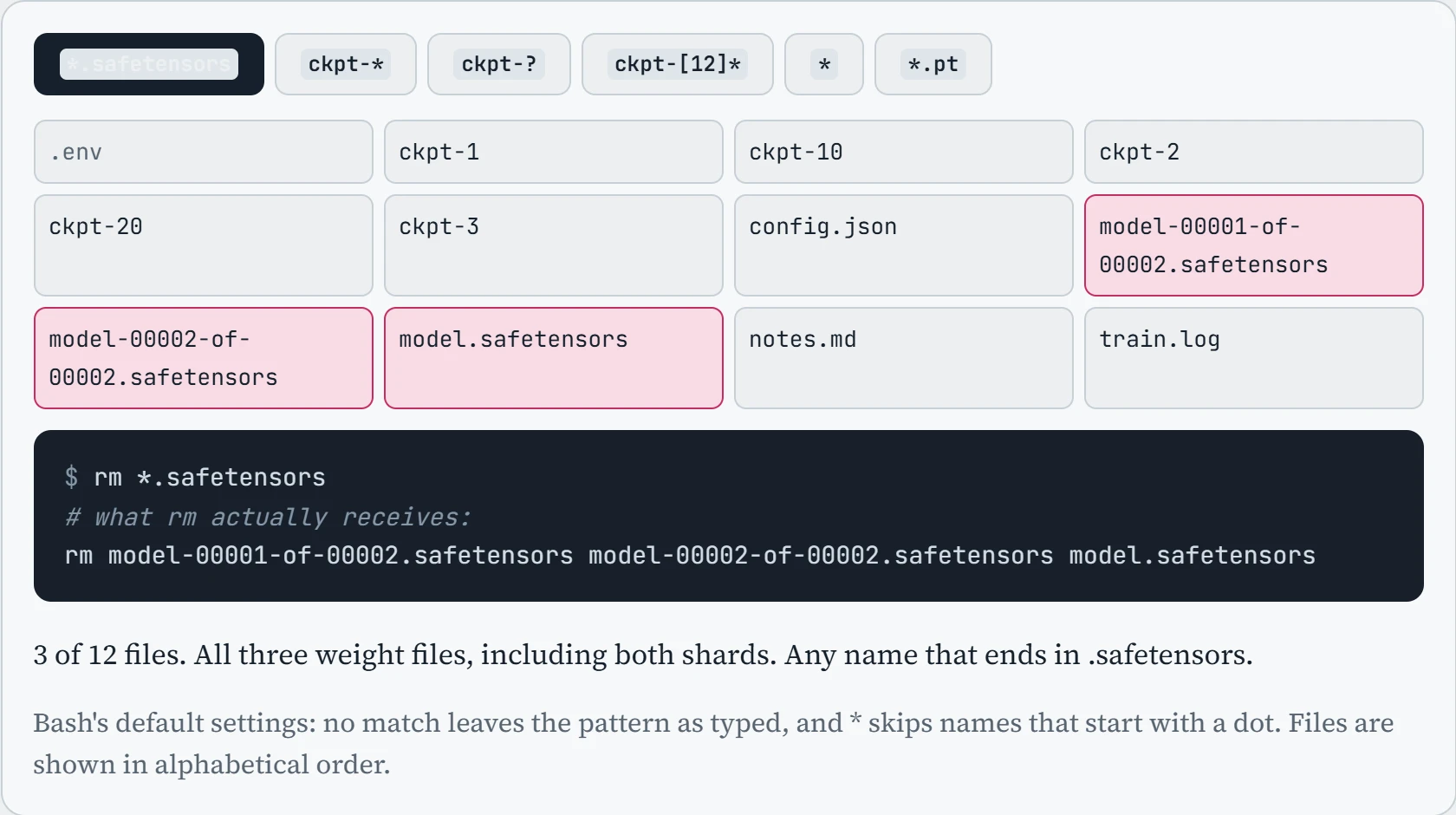
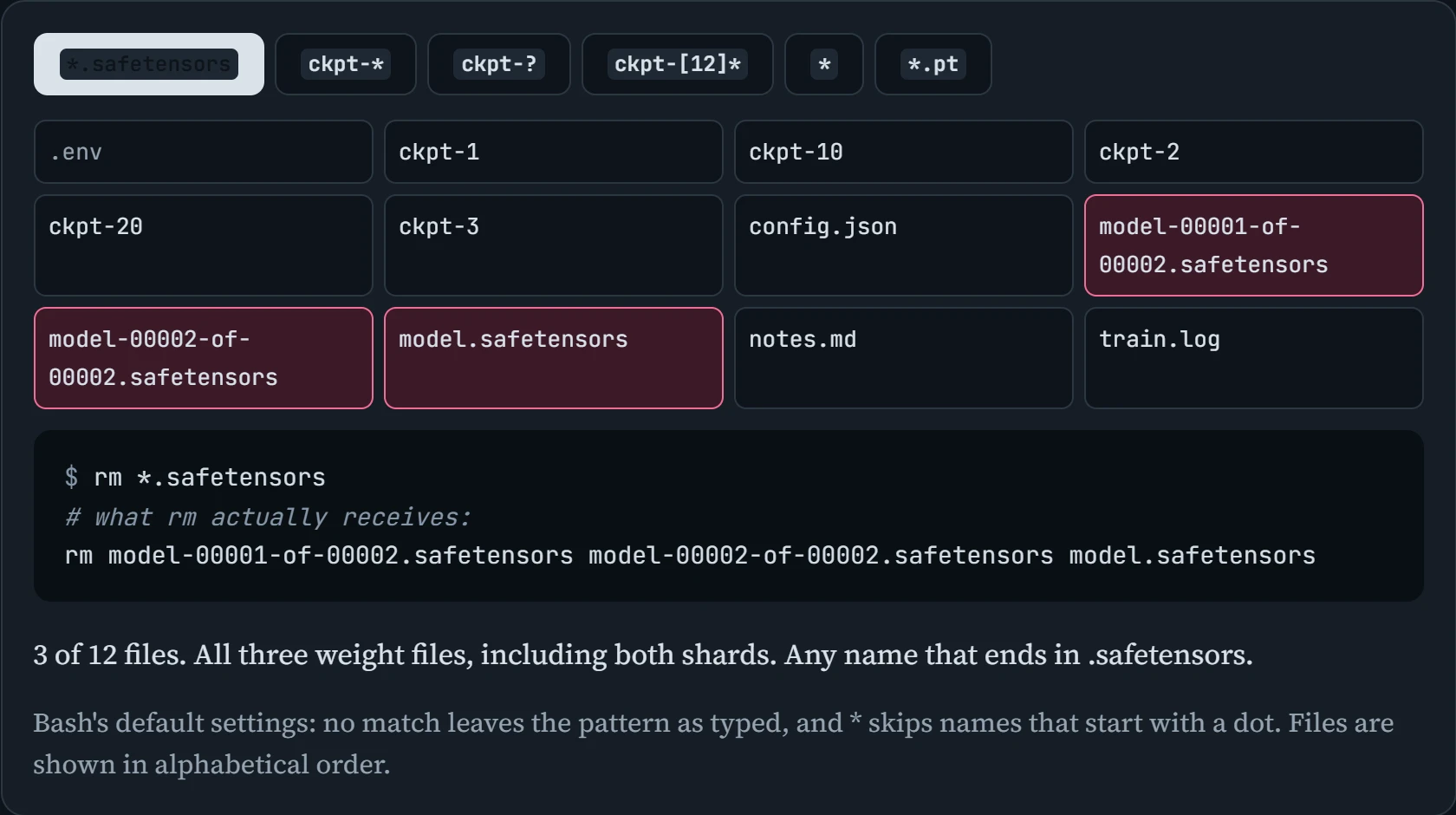
Three things from the figure are worth keeping. ckpt-? and ckpt-* look alike but hit different files, because ? is exactly one character. A plain * quietly skips hidden files like .env, which is why a “delete everything” can leave secrets behind. And a pattern that matches nothing is passed on unchanged, so rm complains about a file literally named *.pt. The safe habit: run ls with the same pattern first, look, and only then swap ls for rm.
To find files by name, size or age anywhere below a folder, use find, or the friendlier fd. Quote the pattern, so the shell passes it to find instead of expanding it first:
$ find /data -name '*.safetensors' -size +1G -mtime -7     # big model files changed this week
$ fd -e safetensors . /data                              # the same search with fd
$ find runs/ -name 'ckpt-*' -mtime +30 -print            # look first...
$ find runs/ -name 'ckpt-*' -mtime +30 -delete           # ...then delete the same list
The last two lines are the deleting version of “look first”: the same search, once with -print to check the list, then with -delete. For anything bigger, the pruning script in Down the Script adds a dry run and a keep-list.
Predict. In a folder that contains a.log and b.log, plus subfolders full of other logs, you run find . -name *.log -delete, without quotes. What happens?
Answer. Nothing gets deleted, and you get an error: find: paths must precede expression: `b.log'. The shell expanded *.log first, using the files in the current folder, so find received -name a.log b.log -delete, which makes no sense to it.
With only a.log in the folder it's worse: no error, and find deletes only files named exactly a.log, everywhere below. Quoting (-name '*.log') hands the pattern to find untouched, which is what you meant.
Hard and soft links
A file name isn't the file. Behind every name is an inode: the kernel's record of who owns the file, its permissions, its size, and where its data sits on disk. A name just points at an inode. That allows two kinds of link, shown below. Read the top row as “two names, one file”, and the bottom row as “a signpost to a path”.
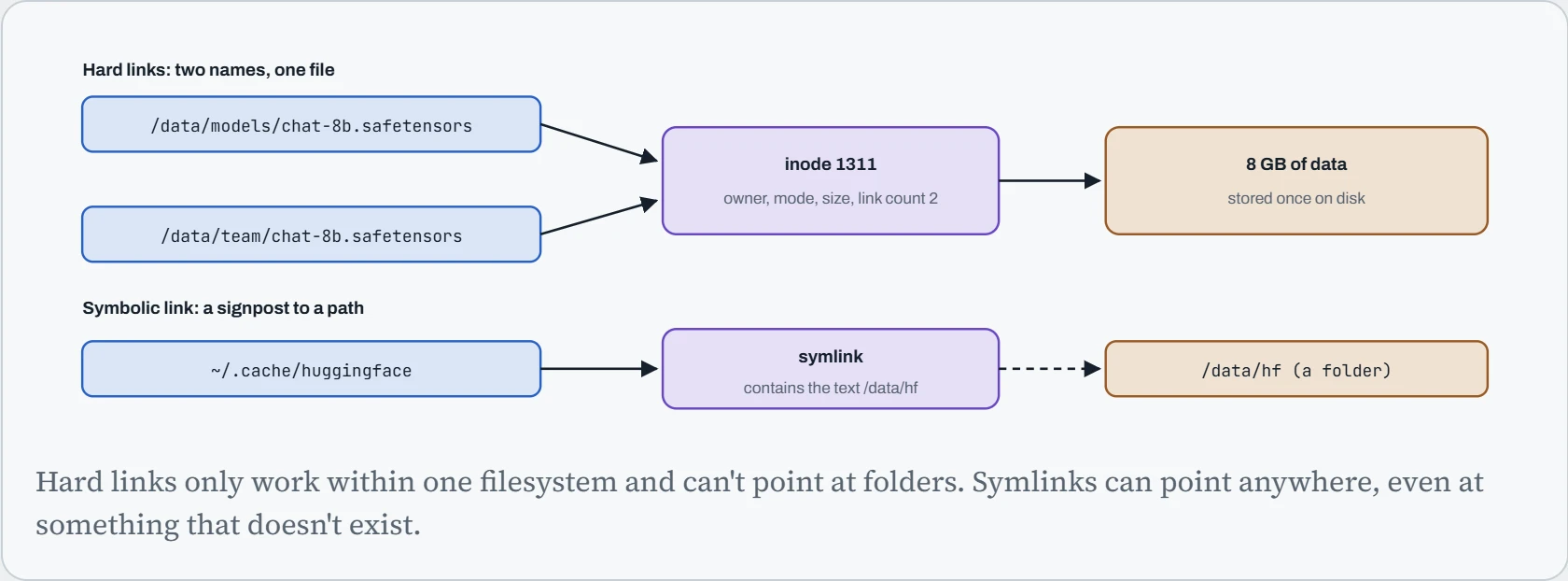
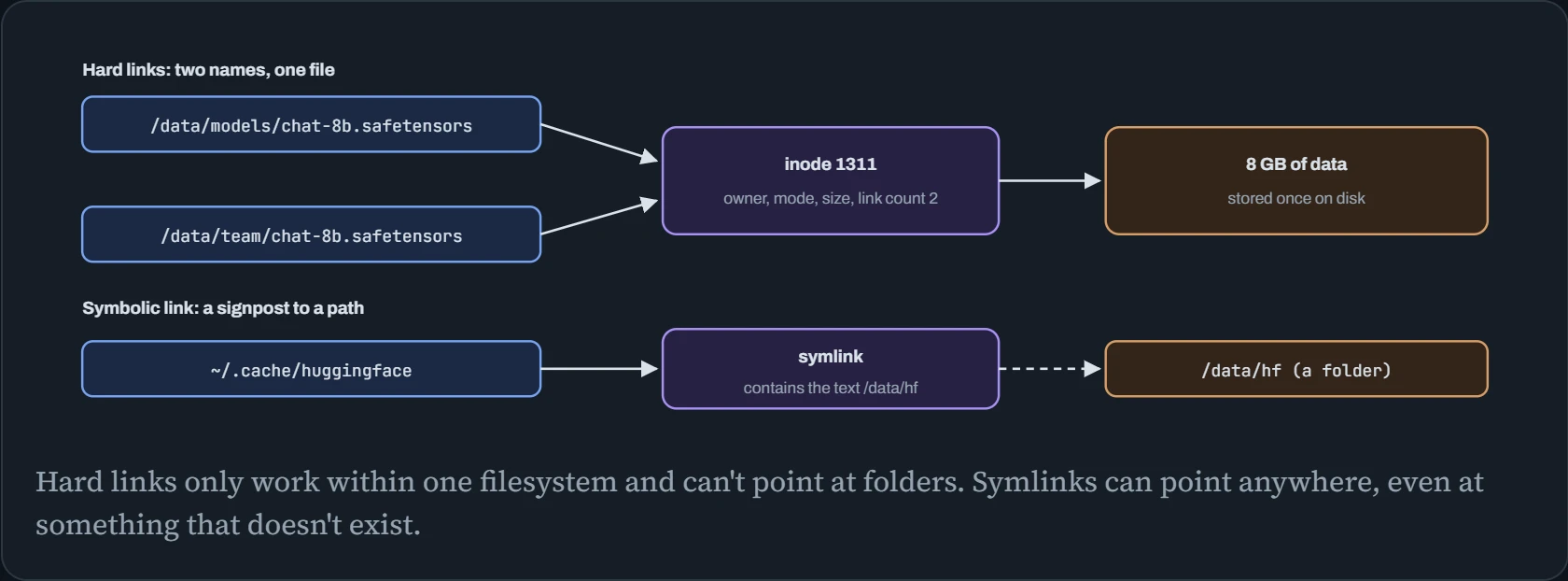
A hard link (ln file newname) is a second name for the same inode. Both names are equally real, and the data stays until the last name is gone. A symbolic link (ln -s target linkname) is a tiny file holding a path, which the kernel follows every time it's used. Symlinks are how you move a big cache to a big disk without changing any settings:
$ mv ~/.cache/huggingface /data/hf
$ ln -s /data/hf ~/.cache/huggingface
$ ls -l ~/.cache/ | grep huggingface
lrwxrwxrwx 1 ml ml 8 Oct 25 10:12 huggingface -> /data/hf
The link's size is 8 bytes: exactly the length of the text /data/hf. For Hugging Face you can also just set HF_HOME=/data/hf (next section). The symlink trick works for any program that has no setting of its own.
Predict. You hard-link an 8 GB model file into a second folder, so it now has two names. Then you delete the original with rm. Is the model gone, and did you get 8 GB of disk space back?
Answer. Neither. rm removes a name, and lowers the inode's link count from 2 to 1. The data is only freed when the count reaches 0 (and no program still has the file open). The model is still fully there under its other name, and no space came back.
That's the same rule behind Down the Disk's deleted-but-still-open file, and behind uv's shared package cache in Down the Path: names come and go, the data stays until nothing points at it.
Continue the lesson
The whole lesson, with its drawings and its questions. 5 more sections after the ones above.