
Storage engineering: RAID, filesystems, RAM-backed storage, network storage and checkpoint backups
Deleting a file removes its name; the data is freed only when nothing is using it. A deleted log still open by a running job has no name, so du cannot find it, but df still counts its space. lsof can find such files. Some storage lives in RAM, such as tmpfs and the page cache.
What this page answers
Why does df show the disk full when du shows less?
A large file was deleted while a process still had it open. The name is gone, so du cannot see it, but the space is only freed when nothing is using the file. lsof can find files like that. Read it in “Full, but only 40% used”
What is /dev/shm?
A tmpfs, a filesystem that keeps files in RAM: very fast, gone at reboot, using memory only for what is stored. Data loader workers and NCCL pass data between processes through it. Read it in “Storage that lives in RAM”
Full, but only 40% used
A training run crashes: “No space left on device”. You check the data disk. It really is full. Then you add up the size of every file on it, and get a very different answer:
$ df -h /data
Filesystem      Size  Used Avail Use% Mounted on
/dev/nvme1n1    3.5T  3.5T     0 100% /data
$ sudo du -sh /data
1.4T    /data
Outputs and speeds on this page are realistic examples. Real numbers depend on your hardware. Commands, options and the filesystem behaviour are real.
df asks the filesystem how much space is used: 3.5 TB. du adds up every file it can find: 1.4 TB. Where are the other 2.1 TB?
- In hidden files du skipped
- In a deleted file that a program still has open
- The filesystem is corrupted
Answer. Last week someone deleted a huge log file to free space, while the training job was still writing to it. Deleting a file removes its name. The data itself is only freed when nothing is using it any more, and the training process still has it open. So the 2 TB file has no name, du can't find it, but the space is still taken. lsof can find files like this:
$ sudo lsof +L1 | grep /data
COMMAND   PID  USER  FD  TYPE DEVICE      SIZE/OFF NLINK NODE NAME
python  48211 train  7w  REG  259,1 2199023255552     0 1311 /data/logs/train.log (deleted)
+L1 means “files with fewer than one name”: deleted, but still open. Restart the process and the space comes back. If you can't restart it, empty the file through the process's own handle: : > /proc/48211/fd/7. The mechanism section explains names, inodes and blocks, and why Linux works this way.
Where data should live
Storage comes in tiers that differ hugely in speed, and the gaps are bigger than most people expect. Each kind is good at some jobs and bad at others. Reading a few big files from start to finish (sequential reads) is easy for almost anything. Reading millions of small files is hard for anything with a delay on each request, like network storage or spinning hard disks. Writing a big checkpoint is a test of write speed.
Shorter is better. The figures are round, typical examples for each kind of hardware.
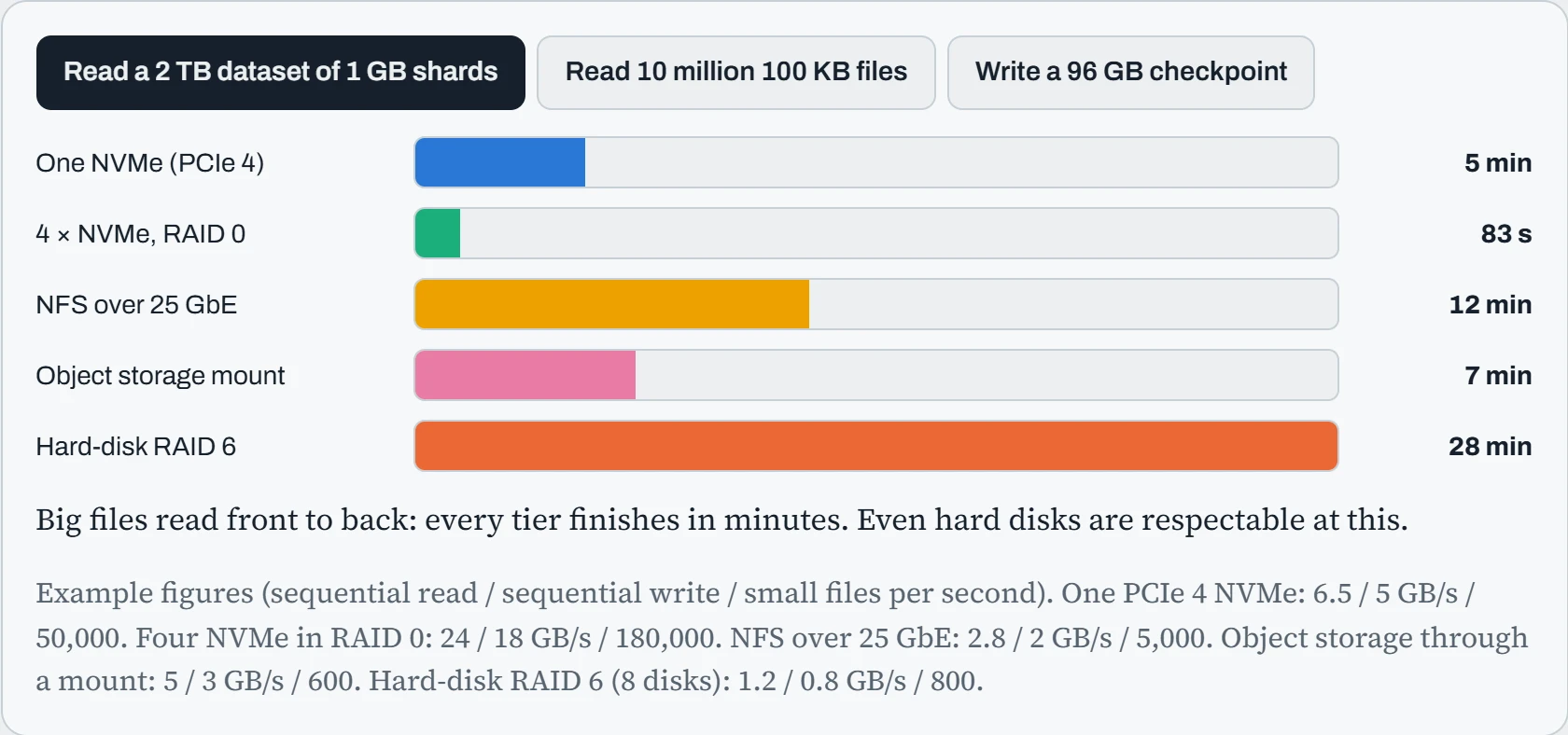
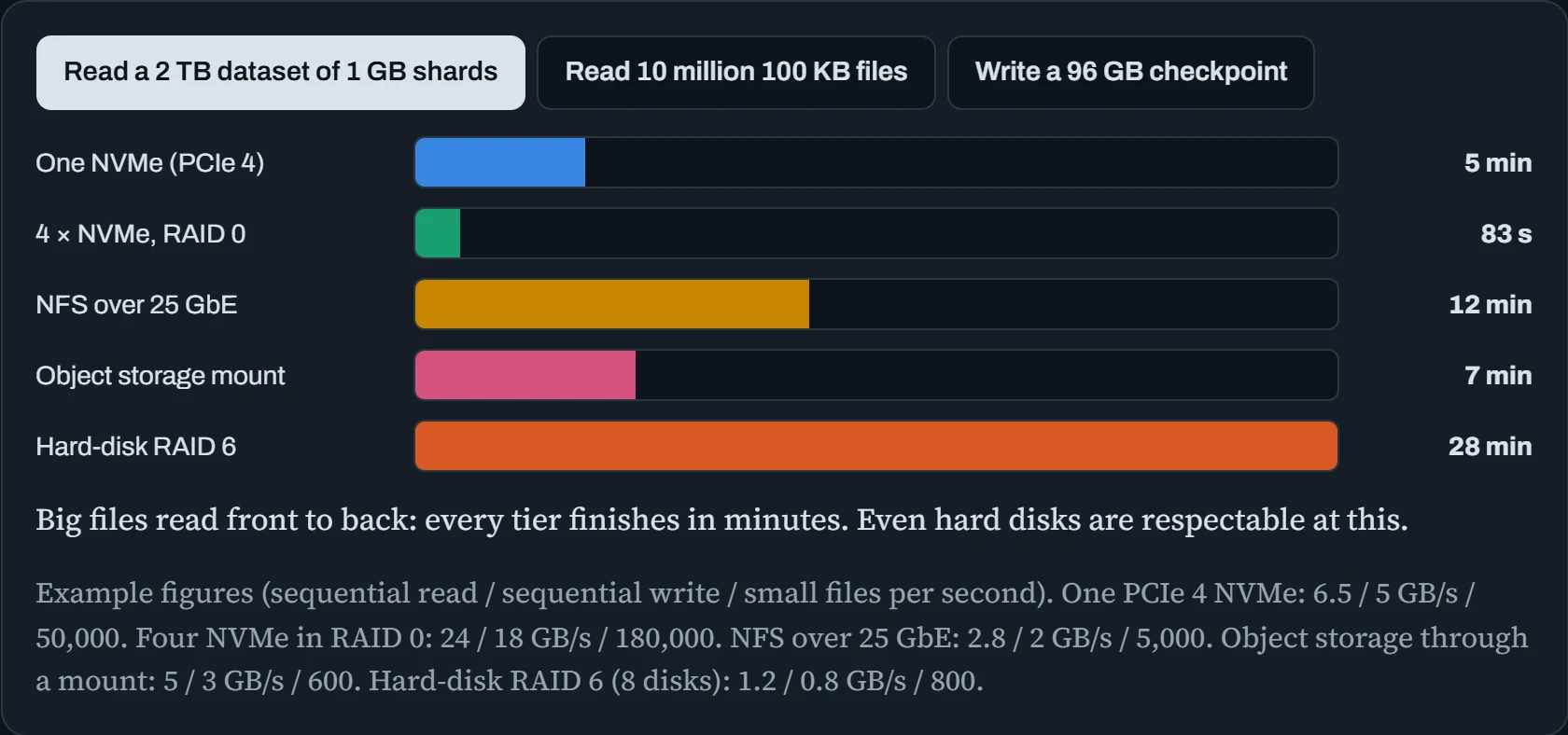
For big sequential reads, every tier is in the same league: minutes, not hours. For millions of small files, network storage and hard disks fall apart, taking from half an hour to several hours where local NVMe takes minutes, because every file pays a fixed delay (Down the Dataset). And a checkpoint lands in seconds on local NVMe, but takes minutes on a hard-disk array.
That gives a common layout for a training server. Datasets and checkpoints live on shared or object storage, which is safe and big. While a job runs, it works from fast local NVMe, often several drives combined into one RAID 0 scratch area. Checkpoints are written locally first, then copied off in the background. Local NVMe is fast but not safe: if the drive or the machine dies, what's only there is gone.
Disks, RAID and filesystems
A disk becomes usable in layers. First, optionally, it's split into partitions. Then several disks can be combined: RAID 0 stripes data across disks for speed (and loses everything if any one disk fails), RAID 1 mirrors for safety, and LVM lets you resize and combine volumes later. On top goes a filesystem, which turns raw blocks into files and folders. Here's a fast scratch area made from four NVMe drives:
$ sudo mdadm --create /dev/md0 --level=0 --raid-devices=4 /dev/nvme1n1 /dev/nvme2n1 /dev/nvme3n1 /dev/nvme4n1
$ sudo mkfs.xfs /dev/md0
$ sudo blkid /dev/md0
/dev/md0: UUID="5b1e…" TYPE="xfs"
$ echo 'UUID=5b1e…  /scratch  xfs  defaults,noatime,nofail  0 2' | sudo tee -a /etc/fstab
$ sudo mount /scratch && df -h /scratch
/dev/md0         14T  98G   14T   1% /scratch
Three details in that fstab line matter. The UUID names the volume by a fixed ID, because device names like /dev/nvme1n1 can change between boots. noatime stops the filesystem from writing a “last read” time every time a file is read, which saves a lot of writes when a dataset is read millions of times. And nofail lets the machine finish booting even if this disk is missing (Down the Boot).
Which filesystem? For AI data, the choice usually comes down to four:
| Filesystem | Strengths | Good for |
|---|---|---|
| ext4 | Simple, very well tested, Ubuntu's default | System disks, general use. Fixed number of files decided at creation (see the mechanism section) |
| XFS | Excellent with huge files and big parallel writes | Datasets, checkpoints, scratch areas. RHEL's default |
| Btrfs | Snapshots, compression, checksums on every block | Workstations and data you want to snapshot cheaply |
| ZFS | Snapshots, compression, checksums, its own RAID, send and receive | Storage servers holding models and checkpoints you can't lose |
For a scratch area of big files that can be rebuilt, XFS on RAID 0 is the usual pick. For the place where your only copy of something important lives, prefer something with checksums and snapshots (ZFS or Btrfs), on mirrored disks, and also back it up somewhere else.
What's eating the disk
AI machines fill disks in predictable places. Model downloads pile up in the Hugging Face cache. Container images and build caches grow under /var/lib/docker. Checkpoints multiply in output folders. Pip, conda and uv keep caches too. Start with the biggest folders, and work down:
$ sudo du -xh --max-depth=2 / 2>/dev/null | sort -h | tail -6
 92G	/home/alex/.cache
118G	/var/lib/docker
406G	/home/alex/runs
$ du -sh ~/.cache/huggingface ~/.cache/pip ~/.cache/uv 2>/dev/null
 71G	/home/alex/.cache/huggingface
 14G	/home/alex/.cache/pip
6.9G	/home/alex/.cache/uv
$ df -i /data                                 # i for inodes: the other way a disk can be full
Filesystem       Inodes    IUsed     IFree IUse% Mounted on
/dev/nvme1n1  234418176  9120055 225298121    4% /data
-x keeps du on one filesystem, so it doesn't wander into mounted network shares. For browsing interactively, ncdu shows the same tree, and lets you delete as you go. Point big caches at a big disk with environment variables like HF_HOME. And on shared servers, quotas stop one user's checkpoints from filling the disk for everyone. That last df -i line is the mechanism section's subject: a disk can be “full” of files long before it's full of bytes.
Cleaning up safely
Finding the big folders is half the job. The other half is knowing which ones you can delete without regret. Most of what fills an AI machine is a cache: a copy of something that also lives somewhere else, kept so the next download or install is quick. Deleting a cache costs you time later, when it's downloaded again, and nothing more. Your own work is the opposite. Checkpoints, datasets you built, and results exist nowhere else.
Each tool has its own clean-up command, and it's better to use it than rm -rf, because the tool knows which files are still in use. Docker is a good example: it can tell you exactly how much it could give back.
$ docker system df
TYPE            TOTAL     ACTIVE    SIZE      RECLAIMABLE
Images          23        4         58.0GB    41.2GB (71%)
Containers      5         2         1.2GB     0.9GB (75%)
Local Volumes   6         3         12.6GB    0B (0%)
Build Cache     188       0         46.3GB    46.3GB
“Reclaimable” means not used by any container right now. Here 41 GB of images and all 46 GB of build cache could go. Volumes show 0 reclaimable because they're in use, and volumes often hold real data (a database, a vector store), so they're never part of a casual clean-up.
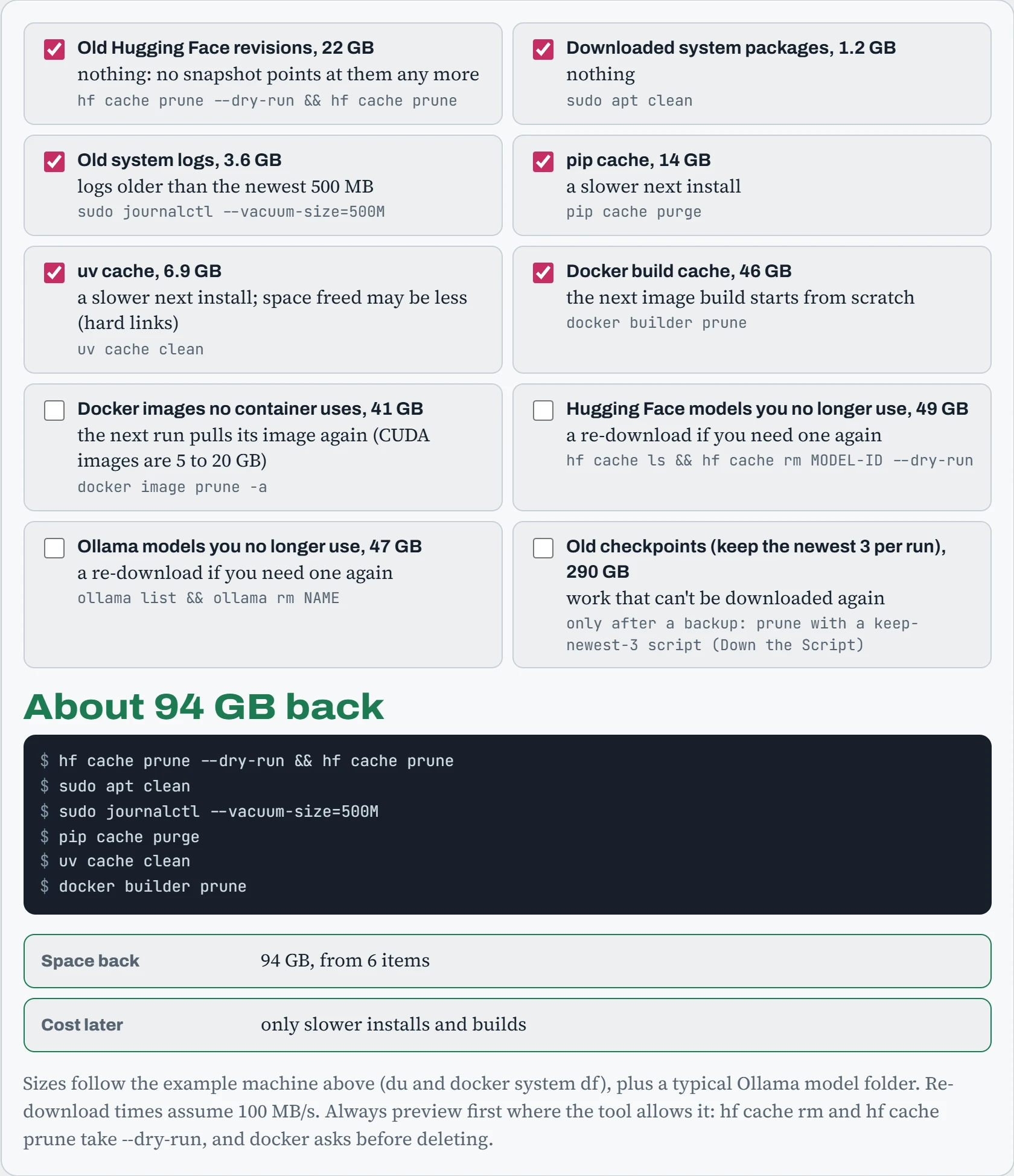
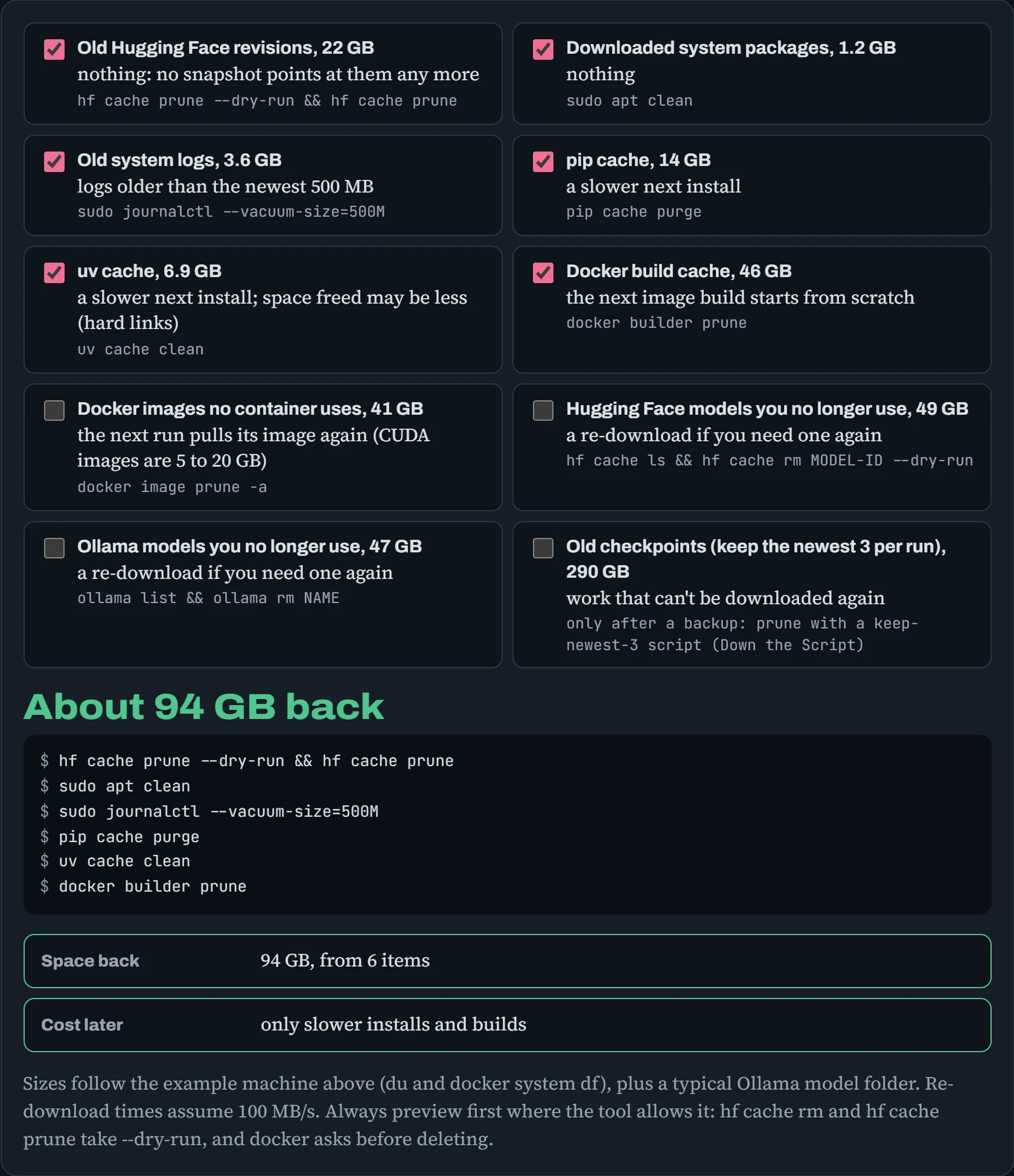
With only the no-regret items, you get back about 94 GB and lose nothing but some install time. Clearing every cache frees about 231 GB, at the cost of a few re-downloads. Only the checkpoints are truly irreplaceable, which is why they're last, and only after a backup. One number may disappoint you: uv links files from its cache straight into your environments (hard links, see Names, inodes and blocks below), so cleaning the cache frees only the files no environment still uses.
Storage that lives in RAM
Some “storage” isn't on a disk at all. tmpfs is a filesystem that keeps files in RAM. It's very fast, it's gone at reboot, and it only uses memory for what's actually stored. /dev/shm is a tmpfs, and it's where data loader workers and NCCL pass data between processes (Down the Image). On many systems /tmp is one too, which is why a job that writes 200 GB of temporary files to /tmp can run a machine out of memory.
Then there's the page cache: Linux quietly keeps recently read files in spare RAM, so reading them again is nearly free. It's why the second epoch of training is often faster than the first. And it's why loading model weights from .safetensors files is so quick: they're memory-mapped, which means the file is treated as if it were already in memory, and only the parts actually touched are read from disk.
$ df -h /dev/shm /tmp
Filesystem      Size  Used Avail Use% Mounted on
tmpfs           252G  1.1G  251G   1% /dev/shm
tmpfs           252G   18G  234G   7% /tmp
$ vmtouch -v ~/models/llama-3.1-8b/model-00001-of-00004.safetensors | tail -2
           Resident Pages: 1215616/1215616  4.6G/4.6G  100%
That model shard is 100% in the page cache, so loading it again takes a fraction of a second. After a reboot, the first load reads it from disk again. When you benchmark storage, remember the page cache is there. Measuring a second read of the same file measures RAM, not the disk. Benchmark tools like fio use direct I/O, which bypasses the cache, for exactly this reason.
Moving big data
Copying terabytes is where hours disappear. Three tools cover most cases. rsync copies only what changed, and can resume an interrupted transfer. tar with a fast, multi-threaded compressor (zstd -T0 or pigz) bundles many small files into one stream, which travels far faster than the files one by one. And checksums prove the copy matches the original.
$ rsync -aP --partial /data/ckpt/ backup01:/archive/ckpt/        # resumable, shows progress
$ tar -I 'zstd -T0 -3' -cf - ./images | ssh gpu-02 'tar -I zstd -xf - -C /scratch'
$ sha256sum ckpt/step-20000.pt | tee step-20000.sha256
gpu-02$ sha256sum -c step-20000.sha256
ckpt/step-20000.pt: OK
The middle command streams a folder of a million images to another machine as one compressed stream, with no temporary archive file on either side. For object storage, the parallel tools from Down the Dataset (s5cmd, rclone) do the same job. Whatever you use, verify after copying. A silently corrupted checkpoint is discovered at the worst possible moment: when you need it.
Continue the lesson
The whole lesson, with its drawings and its questions. 6 more sections after the ones above.