
Appendix A: the command reference for AI infrastructure
A few commands do most of the work: in the lesson's example, ten commands made up 780 of the last 1,000 typed. Every command answers one of four questions for one layer of the machine: what is there, is it healthy, what is using it, and what happened.
What this page answers
Which Linux commands should I learn first?
The everyday ten or twenty. In the example, ten commands made up 780 of the last 1,000, while 54 others shared the rest, many used once or twice on the day something broke. Read it in “Your own top ten”
How do I choose the right Linux command?
Pick the layer you suspect, from the machine and its disks up to the GPU and containers, and ask one of four questions: what is there, is it healthy, what is using it, and what happened. Read it in “Every command answers a question”
Your own top ten
Bash keeps a list of the commands you've typed, called your history. On Ubuntu it keeps the last 1,000. Here's an AI engineer's history after a few busy weeks, counted by command name. The first line takes the second word of each history line (the command), sorts them, counts the repeats, and shows the ten most common:
$ history | awk '{print $2}' | sort | uniq -c | sort -rn | head
    142 nvidia-smi
    131 cd
    118 ls
     97 git
     74 uv
     61 tail
     55 docker
     43 ssh
     38 grep
     21 du
$ history | awk '{print $2}' | sort -u | wc -l
64
The counts are a realistic example. The commands are real: run the same two lines on your own machine.
So this person used 64 different commands in their last 1,000. About how many of those 64 did most of the work?
- About ten
- About thirty
- All 64, used roughly equally
Answer. Add up the ten counts: 780 of the last 1,000 commands were one of those ten. The other 54 commands shared the remaining 220, many of them used once or twice: a dkms status on the day the driver broke, an ss -tlnp to find out what grabbed port 8000.
That shape is the whole idea of this page. Learn the everyday ten or twenty until your fingers know them. For everything else, don't memorize: know what question you're asking, and look up the command that answers it. Most of this page is built for that lookup.
Every command answers a question
This course treats an AI machine as layers: the machine itself, its files and disks, the network, the running programs and services, your Python code, the GPU, and on top, containers and clusters. When something is wrong, you ask the same four plain questions of whichever layer you suspect. What's there? (Is the disk, the GPU, the package even present?) Is it healthy? What's using it? (Who is eating the memory, the space, the port?) And what happened? (What do the logs say?)
Almost every command you'll meet answers one of those four questions for one layer. The grid below gives one good answer for each pair. Read across a row to look at one layer from every side, or down a column to ask one question of every layer.
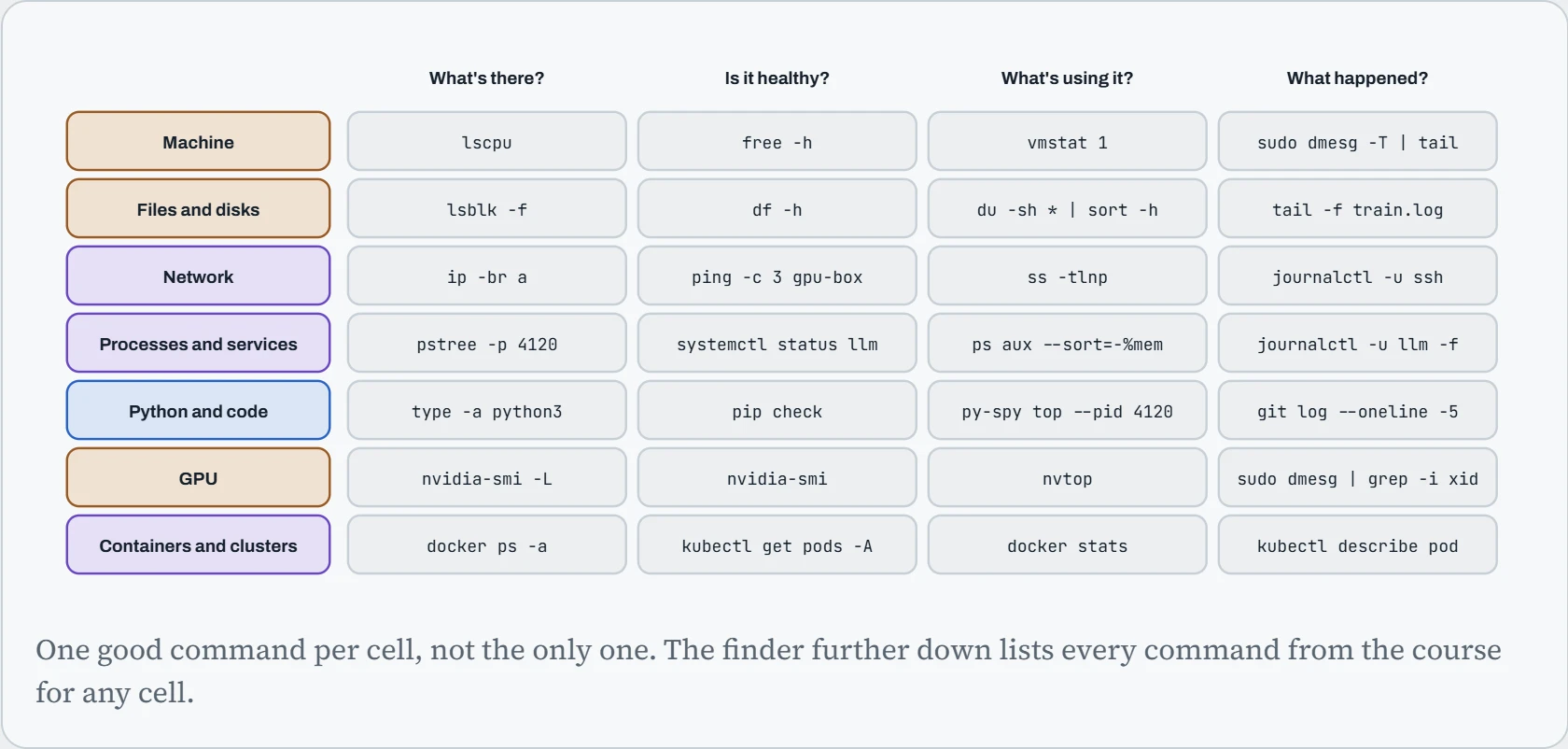
Notice how often the last column is a log. When you don't know where to start, “what happened?” is usually the fastest question, because Linux writes down nearly everything: the kernel in dmesg, services in journalctl, your own jobs in their log files. And notice the GPU row: two of its cells are nvidia-smi, once with -L to list the GPUs and once plain to check them. One tool, asked different questions.
Reading any command line
Before the lists, one skill that makes every entry readable: splitting a command line into its parts. Every line is built from the same few pieces. The command is the program to run. Options (also called flags) start with - or -- and change how it behaves. Arguments are what it works on, often files or folders. And the plumbing connects things: | (a pipe) hands one program's output to the next, and > saves output into a file. sudo at the front means “run this as the administrator”.
Here's a real line, coloured by part. It finds the five biggest things in /data:
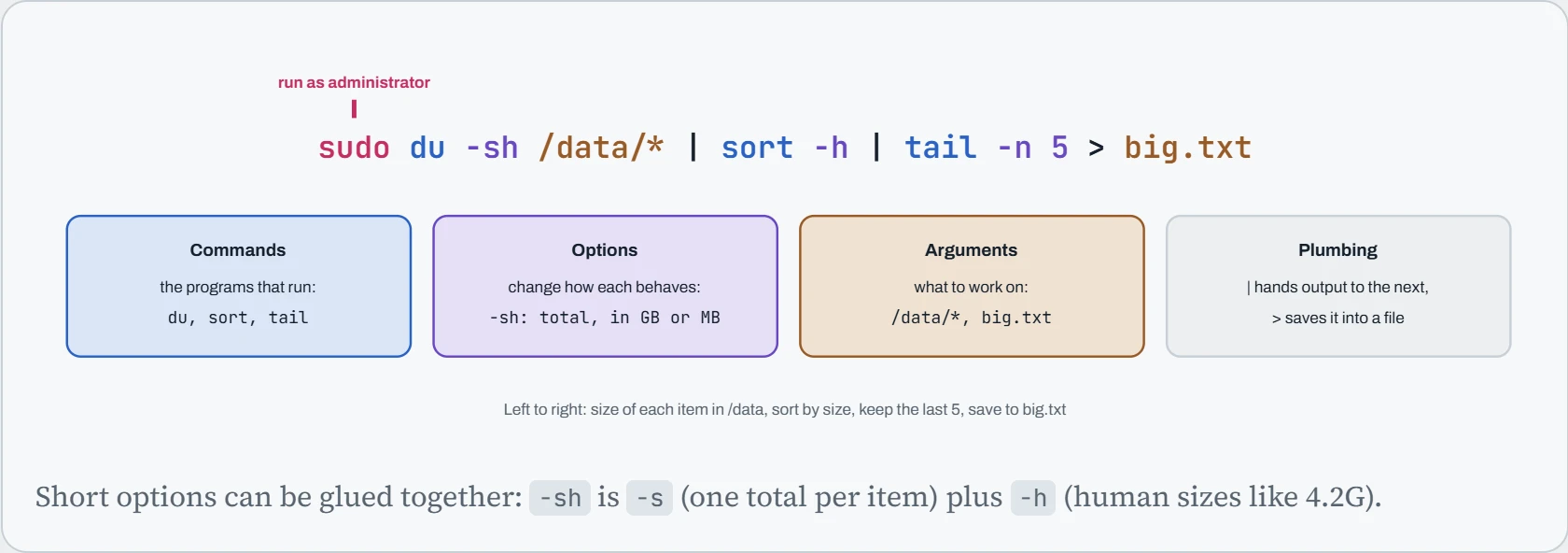
Two things here trip up nearly everyone once. First, the * in /data/* is not seen by du at all. Your shell swaps it for the list of everything in /data before du starts (chapter 2 calls this expansion). Second, sudo applies to du only. The pipes and the > are handled by your own shell, as your own user. That second one has a famous consequence:
Predict. You want to lower swappiness for a training box, so you run sudo echo 'vm.swappiness=10' > /etc/sysctl.d/99-ai.conf. You used sudo. What happens?
Answer. bash: /etc/sysctl.d/99-ai.conf: Permission denied. Your shell sets up the > before it runs anything, and your shell is you, not root. sudo only made echo run as root, and echo doesn't need it.
The fix is to make the writing itself happen as root: echo 'vm.swappiness=10' | sudo tee /etc/sysctl.d/99-ai.conf. tee is a program that writes what it receives into a file, and now it's the one running under sudo. Add -a to add to a file instead of replacing it.
The twenty you'll use every day
If you learn only one table on this page, make it this one. These twenty cover the everyday work on a GPU machine: checking the GPU, finding space, watching jobs, reaching services, and reading logs. Each row says what the command tells you in plain words, and the chapter where it's explained properly. Try each one on your own machine once, today, so the output looks familiar when you need it in a hurry.
| Command | What it tells you, or does | Ch. |
|---|---|---|
nvidia-smi | Driver working? GPU memory used, and by which processes | Ch 14 |
df -h | Free space on each disk | Ch 8 |
du -sh * | sort -h | What's taking the space here | Ch 8 |
free -h | Memory left to hand out (the “available” column) | Ch 11 |
htop | Live CPU, memory and processes | Ch 11 |
tail -f train.log | Watch a log as it grows | Ch 3 |
grep -i error train.log | Find the lines that matter | Ch 3 |
ps aux --sort=-%mem | head | The biggest memory users | Ch 5 |
kill -TERM 4120 | Stop a process, letting it save first | Ch 5 |
tmux new -s train | Keep a job alive after you disconnect | Ch 5 |
systemctl status llm | Is a service up, and its last log lines | Ch 10 |
journalctl -u llm -f | Follow a service's log | Ch 10 |
sudo dmesg -T | tail | Latest kernel messages: drivers, disks, GPU errors | Ch 7 |
ss -tlnp | What's listening on which port | Ch 9 |
ssh -L 8888:localhost:8888 gpu-box | Open a remote service on your laptop | Ch 9 |
uv run python train.py | Run in the project's environment | Ch 12 |
type -a python3 | Which program a name really runs | Ch 12 |
git status | What changed in your project | Ch 13 |
docker ps -a | Which containers exist and their state | Ch 17 |
docker logs -f llm | Follow a container's output | Ch 17 |
Look at the spread: GPU, disk, memory, processes, services, network, Python, git and containers all appear. That's the point. The everyday set isn't twenty GPU commands. It's one or two good questions for each layer, so that when something breaks you can check every layer quickly and find the one that answers “no”.
Predict. Your 64 GB machine is running a data-prep job. free -h shows free 1.2Gi and available 41Gi. Is the machine about to run out of memory?
Answer. No. Linux uses spare memory to keep recently read files ready (the page cache), which makes the second read of a dataset much faster. That memory counts as used, so “free” looks tiny. But the kernel gives it back the moment a program needs it. “available” is the number that matters: 41 GB can still be handed out.
Worry when available gets small and swap starts climbing. Down the Load goes through how to tell.
Which command answers this?
Here's the grid from the top of the page with every command from the course behind it. You'll get every command for that pair, what each one tells you, and the chapter it comes from. There's a fifth question as well, change it, for commands that do something rather than look at something.
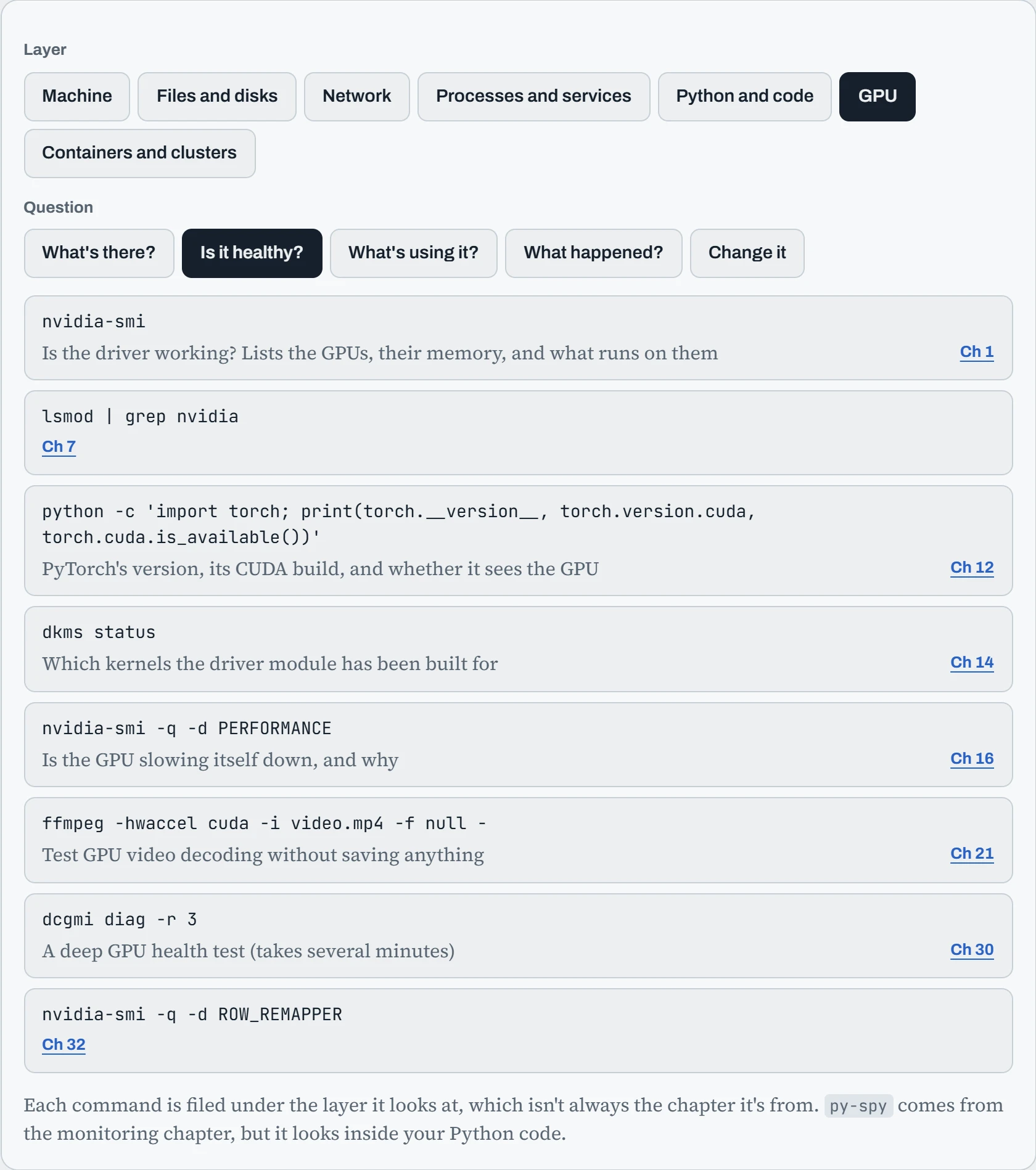
The first gives you commands that test whether things work (the driver answers, the GPU isn't slowing itself down). The second gives commands that only report versions and parts. When you're stuck, people often run the second kind and wonder why it didn't help. A version number tells you what's installed, not whether it's working.
Every chapter's commands
This is the full reference, in course order. Type part of a command or a plain word (“space”, “port”, “driver”, “log”) to search both the commands and their descriptions. Each chapter heading links to its lesson, where the command is explained with real output.
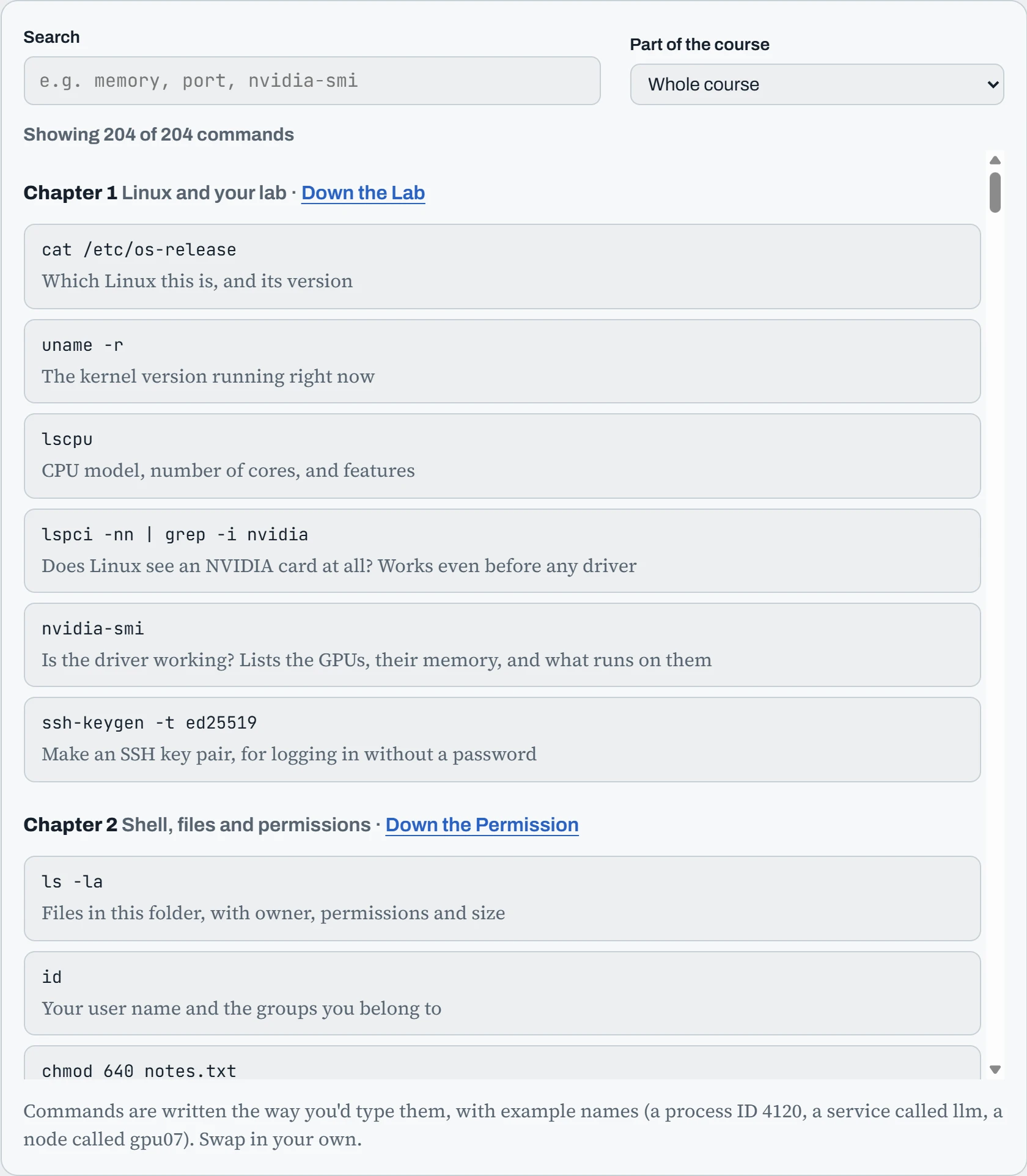
Search for “version” and see how many ways there are to ask it: the kernel, glibc, the driver loaded in memory, the driver on disk, the CUDA toolkit, PyTorch's CUDA build. Half the troubleshooting in this course is noticing that two of those disagree. Down the CUDA Stack explains which pairs have to match, and Appendix B walks through what happens when they don't.
Continue the lesson
The whole lesson, with its drawings and its questions. The rest of this section and 4 more after it.