
Capstone A: a private AI workstation, from bare metal to a sandboxed agent
The workstation is built in layers: hardware, operating system and driver, Python environments and GPU containers, then the AI services, reached from outside only over SSH or a private network. Its classic failure is a kernel update that DKMS could not rebuild the NVIDIA module for, which takes every GPU service down at once.
What this page answers
Why did my GPU stop working after a kernel update?
The machine booted a new kernel, but the NVIDIA module was only built for the old one. DKMS did not rebuild it, most often because the matching kernel headers were not installed. Read it in “Day eight: everything stops”
How should an AI workstation be reached from outside?
The LLM server listens only on 127.0.0.1, so only programs on the machine can talk to it, and you reach it from a laptop or phone over SSH or a private network such as Tailscale. Read it in “What you're building”
Day eight: everything stops
Your workstation has worked perfectly for a week. Overnight it installed a security update and rebooted itself. In the morning, the voice assistant is silent and the LLM server is down:
$ systemctl --failed --no-legend
● llm.service   loaded failed failed Local LLM server
● voice.service loaded failed failed Voice assistant
$ nvidia-smi
NVIDIA-SMI has failed because it couldn't communicate with the NVIDIA driver. Make sure that the latest NVIDIA driver is installed and running.
$ uname -r; dkms status
6.8.0-87-generic
nvidia/580.95.05, 6.8.0-85-generic, x86_64: installed
Outputs on this page are realistic examples. Commands, file paths and error messages are real.
Two services failed and the GPU tool can't reach the driver. Is this one problem or three?
- The model files were damaged during the update
- One problem: the driver was never built for the new kernel, so everything on the GPU fails
- The two services' configs broke, and nvidia-smi is a separate issue
Answer. Look at the last two lines. The machine now runs kernel 6.8.0-87, but the NVIDIA module has only been built for 6.8.0-85. The update brought a new kernel, and DKMS, the tool that rebuilds the driver for each kernel, didn't manage it, most often because the matching kernel headers weren't installed. No module means no GPU, and every GPU service above it fails at once.
$ sudo apt install linux-headers-$(uname -r) && sudo dkms autoinstall && sudo reboot
That's the theme of this whole capstone. Building each piece is the easy part: the course has a lesson for every one. The hard part is the system: the layers depend on each other, so one broken layer takes down everything above it. And the only proof that it all works is to reboot and check that it all comes back by itself.
What you're building
Here's the finished workstation as layers, the same way the hook's failure travelled. Read it from the bottom: hardware, then the operating system and driver, then the two ways of running AI software (Python environments and GPU containers), then the three services you'll use. On the right is the only way in from outside: your laptop or phone over SSH or Tailscale, a private network that connects your own devices.
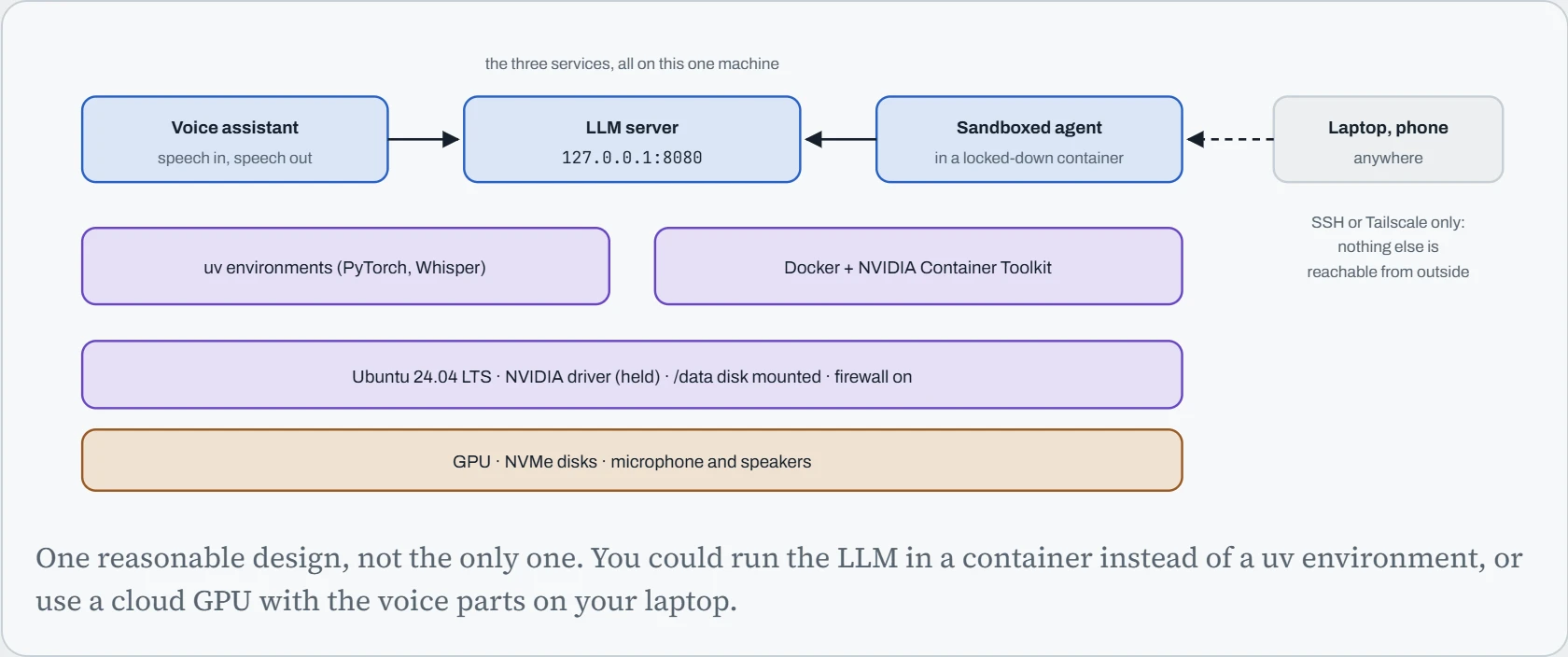
Two choices in that picture do most of the security work. The LLM server listens only on 127.0.0.1, so only programs on this machine can talk to it, and you reach it from outside through an SSH tunnel or Tailscale (Down the Tunnel). And the agent, the one piece that runs commands chosen by a model, lives in a container that can see only its own folder (Down the Sandbox).
The build order
Ten milestones, and most of them depend on others. Building in the wrong order costs time: install PyTorch before the data disk is mounted, and its multi-gigabyte caches land on the small system disk.
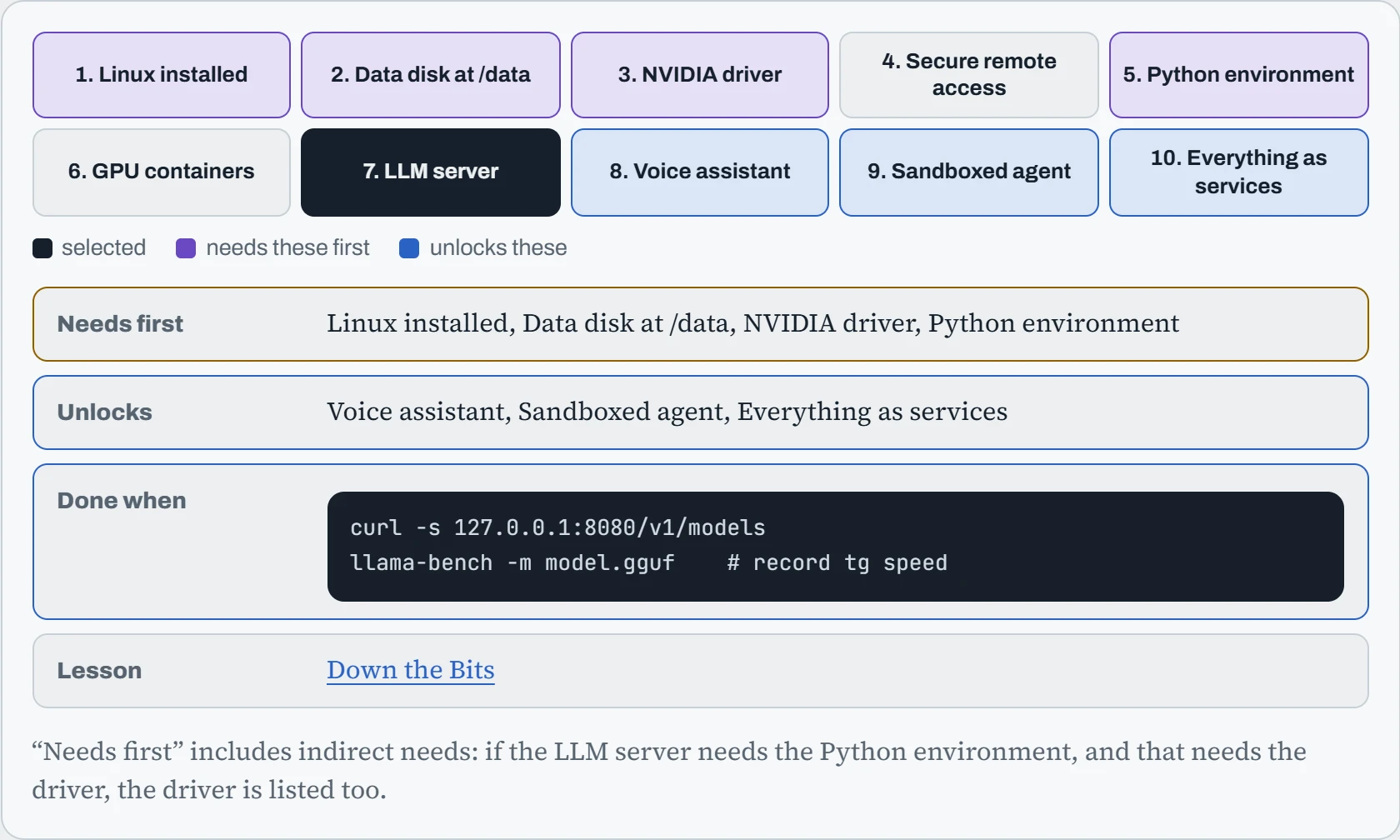
Notice that the NVIDIA driver is underneath almost everything, which is exactly why the hook's failure was so wide. And notice the last milestone, running everything as services, which depends on every AI piece. It's last because you can only write a correct startup order once you know what's in it. Each “done when” test is worth keeping in a script: you'll run them all again after every change.
The foundation
The first five milestones are the base everything else stands on. They're covered in depth in Part I and Part II of the course, so here's the condensed version: the commands that matter, and the checks to save. Start with the BIOS settings from Down the Boot (Above 4G Decoding on, and a decision about Secure Boot), then install Ubuntu 24.04 LTS.
# data disk: mounted by UUID, and nofail so a dead disk can't block booting
$ echo 'UUID=6f1c…-9a2e  /data  ext4  defaults,nofail  0 2' | sudo tee -a /etc/fstab
$ sudo mount -a && findmnt /data
# driver, with headers so DKMS can rebuild it for every new kernel
$ sudo apt install linux-headers-generic nvidia-driver-580
$ sudo apt-mark hold nvidia-driver-580
# Python: one uv project, CUDA build of torch, caches on the big disk
$ echo 'export HF_HOME=/data/hf UV_CACHE_DIR=/data/uv-cache' >> ~/.profile
$ uv run python -c "import torch; print(torch.cuda.is_available())"
True
# containers: Docker from Docker's repository, then the NVIDIA Container Toolkit
$ sudo nvidia-ctk runtime configure --runtime=docker && sudo systemctl restart docker
$ docker run --rm --gpus all nvidia/cuda:12.8.0-base-ubuntu24.04 nvidia-smi -L
GPU 0: NVIDIA GeForce RTX 4090 (UUID: GPU-3f0d…)
Each line carries a lesson from earlier. nofail keeps a dead data disk from stopping the boot (Down the Disk). The headers package is what would have prevented the hook. The hold stops unattended upgrades from changing the driver under running jobs (Down the Library). The cache settings keep hundreds of GB of models off the system disk (Down the Permission). And Docker comes from Docker's own repository, not the snap store, which is a classic cause of containers not seeing the GPU. Finish this part by setting up SSH keys and Tailscale, and confirm from another network that nothing but those answers.
The AI services
Now the three services. The LLM server is the heart: llama.cpp's llama-server, Ollama or vLLM, listening on 127.0.0.1 with an OpenAI-style API, so every other piece can use it the same way (Down the Bits). The voice assistant chains speech-to-text (Whisper), that LLM, and text-to-speech, and its quality is mostly about latency (Down the Senses). The agent runs in a container with only its workspace mounted:
$ curl -s 127.0.0.1:8080/v1/chat/completions -H 'Content-Type: application/json' \
    -d '{"messages":[{"role":"user","content":"Say hi in five words."}]}' | jq -r '.choices[0].message.content'
Hello there, nice to meet!
$ docker run --rm -it --network agent-net --read-only --cap-drop ALL \
    --security-opt no-new-privileges -v /data/agent-work:/work agent-image
agent$ cat /home/ml/.ssh/id_ed25519
cat: /home/ml/.ssh/id_ed25519: No such file or directory
The last line is the agent's acceptance test: it tries to read your SSH key and can't, because that folder simply doesn't exist inside its container. agent-net is a Docker network made with docker network create --internal agent-net, which has no route to the internet. Put the LLM server's container (or a small proxy to it) on the same network, and that's the only thing the agent can reach. Treat it as a test you repeat, not a one-off: whenever you give the agent a new tool or folder, ask what a hostile prompt could make it do with it.
Predict. To try the LLM from your laptop, you briefly run it in Docker with -p 8080:8080. UFW, the firewall, is on and only allows SSH. Can someone on the internet now reach your LLM?
Answer. Very likely yes, if the machine has a public address. Docker writes its own firewall rules for published ports, and they're consulted before UFW's, so UFW never gets a say. -p 8080:8080 means “on every network interface”.
Publish to the loopback address instead, -p 127.0.0.1:8080:8080, and reach it through your tunnel. Then check from outside, for example with nmap from another network, rather than trusting the firewall's own list (Down the Overlay).
Continue the lesson
The whole lesson, with its drawings and its questions. 4 more sections after the ones above.