
Virtualization Fundamentals: VMs, Containers and VRFs
Virtualization runs many servers on one physical host: each virtual machine gets its own share of processors, memory, storage and network cards. Inside the host, a virtual switch connects the VMs' virtual NICs to each other and to the physical NICs. A container is lighter, packaging one application on the host's own OS kernel. A VRF gives one router several routing tables.
By Arif, founder of Daveth · Updated
The full 10 min walkthrough is in Daveth Pro (Network). See what the plan opens
What this page answers
What is the difference between a virtual machine and a container?
A VM carries a whole guest operating system. A container packages one application with its libraries and settings and runs it isolated on the host's own OS kernel, which usually makes it lighter. Read it in “Containers: lighter than a VM”
What is a virtual switch?
A switch inside a virtualized host that connects the VMs' virtual NICs to each other and to the host's physical NICs. Its ports can be in VLANs or trunks, like a physical switch's. Read it in “Networking inside the host”
What is a VRF?
Virtual routing and forwarding: one router with several separate routing tables. A packet arriving on an interface in a VRF is routed with that VRF's table only, so the same prefix can exist in each. Read it in “VRFs: many routing tables in one router”
Many servers on one host
The week after, still month nine. The new server room (09.3) will have racks, but Ravi doesn't want a separate box for every server in VLAN 98. Most of them sit idle most of the day. The plan: two physical servers, running all of them.
To most of this course a server has simply been a place to run applications that people reach over the network. The hardware is processors, memory, storage and network cards; traditionally one server ran one operating system (OS), which used all of it. (09.3 covered the hardware itself: rack-sized, and mostly without keyboard, video or mouse.) Most companies now run a virtualized data center instead: all the CPU and memory they buy is treated as one pool of capacity, and server virtualization decouples the OS from the hardware. The physical server, now called a host, runs several virtual machines (VMs) at once, each with its own OS and applications, each behaving as if it were a server of its own.
What makes that work is the hypervisor, software on the host that manages the hardware and hands each VM its share: so many virtual CPUs, so much memory, so much storage, as the VM is configured. A virtualization system on top can create VMs, start them, stop them, and move them between hosts, by hand or automatically, often while they run, so that a host can be repaired without the servers on it going down.
Sixteen. A modern CPU chip has several cores, and each core can often run two threads at once (multithreading), so 8 cores run 16 programs at the same time. The hypervisor treats each thread as a virtual CPU (vCPU) and gives each VM the number it needs. Each VM is configured with the minimum vCPUs and memory it needs; the virtualization system starts it on a host with enough capacity for every VM there, and the hypervisor allocates the parts of the CPU and memory the VM actually uses. Here is Ravi's plan. DHCP1 and DHCP2 are on different hosts, Ravi's own choice, so one failed host can't take both:
| Host | VMs (vCPUs, RAM) | vCPUs used | RAM used |
|---|---|---|---|
| HOST1 | DHCP1 (2, 4 GB); PAY1 (4, 16 GB); RAD1 (2, 8 GB) | 8 of 16 | 28 of 64 GB |
| HOST2 | DHCP2 (2, 4 GB); BK1 (4, 16 GB) | 6 of 16 | 20 of 64 GB |
If you've ever lived in a block of flats, a host will feel familiar: one building, one set of foundations and pipes, and each flat with its own lock and its own furniture. (Where it stops: flats can't move buildings overnight; a VM can move to another host while it runs.)
Networking inside the host
Each VM has at least one virtual NIC (vNIC). Inside the host, a virtual switch (vSwitch) connects the vNICs to each other and to the host's physical NICs, which run at 1, 10 or even 40 Gbps. The vSwitch works like the switches this course has configured: a VM's port can be in its own VLAN, share a VLAN with other VMs, or even be a trunk to the VM; the ports toward the physical NICs usually trunk, because the other end of that cable is a physical switch carrying many VLANs. The vSwitch can come with the hypervisor or from a networking vendor; one reason to choose the second is to get the same features and configuration as the rest of the network.
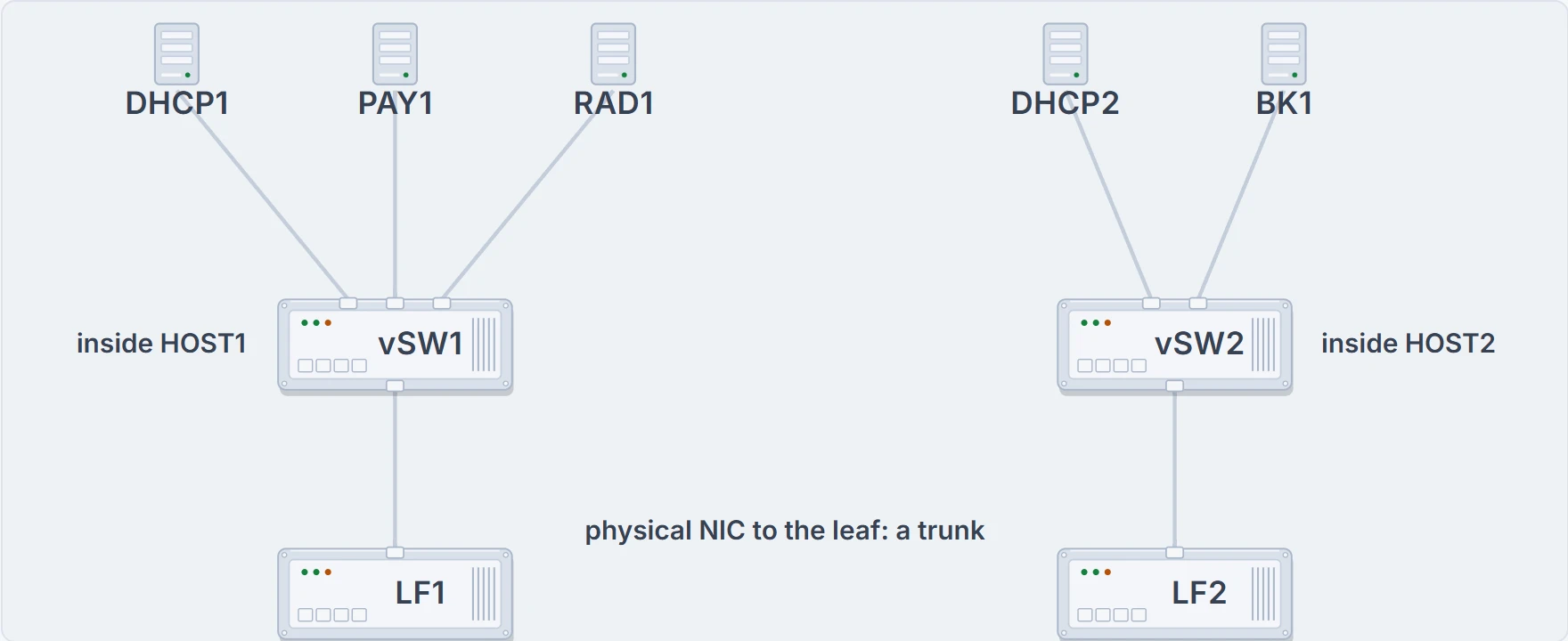
Inside each planned host: VMs with virtual NICs on a virtual switch, and the host's physical NIC trunking to a leaf switch.
The vSwitch's configuration can be driven by the same virtualization software that runs the VMs. So when a VM moves to another host, its network settings, VLAN and all, move with it.
Once PAY1 is a VM, it can move house twice a month and never once change its address.
Containers: lighter than a VM
A VM carries a whole guest OS. A container doesn't. It packages one application with everything that application needs, its libraries and settings, and runs it isolated from other containers on the same host, using the host's own OS kernel instead of an OS of its own. That usually makes a container lighter than a VM. How strongly they are isolated depends on the platform and how it is set up, so "lighter" is a comparison of roles, not a promise of speed or of security. The payroll application's next version is due to arrive as a container, running on one of Ravi's hosts.
VRFs: many routing tables in one router
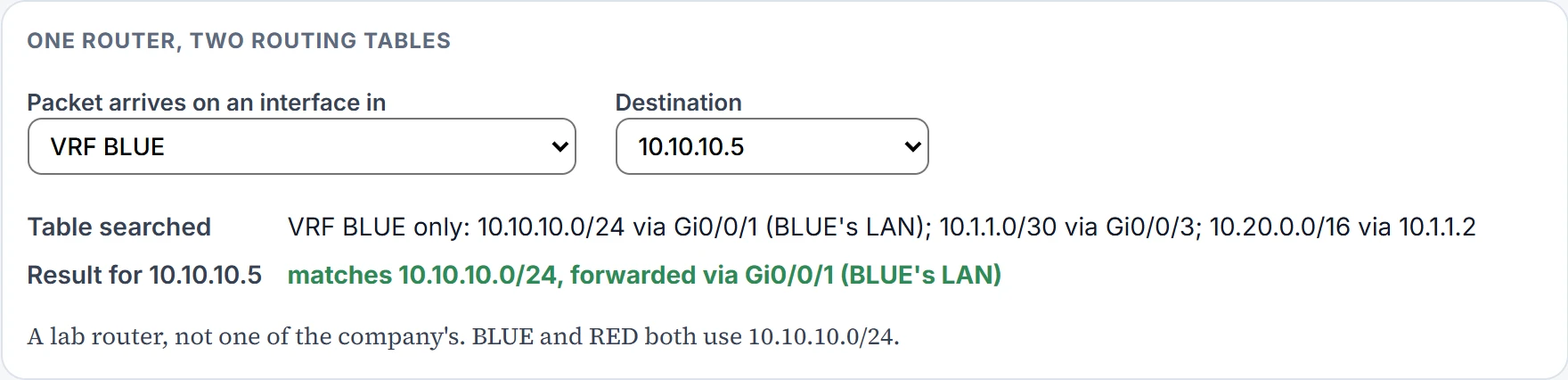
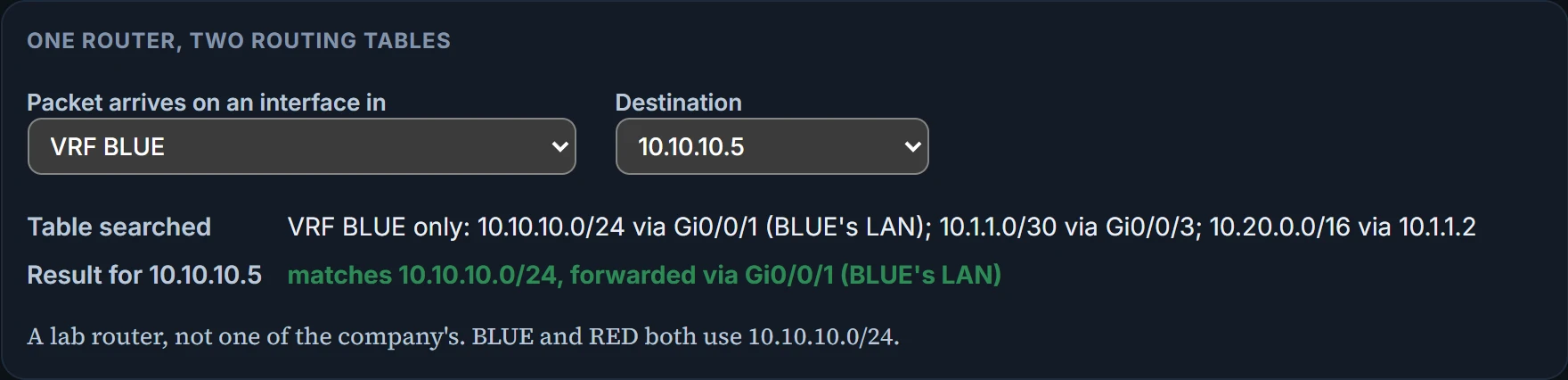
Virtualization isn't only for servers. A VRF (virtual routing and forwarding) instance gives one router several separate routing tables. An interface can be placed in one VRF, and a packet that arrives on it is routed using that VRF's table and no other.
No clash. Because the tables are separate, the same prefix can exist in each, as two separate networks rather than one shared LAN: BLUE's 10.10.10.0/24 and RED's are different subnets that happen to share numbers, and the router sends each one's traffic to its own. On a lab router with BLUE and RED:
Continue the lesson
The whole lesson, with its drawings and its questions. The rest of this section and 2 more after it.