
Container internals: namespaces, cgroups, OverlayFS layers and rootless Podman
Each RUN line in a Dockerfile saves a new layer, and layers never change once saved. Deleting a 16 GB download in a later step only hides it, so every layer is still shipped. A container is an ordinary process with namespaces, cgroups and an overlay filesystem built from those layers.
What this page answers
Why is my Docker image so big after removing files?
Each RUN line creates a layer that never changes once saved. The rm step cannot reach back into the download step's layer; it only adds a layer that hides the files, and every layer is still shipped and downloaded. Read it in “Deleted, but still 21 GB”
What is a container on Linux?
A normal process that the kernel treats specially in three ways: namespaces give it a private view of the system, cgroups limit what it may use, and an overlay filesystem builds its root folder from image layers. Read it in “Three kernel features in a trench coat”
Deleted, but still 21 GB
You want a container image that serves a small 4-bit model. The recipe (the Dockerfile) downloads the full 16 GB model, converts it to a 4.9 GB file, and then tidily deletes the 16 GB download. You build it and check the size:
FROM python:3.12-slim
RUN pip install huggingface_hub llama-cpp-python
RUN hf download meta-llama/Llama-3.1-8B --local-dir /tmp/full      # 16 GB
RUN python quantize.py /tmp/full /models/llama-q4.gguf             # 4.9 GB
RUN rm -rf /tmp/full                                               # clean up
$ docker images llm-small
REPOSITORY   TAG      IMAGE ID       CREATED          SIZE
llm-small    latest   4c1e9a2f7b30   2 minutes ago    21.2GB
Outputs and sizes on this page are realistic examples. Commands, flags, file paths and kernel files are real.
The image should hold the 4.9 GB model and some Python, but it's 21 GB. Where did the deleted 16 GB go?
- Docker kept it in a build cache
- It's still inside an earlier layer of the image
- The rm command failed silently
Answer. Each RUN line creates a new layer: a saved record of the files that step added or changed. Layers are stacked, and they never change once saved. The download step's layer contains all 16 GB. The rm step can't reach back into it. It can only add a new layer that says “pretend /tmp/full isn't here”. The files disappear from view, but every layer is still shipped, downloaded and stored. docker history shows it plainly:
$ docker history llm-small --format "table {{.CreatedBy}}\t{{.Size}}"
CREATED BY                                          SIZE
RUN /bin/sh -c rm -rf /tmp/full                     0B
RUN /bin/sh -c python quantize.py /tmp/full /mo…   4.92GB
RUN /bin/sh -c hf download meta-llama/Llama-3.1…   16.1GB
RUN /bin/sh -c pip install huggingface_hub llam…   68.3MB
…
The fix is to download, convert and delete inside one RUN step (so the 16 GB never lands in a saved layer), or to do the conversion in a separate build stage and copy only the result (Down the Image). The mechanism section lets you watch layers do this.
Three kernel features in a trench coat
Linux has no single thing called a “container”. What we call a container is a normal process that the kernel treats specially, in three ways at once. Namespaces give it its own private view of the system: its own process list, network, hostname and mount points. cgroups (control groups) put limits on what it may use: memory, CPU time, number of processes. And an overlay filesystem gives it a root folder built from image layers stacked on top of each other. Down the Sandbox goes deep on namespaces as a security wall. This lesson is about the everyday side: files, limits and data.
The picture shows one container. In the middle is just a process, like any other on the machine. Wrapped around it are the three features, each set up by the container tool before your program starts.
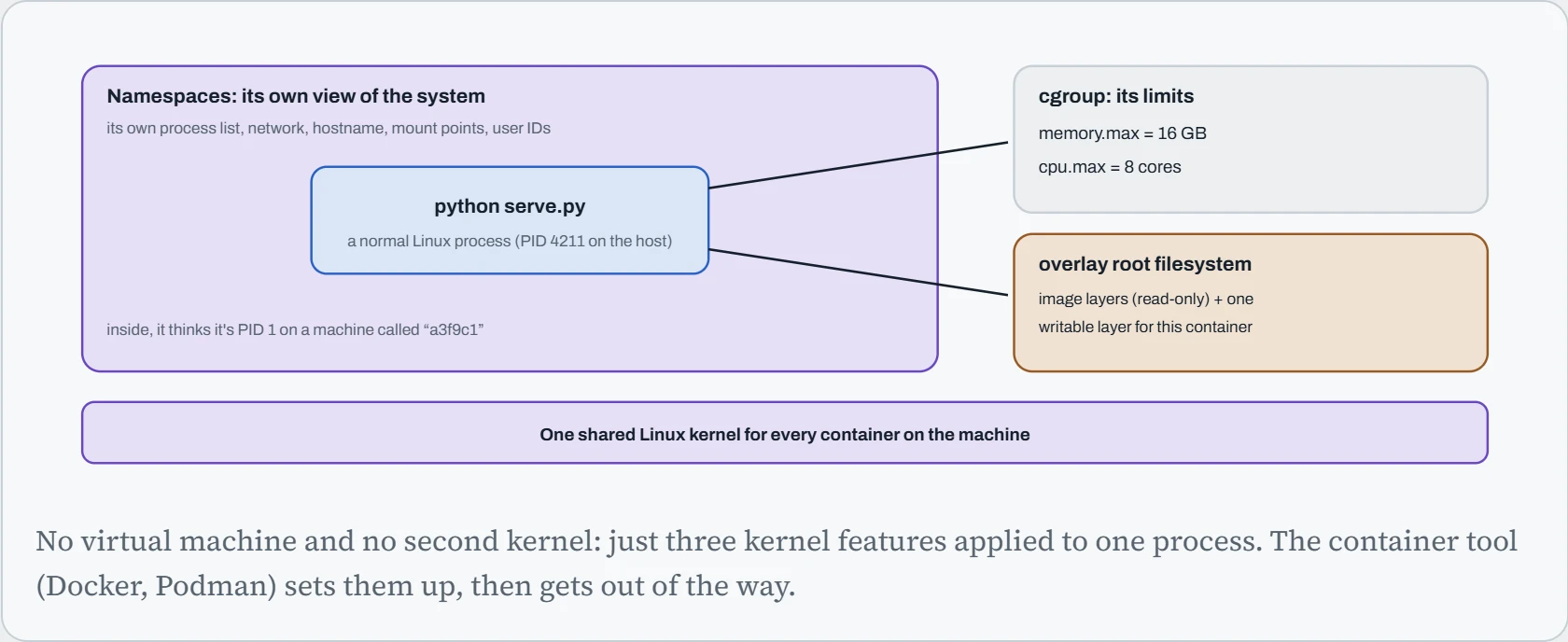
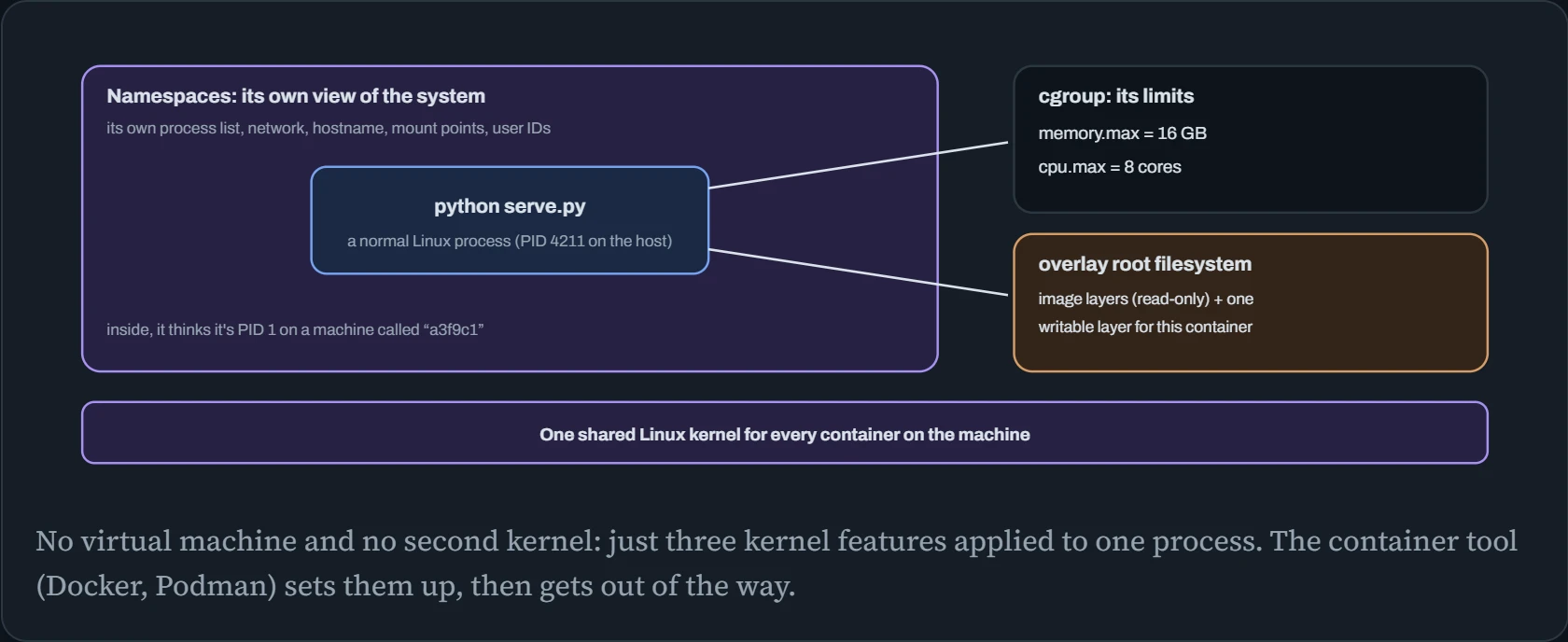
This one idea explains a lot. A container starts in a fraction of a second, because nothing boots. It's only a process starting. From the host, ps shows every container's processes. And the container's limits and files are ordinary kernel objects you can inspect directly:
$ docker inspect -f '{{.State.Pid}}' llm-api
4211
$ sudo lsns -p 4211 | head -4
        NS TYPE   NPROCS   PID USER COMMAND
4026532611 mnt         1  4211 root python serve.py
4026532612 uts         1  4211 root python serve.py
4026532613 ipc         1  4211 root python serve.py
$ cat /sys/fs/cgroup/system.slice/docker-$(docker inspect -f '{{.Id}}' llm-api).scope/memory.max
17179869184
17,179,869,184 bytes is exactly 16 GiB: the -m 16g limit, written into a cgroup file. Everything a container “is” can be found like this, in /proc and /sys/fs/cgroup. That's the best debugging tool there is when the container tool's own output isn't enough.
Docker, Podman and who's really root
Docker and Podman run the same images, with nearly the same commands. Podman even accepts alias docker=podman. The difference is underneath. Docker works through a background service, dockerd, that runs as root. Podman has no service: each container is started directly by the user who runs the command.
That difference matters for one reason that surprises many teams. To use Docker without sudo, people add themselves to the docker group. But the docker group can ask a root service to start any container, including one with the whole host disk mounted inside:
$ id -nG
alex docker
$ docker run --rm -it -v /:/host ubuntu chroot /host whoami
root
So membership in the docker group is root on that machine, in practice. On a shared GPU server, adding everyone to it gives everyone root. Rootless mode fixes this. Podman runs rootless by default, and Docker has a rootless mode too. Containers run under your own account, and “root” inside the container is mapped to your ordinary user ID outside, using the ID ranges in /etc/subuid. A breakout from a rootless container lands as you, not as root.
The everyday commands are the same in both. run starts a container from an image. ps lists running ones. logs -f follows what the program prints. exec -it NAME bash opens a shell inside a running container for poking around. And rm deletes a stopped container, along with everything written inside it, which is the next section's warning.
Builds that don't waste hours
A build starts by sending everything in the build folder (the context) to the builder. In an AI project, that folder often contains checkpoints, datasets and virtual environments. Without a .dockerignore file to leave them out, every build begins by copying tens of gigabytes:
$ docker build -t trainer .
 => [internal] load build context                                  97.4s
 => => transferring context: 41.20GB
$ cat .dockerignore
checkpoints/
data/
.venv/
*.safetensors
*.gguf
.git/
With that file in place, the context drops to a few megabytes of code. The second time-waster is downloading the same Python packages on every build. BuildKit, Docker's modern builder, can keep pip's or uv's download cache between builds without putting it in the image. That's called a cache mount:
# syntax=docker/dockerfile:1
FROM python:3.12-slim
COPY requirements.lock .
RUN --mount=type=cache,target=/root/.cache/pip pip install -r requirements.lock
RUN --mount=type=cache,target=/root/.cache/huggingface \
    hf download meta-llama/Llama-3.1-8B --local-dir /tmp/full \
 && python quantize.py /tmp/full /models/llama-q4.gguf \
 && rm -rf /tmp/full                                # one RUN: the 16 GB never lands in a layer
COPY app/ /app/
Three fixes in one recipe. Packages are cached across builds but never shipped. The download, conversion and clean-up happen in one step, so the 16 GB never becomes a layer. And code comes last, so editing it only rebuilds the final layer. This rebuild of the hook's image comes out at about 5 GB, not 21.
Models, mounts and ports
Anything a container writes into its own filesystem vanishes when the container is removed. So data that should last, like model weights, outputs and databases, lives outside it, in one of two ways. A bind mount (-v /data/models:/models) shows a host folder inside the container: simple, and you can see the files from the host. A volume (-v models:/models) is storage that Docker manages under /var/lib/docker/volumes. It's handy for databases, but less visible.
Bind mounts have one classic snag: file owners. Users are numbers to the kernel, and root inside a normal container is user 0 outside too. A training run in a container writes checkpoints into your bind-mounted folder as root, and then you can't delete your own files without sudo:
$ docker run --gpus all -v $PWD/out:/out trainer python train.py
$ ls -l out/ | head -2
-rw-r--r-- 1 root root 4.9G Oct 25 11:02 step-1000.pt
$ docker run --gpus all --user $(id -u):$(id -g) -v $PWD/out:/out trainer python train.py
$ ls -l out/ | head -2
-rw-r--r-- 1 alex alex 4.9G Oct 25 11:41 step-1000.pt
--user runs the program as your user ID, so its files are yours. Rootless Podman gets this right automatically, because container-root is you on the outside.
Ports have a sharper trap. -p 8000:8000 publishes the container's port 8000 on every network interface of the host. Docker does this by adding its own firewall rules, and they take effect before UFW's, the firewall many Ubuntu users rely on. So a model API you thought was blocked by ufw deny 8000 is open to the network anyway. Publish to localhost only, unless you really mean otherwise: -p 127.0.0.1:8000:8000.
Predict. You run docker run -d -p 11434:11434 ollama/ollama on a cloud VM whose UFW firewall allows only SSH. Can a stranger on the internet use your Ollama?
Answer. Yes, unless the cloud's own firewall (its security group) blocks the port. Docker's published-port rules are processed before UFW's, so UFW never gets a say. And Ollama has no logins (Down the Bits), so anyone who finds it can use your GPU.
The fixes: publish on 127.0.0.1:11434:11434 and reach it through an SSH tunnel. Or put your own rules in Docker's DOCKER-USER chain, which Docker checks first. Or rely on a cloud firewall that sits outside the machine. Never trust the host firewall alone to protect a Docker-published port.
Stacks and registries
Real AI apps are several programs working together: a model server, a chat front-end, a vector database for search. Docker Compose describes them in one file, starts them together, and puts them on a private network where each one can reach the others by service name. Here's a complete local assistant: Ollama for the model, Open WebUI for chat, and Qdrant for retrieval.
# compose.yaml
services:
  ollama:
    image: ollama/ollama
    volumes: [ "ollama:/root/.ollama" ]
    deploy:
      resources:
        reservations:
          devices: [ { driver: nvidia, count: all, capabilities: [gpu] } ]
  webui:
    image: ghcr.io/open-webui/open-webui:main
    environment: [ "OLLAMA_BASE_URL=http://ollama:11434" ]   # service name works as a hostname
    ports: [ "127.0.0.1:3000:8080" ]                         # only this machine
    volumes: [ "webui:/app/backend/data" ]
  qdrant:
    image: qdrant/qdrant
    volumes: [ "qdrant:/qdrant/storage" ]
volumes: { ollama: {}, webui: {}, qdrant: {} }
$ docker compose up -d
Notice what isn't published: Ollama and Qdrant have no ports, so only the other containers can reach them. The front-end is the only door, and it's on localhost. Named volumes keep the models, chats and vectors when containers are recreated.
Images come from registries: Docker Hub, GitHub's GHCR, NVIDIA's NGC, or your own. Two habits help. First, a tag like :main or :latest is a label that moves, while a digest (@sha256:…) is a fingerprint of exact contents. Pin digests for anything in production. Second, Docker Hub limits how many images anonymous users can pull, and a cluster pulling the same big image to fifty nodes wastes bandwidth anyway. A pull-through cache is a registry on your own network that fetches each image once and serves copies after that. The standard registry:2 image does it with one setting, REGISTRY_PROXY_REMOTEURL=https://registry-1.docker.io.
Continue the lesson
The whole lesson, with its drawings and its questions. 4 more sections after the ones above.