
GPU container images: the NVIDIA Container Toolkit and CDI, image size, runtime settings and SBOMs
PyTorch data loader workers hand batches to the training process through shared memory, which on Linux lives in /dev/shm. Docker gives a container a small /dev/shm by default, so workers that run fine on the host die inside it. A GPU container shares the host's kernel and driver.
What this page answers
Why do PyTorch DataLoader workers crash in Docker?
Workers pass each batch to the training process through shared memory in /dev/shm. On the host it can use half the RAM, but Docker gives each container its own at 64 MB by default, and the first worker to write past it dies with a bus error. Read it in “Works on the host, dies in a container”
What is in a GPU container and what is not?
A container is an ordinary Linux process with its own view of the system and files from an image of layers. It has no kernel of its own: every container shares the host's kernel, and the GPU driver comes from the host. Read it in “What a GPU container really is”
Works on the host, dies in a container
A training script runs fine on a GPU server. You put it in a container image, built on the same Ubuntu with the same PyTorch, and start it with docker run --gpus all. The GPUs show up and the model loads. Then, a few seconds into the first epoch (the first full pass over the training data):
$ docker run --gpus all -v /data:/data trainer:1.0 python train.py --workers 8
Epoch 1:   0%|          | 3/2500
ERROR: Unexpected bus error encountered in worker. This might be caused by insufficient shared memory (shm).
RuntimeError: DataLoader worker (pid 214) is killed by signal: Bus error. It is possible that dataloader's workers are out of shared memory. Please try to raise your shared memory limit.
Error messages and command output on this page are realistic examples. Image sizes are rough figures from public images and change with every release. Commands and flags are real.
Same code, same data, same GPU. What's different inside the container?
- The container can't see enough GPU memory
- A small default limit the host doesn't have
- A PyTorch bug that only shows up in Docker
Answer. The data loading in PyTorch runs in several helper processes, called workers. Each worker prepares a batch and hands it to the training process through shared memory: a patch of RAM that two processes can both see, so the batch never has to be copied. On Linux that shared memory lives in a folder called /dev/shm.
host$ df -h /dev/shm
Filesystem      Size  Used Avail Use% Mounted on
tmpfs           252G     0  252G   0% /dev/shm
container$ df -h /dev/shm
Filesystem      Size  Used Avail Use% Mounted on
shm              64M     0   64M   0% /dev/shm
On the host, /dev/shm can use half the machine's RAM. Docker gives each container its own, and its default size is 64 MB. One batch of 64 images at 224 by 224 pixels is about 38 MB. Eight workers that each prepare a couple of batches ahead need hundreds of megabytes. The first worker that writes past 64 MB gets killed with a bus error, which is Linux's way of saying “you touched memory that isn't really there”. The fix is one flag, --shm-size=16g, and the runtime section explains it properly. First, it helps to know what a container actually is.
What a GPU container really is
A container isn't a small virtual machine. It's an ordinary Linux process, with two tricks applied. First, it gets its own private view of the system: its own files, its own process list, its own network. Linux does this with namespaces, which Down the Sandbox covers in depth. Second, the files it sees come from an image: a packaged folder of everything the app needs, built as a stack of layers, where each layer adds or changes some files on top of the one below.
The important part is what's not in the container: an operating system kernel. Every container on a machine shares the host's kernel. And the NVIDIA driver has two halves (Down the CUDA Stack): a kernel module, and a user-space library called libcuda that must be the exact same version as that module. So the driver can't be packed into the image. It has to come from the host, and something has to bring it in when the container starts.
In the picture, blue is what you put in the image, violet is what the host provides, and copper is the hardware. The arrows show what the NVIDIA Container Toolkit adds at start-up.
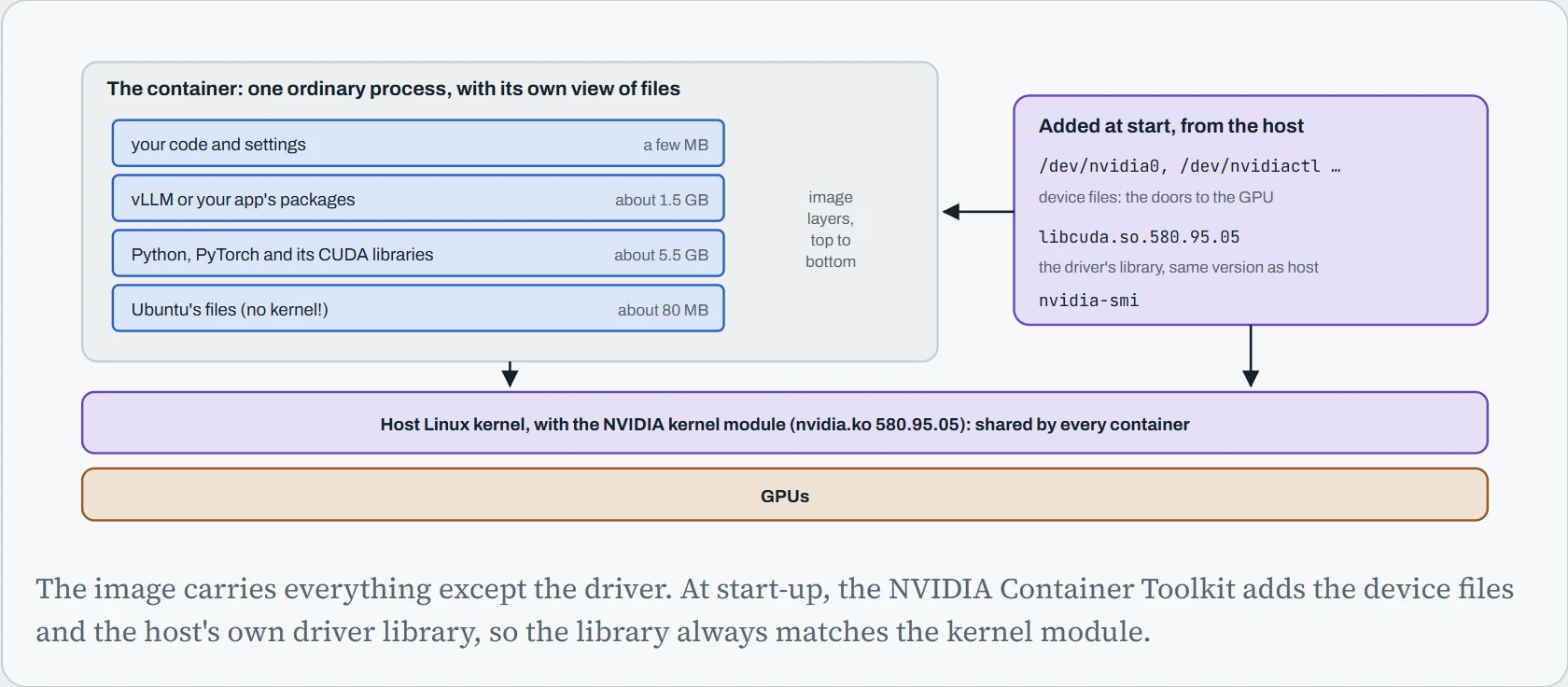
This one picture explains most GPU container problems. If the toolkit isn't set up, the violet box never appears, and the container sees no GPU at all. If the image's CUDA libraries are newer than the host driver can handle, you hit the version mismatch from Down the CUDA Stack, and the same image can work on one machine and fail on the next, because each machine brings its own driver. And everything blue gets downloaded every time a new machine runs the image, which is where the gigabytes come in.
AMD GPUs follow the same idea with different doors. You pass the device files in yourself: docker run --device=/dev/kfd --device=/dev/dri --group-add video rocm/pytorch. Here /dev/kfd is the one shared door for running compute work, and /dev/dri holds a pair of files for each GPU (card0, renderD128 and so on).
Where the gigabytes go
A web app image is often under 200 MB. AI images are routinely 10 to 30 GB, and that size has a cost. Every new machine must download the image from a registry (the server that stores images), unpack it to disk, and only then start. In a cluster that adds machines when traffic grows, this is how long a new machine stands idle before it can help.
Three choices decide most of the size. The base image: NVIDIA publishes CUDA images in three flavours. devel includes the compilers and is about 5 GB compressed. runtime has just the libraries and is about 2 GB. base is nearly empty. Where the CUDA libraries come from: here's the surprise. PyTorch installed with pip brings its own copies of the CUDA libraries as separate packages (nvidia-cublas-cu12 and friends). On a CUDA runtime or devel image, you ship those libraries twice. Where the model weights live: inside the image, downloaded when the app starts, or read from a disk already on the machine.
The top bar shows what's in the image. The bottom bar is the time from “machine is ready” to “model is loaded”: copper for downloading, violet for unpacking, pink for downloading weights at start, and blue for loading weights into GPU memory.
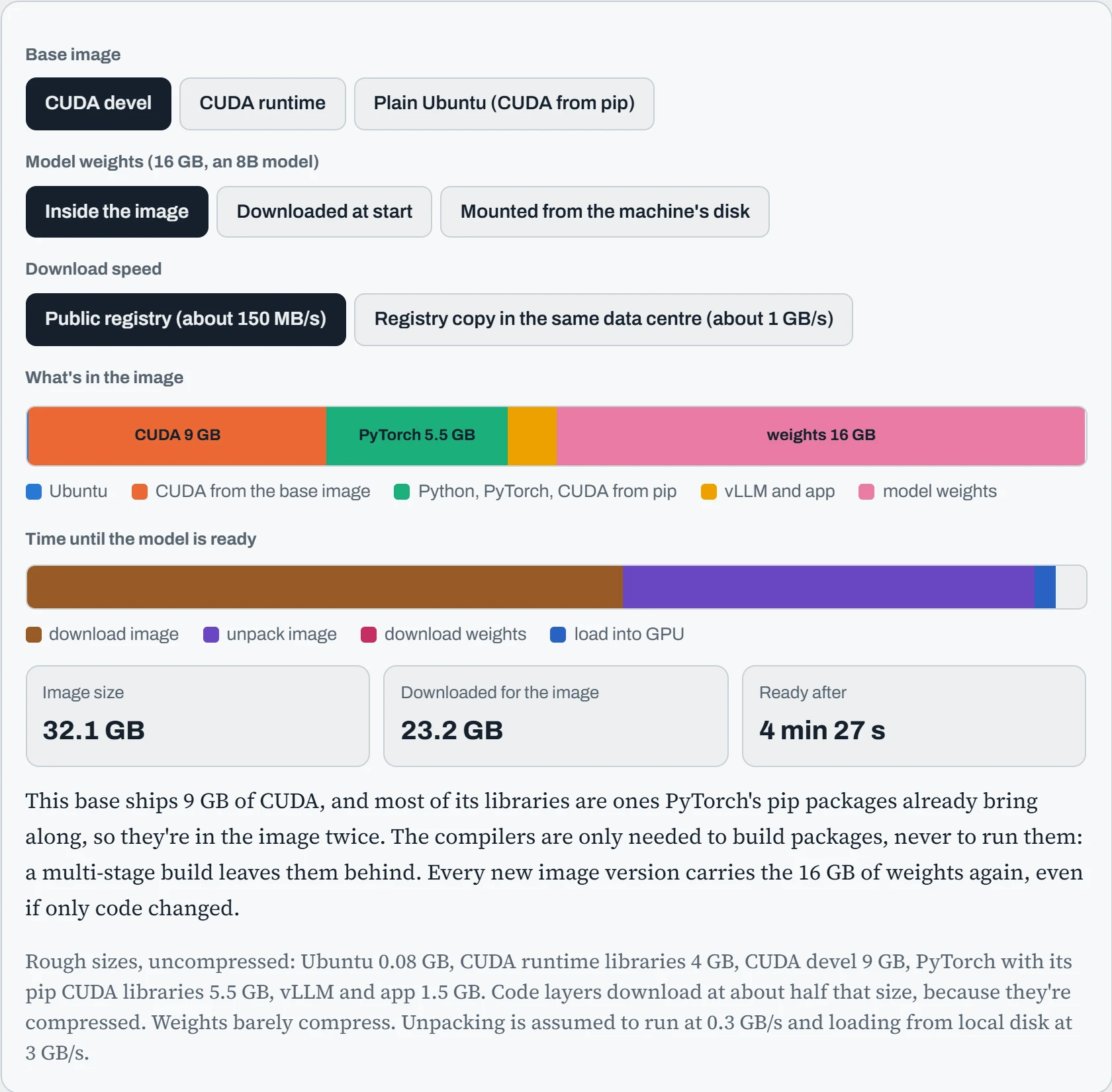
The default, a devel base with the weights baked in, is about 32 GB, and takes about four and a half minutes to be ready. A plain Ubuntu base with weights mounted from the machine's own disk is about 7 GB, and ready in under a minute. Nothing about the app changed.
Each weight option has a catch. Baking weights in makes every image version 16 GB bigger, even when only code changed. Downloading at start depends on an outside service being fast and up at the moment you need to grow. Mounting from local disk is fastest, but something has to put the weights there first, like a job that copies them onto every node ahead of time, or a shared network file system. Most production setups end up there: code in the image, weights alongside it.
Building images well
An image is built from a recipe called a Dockerfile. Each instruction makes one layer. Two ideas make AI images small and fast to rebuild.
The first is a multi-stage build. Some Python packages, like flash-attn, have to be compiled against CUDA, so they need the big devel image with its compilers. But only the result of compiling needs to ship. So you build in one stage and copy only the finished files into a slim second stage. The compilers stay behind.
# ---- stage 1: build. Has compilers, never shipped ----
FROM nvidia/cuda:12.8.1-devel-ubuntu24.04 AS build
RUN apt-get update && apt-get install -y --no-install-recommends python3-venv python3-dev git \
 && rm -rf /var/lib/apt/lists/*
RUN python3 -m venv /opt/venv
ENV PATH=/opt/venv/bin:$PATH
COPY requirements.lock .
RUN pip install --no-cache-dir -r requirements.lock

# ---- stage 2: what actually ships ----
FROM ubuntu:24.04
RUN apt-get update && apt-get install -y --no-install-recommends python3 \
 && rm -rf /var/lib/apt/lists/*
COPY --from=build /opt/venv /opt/venv
ENV PATH=/opt/venv/bin:$PATH
WORKDIR /app
COPY src/ ./src/
# don't run as root (a # comment must sit on its own line in a Dockerfile)
USER 1000
CMD ["python", "-m", "src.serve"]
Read it in two halves. Stage 1 starts from the big devel image and fills a folder, /opt/venv, with every Python package. Stage 2 starts again from plain Ubuntu, adds only Python itself, and copies that one finished folder across. The compilers and the rest of the devel image never leave stage 1. This works because both stages are Ubuntu 24.04 with the same Python 3.12, so the copied folder finds the Python it was built for.
The second idea is layer order. When you rebuild, Docker reuses every layer whose instruction and inputs haven't changed, until it reaches the first one that has. From then on, everything is rebuilt. So put what changes rarely at the top (the base, system packages, Python packages) and what changes every day at the bottom (your code). Edit one line of src/ and look at the rebuild:
$ docker build -t llm-serve:1.4.3 .
 => CACHED [build 2/5] RUN apt-get update && apt-get install -y ... 0.0s
 => CACHED [build 5/5] RUN pip install --no-cache-dir -r requirements.lock 0.0s
 => CACHED [stage-1 3/5] COPY --from=build /opt/venv /opt/venv      0.0s
 => [stage-1 5/5] COPY src/ ./src/                                  0.1s
 => exporting to image                                              1.9s
Two seconds instead of twenty minutes. And because the big layers didn't change, machines that already have version 1.4.2 only download the small new layer. Had COPY src/ come before pip install, every code change would rebuild and re-send all 5.5 GB.
A few more habits keep builds repeatable, meaning the same recipe gives the same image next month:
- Pin exact versions.
requirements.locklists every package at an exact version, ideally with checksums (uv pip compile --generate-hashesorpip-compile --generate-hashesmake one). A loosetorch>=2.6quietly gives you a different PyTorch on the next build. - Pin the base image by digest. A tag like
ubuntu:24.04can point to a different image tomorrow. A digest (ubuntu:24.04@sha256:…) is a fingerprint of the exact image's contents, and never changes. - Build for both chip types if you need to. Grace and Graviton servers use ARM chips (arm64), not Intel or AMD ones (amd64).
docker buildx build --platform linux/amd64,linux/arm64builds one image name that works on both. Each machine pulls its own version automatically.
Predict. Using the two-stage recipe above, you add one small Python package to requirements.lock and rebuild. Which steps run again, and how much does a machine that already has the old image download?
Answer. The pip install step runs again, and so does everything after it in both stages: copying the virtual environment, then copying src/. The surprise is the download. The whole /opt/venv folder is copied as one layer, so a one-package change makes a brand new 5.5 GB layer. Every machine downloads all of it again, about 2.7 GB compressed.
A layer is all or nothing. If the big, slow-changing packages (PyTorch and its CUDA libraries) live in their own layer, and the small fast-changing ones in a later layer, then a small change only re-sends the small layer. Splitting your environment along the lines of “how often does this change?” pays off every single release.
Settings that matter at run time
Back to the bus error. The picture shows how a PyTorch data loader uses shared memory. Workers on the right each prepare a batch and write it into /dev/shm in the middle. The training process on the left reads it from there, without copying it. By default each worker keeps two batches ready ahead of time (prefetch_factor=2), so with four workers, up to eight batches sit in shared memory at once.
Each block in the middle is one 38 MB batch, drawn to scale. The dashed pink line is Docker's 64 MB default.
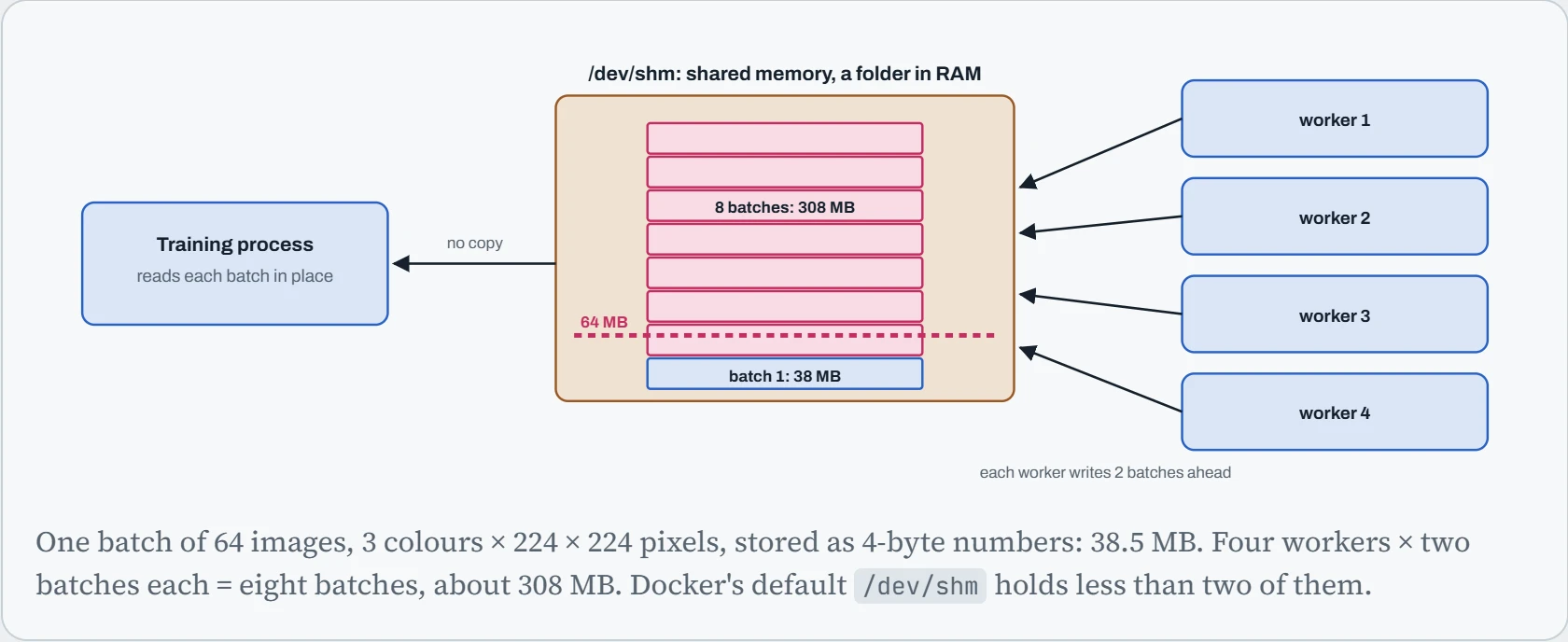
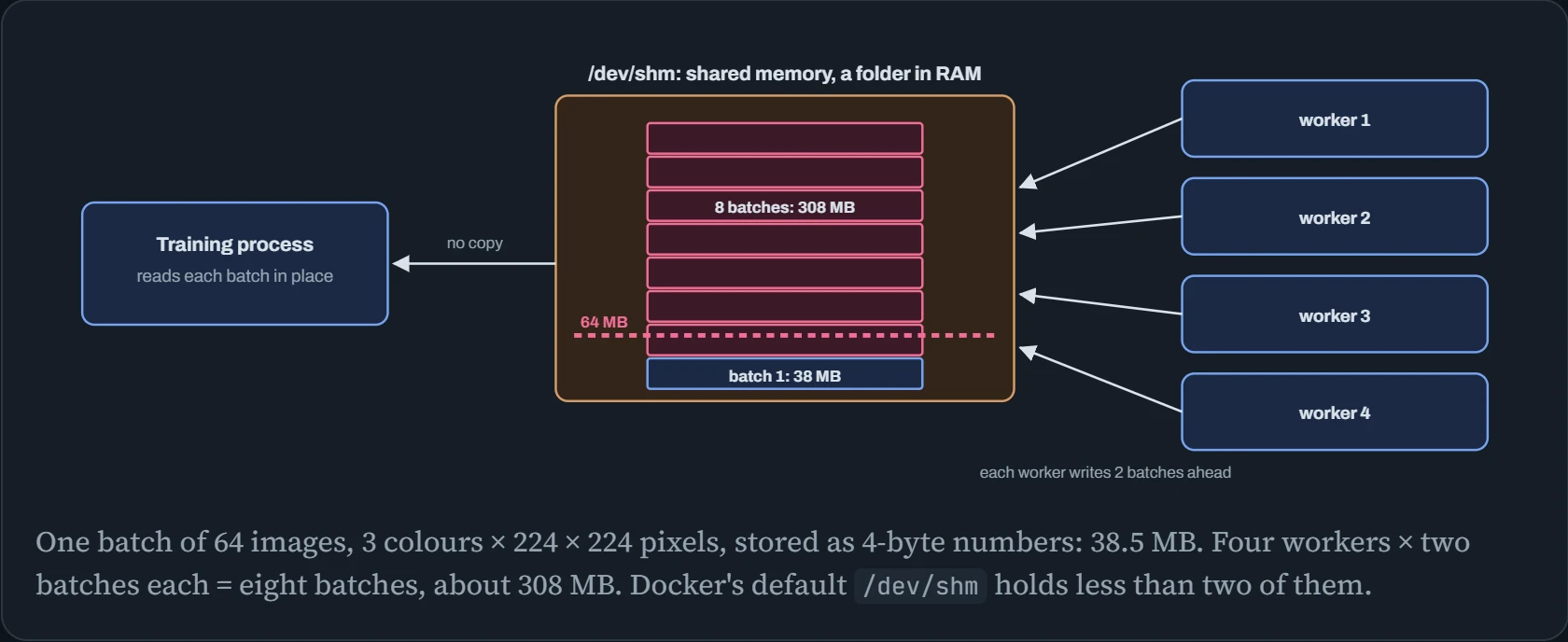
Batch one fits. Batch two crosses the line, and the worker writing it is killed. So the fix is to make /dev/shm bigger than the most data that can be waiting in it, with room to spare. /dev/shm only uses RAM for what's actually stored in it, so a generous size costs nothing until it's used. NCCL, the library that moves data between GPUs during multi-GPU training, also uses /dev/shm to pass data between GPUs in the same machine when they can't talk directly, so multi-GPU jobs need it too.
Here are the run-time settings worth knowing, with the reason for each:
| Setting | What it changes | When you need it |
|---|---|---|
--shm-size=16g | The size of the container's /dev/shm | Any PyTorch data loader with workers, and multi-GPU jobs. The clean fix for the bus error |
--ipc=host | Uses the host's /dev/shm (and its other sharing tools) instead of a private one | The quick fix NVIDIA's own containers suggest. It weakens isolation, so avoid it on shared machines |
--ulimit memlock=-1 | Lets the app lock as much memory in RAM as it wants, so the system can't move it or push it out to disk | RDMA networking like InfiniBand, where the network card reads and writes your memory directly (Down the Wire), which needs memory that stays put |
--ulimit stack=67108864 | Raises the stack (each thread's scratch space for function calls) from the usual 8 MB to 64 MB | NVIDIA recommends it, with the two above, for its NGC framework containers |
--cpuset-cpus, --cpuset-mems | Which CPU cores and which memory bank the container may use | Keeping a GPU's process on the CPU socket nearest that GPU (Down the Profiler) |
--gpus '"device=0,1"' | Which GPUs the container sees | Several containers sharing one machine |
Continue the lesson
The whole lesson, with its drawings and its questions. The rest of this section and 5 more after it.